
When you try to back up your Eagle library, if you encounter copy-paste failures (progress bar flashes briefly with no folder generated), this may be caused by the following reasons:
- The library's .library file may be occupied by other applications
- Your device's system environment settings may restrict file operation permissions
Solution
You can resolve this issue by compressing the files:
- Package the library into a zip file
- Locate the problematic library folder
- Package the entire folder into zip format (no actual compression needed)
- Use "Store" level to speed up packaging
-
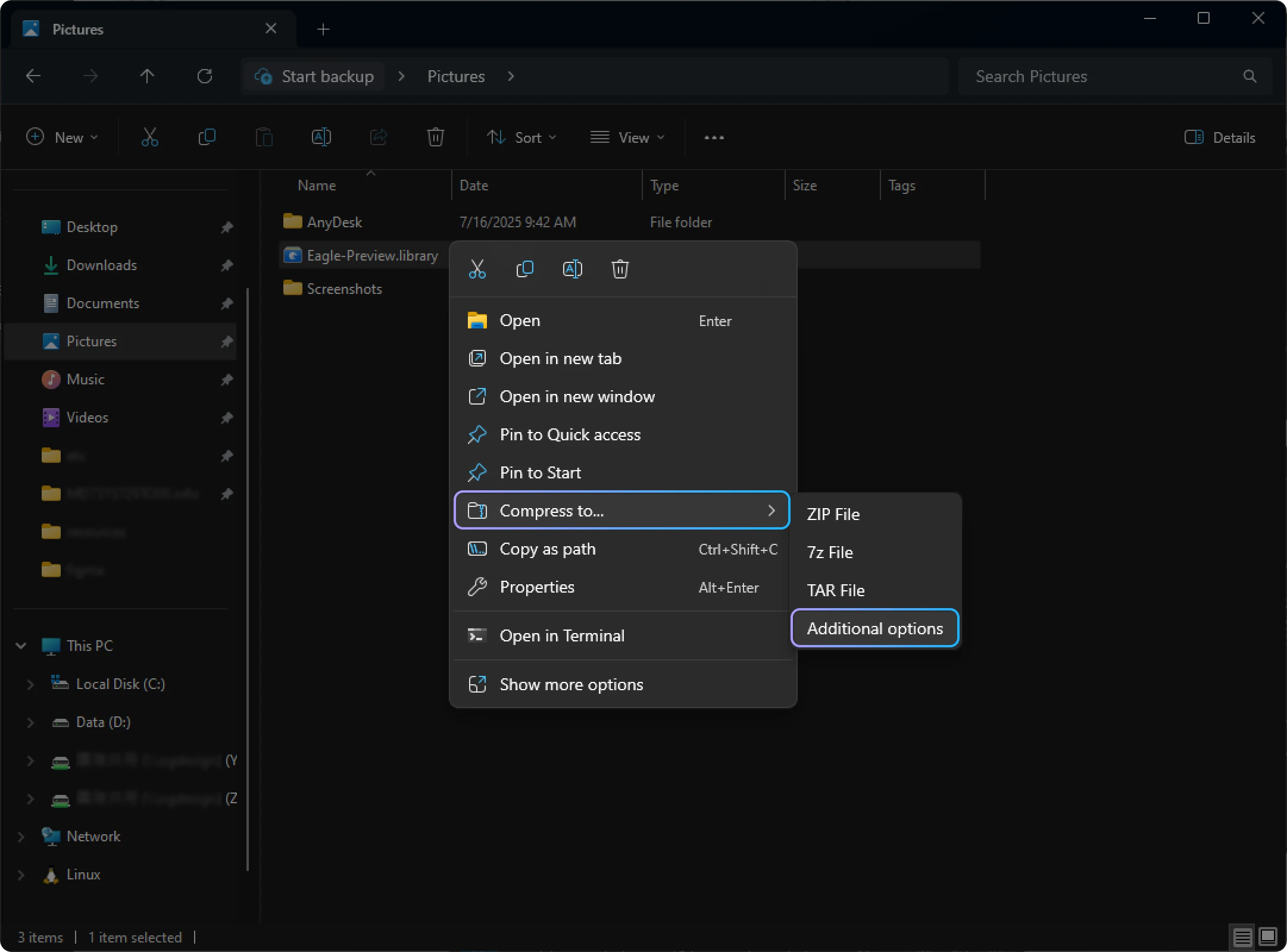
Right-click on the library in your file manager
-
Select "Add to archive"
-
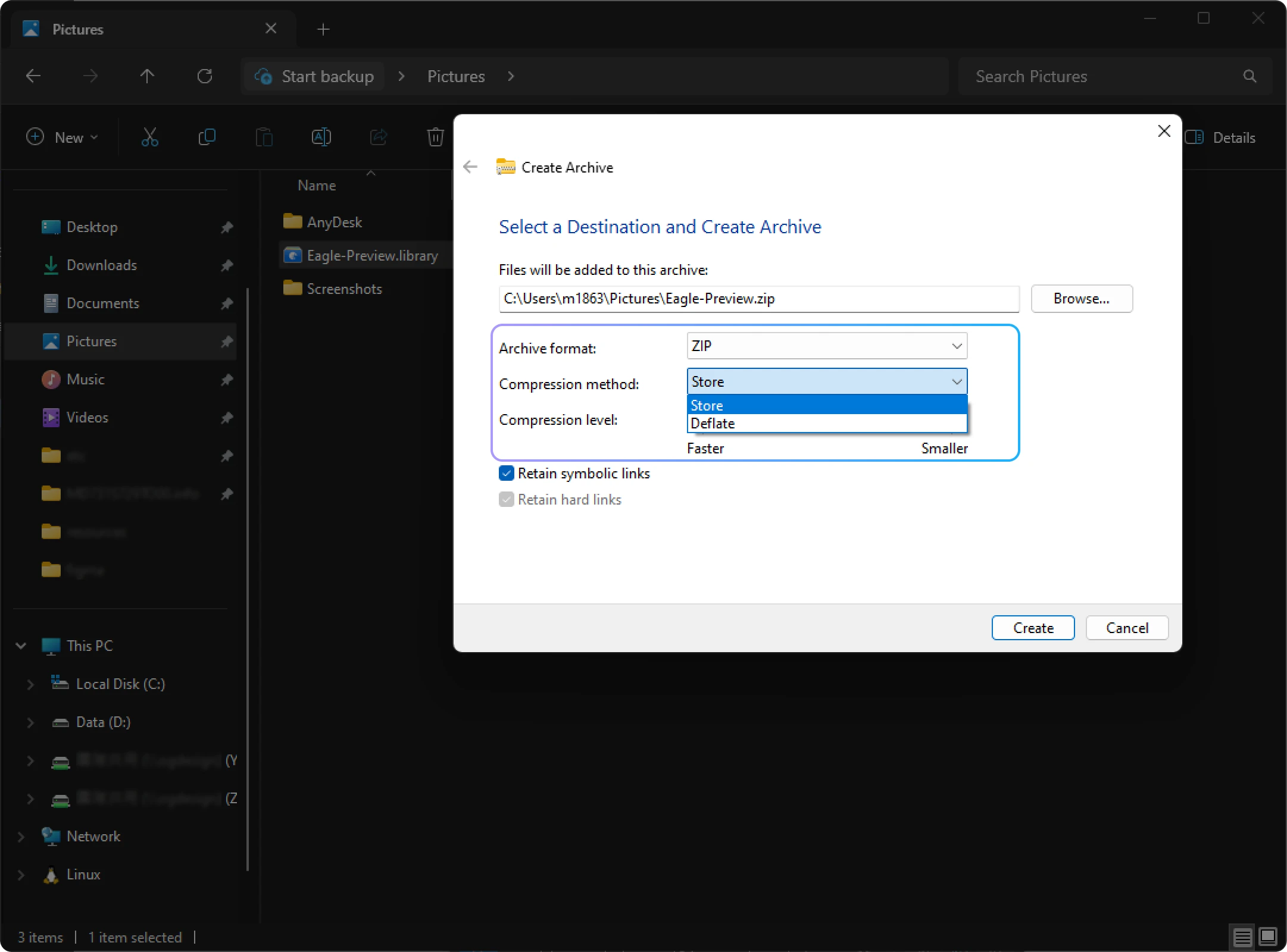
In the popup window, select compression format as "zip"
-
Choose compression method as "Store" (package only, no compression)
-
- Transfer and extract the file
- Copy the generated zip file to the target drive (such as D drive)
- Extract the file at the target location
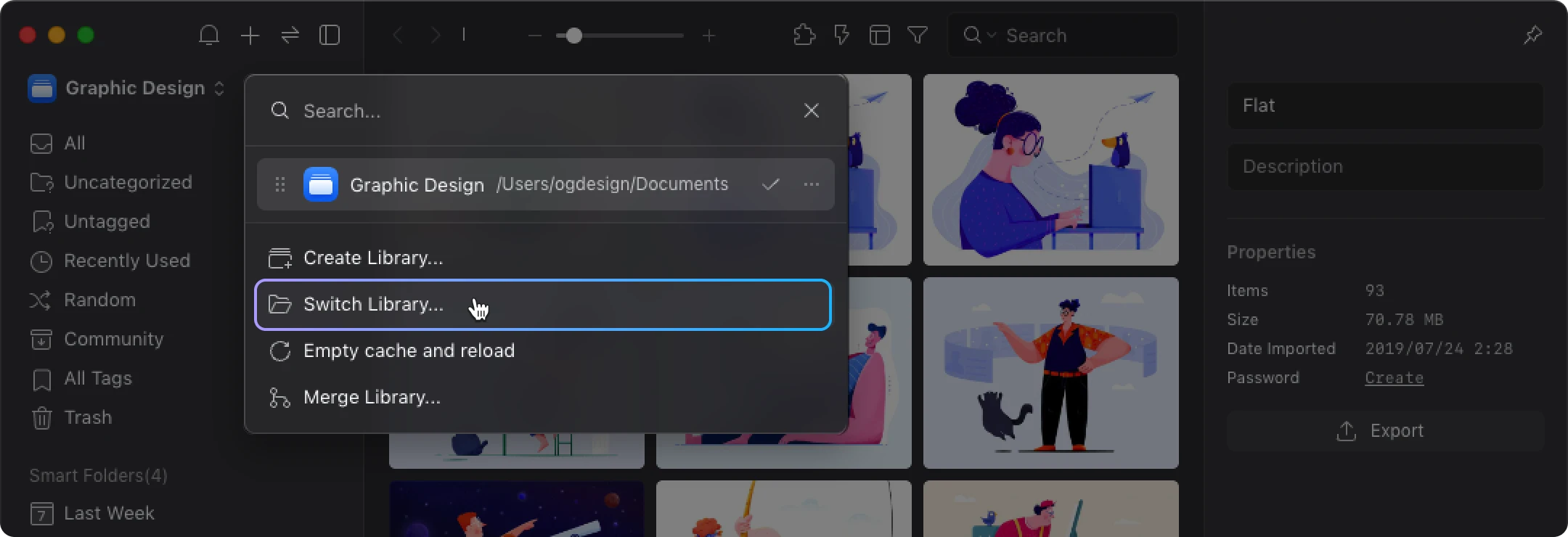
- Reload the library
- Reload the library from the new location in Eagle
- Confirm that all data and content are complete and intact
- Reload the library from the new location in Eagle