
Overview
When you need to free up disk space, organize files, or share materials with others, you may need to move your Eagle library to another location on your device. This article will guide you through how to safely complete this operation.
Steps to Move Your Library
Since moving a library is an important operation, please follow these steps carefully:
-
Close Eagle software normally
-
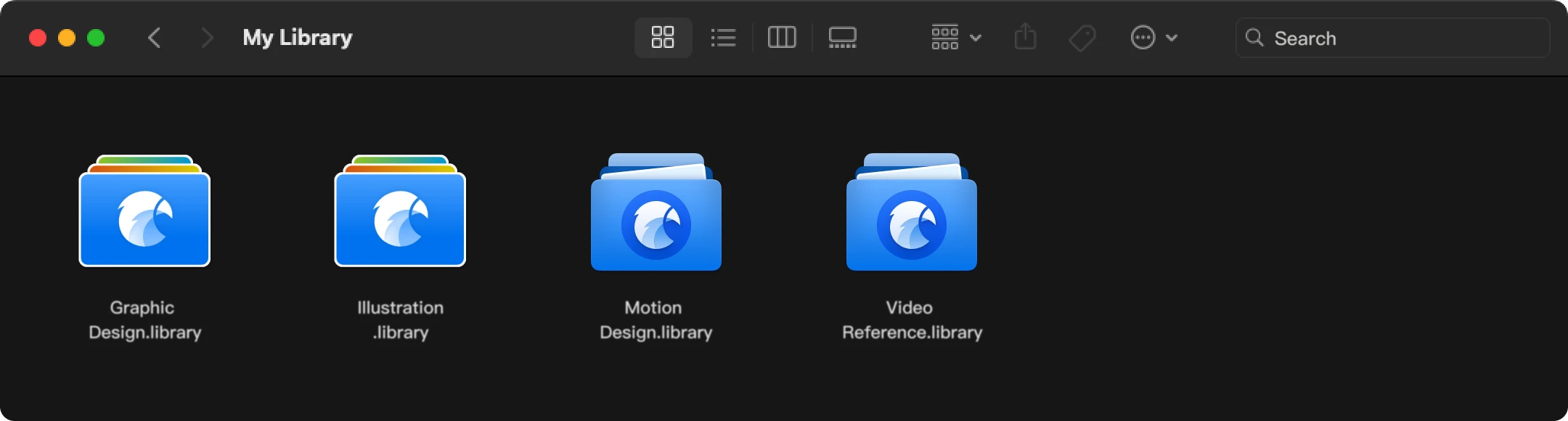
Navigate to your current library storage location and find the library file named
xxx.library -
Select the entire library file, perform a copy operation, then paste it to the new storage path (refer to How to backup Eagle data)
-
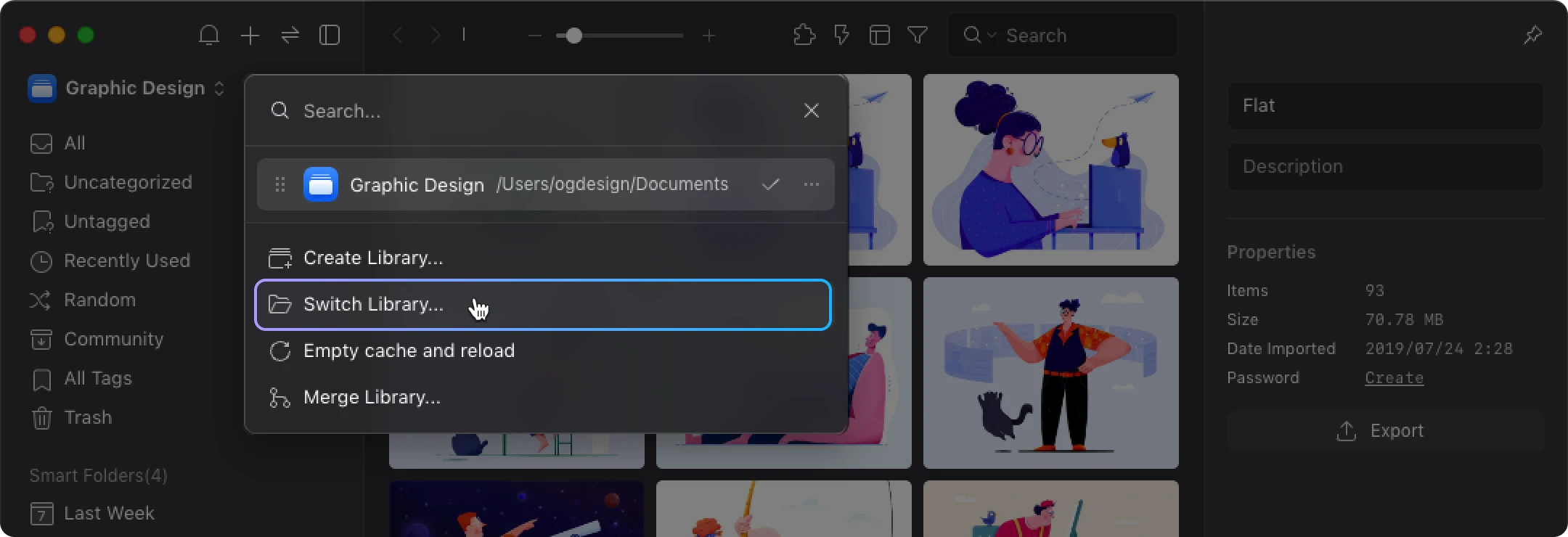
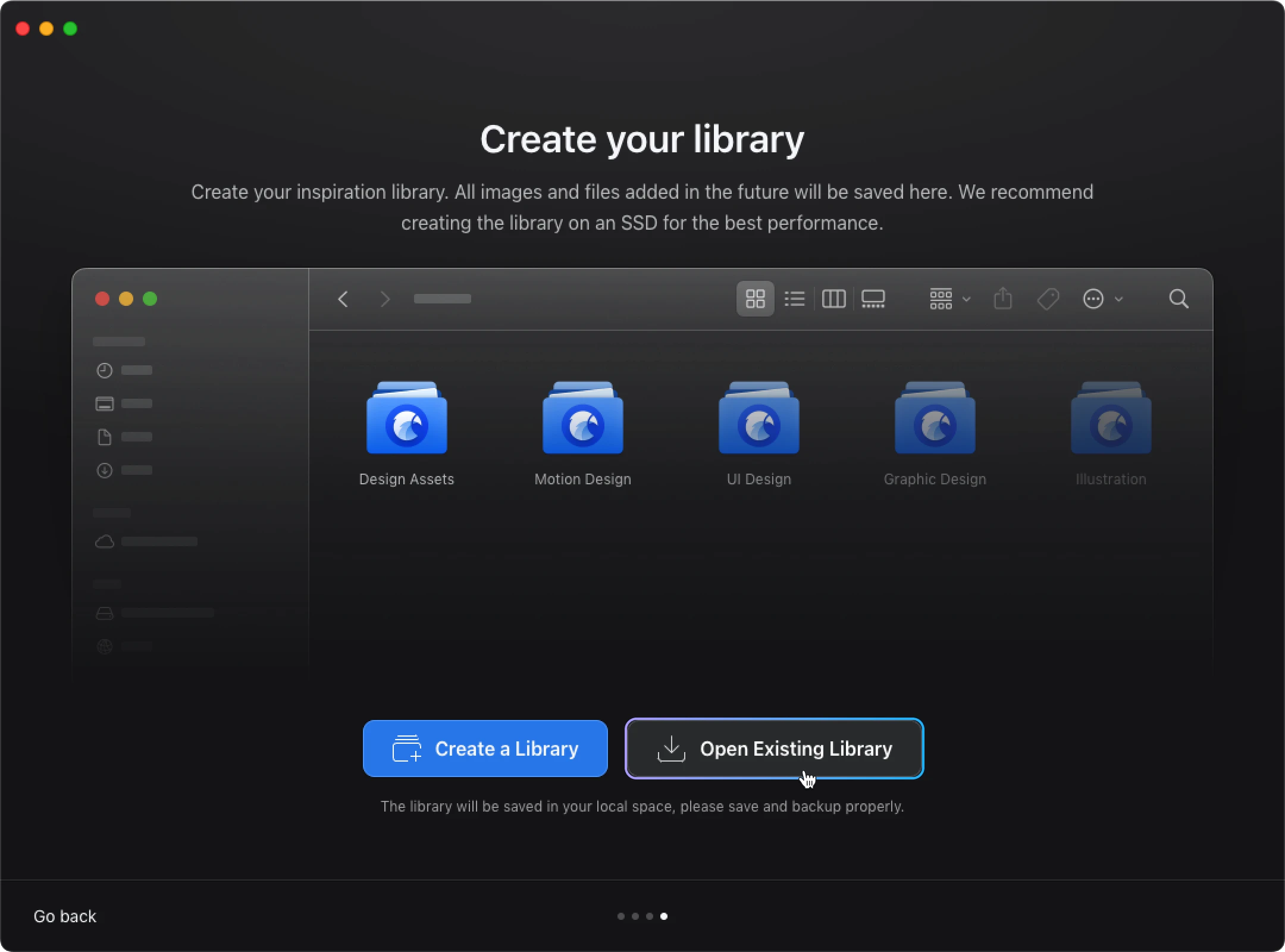
Restart Eagle software, select "Library" > "Switch Library" from the menu, navigate to the new path and reload the copied library
-
Confirm that the data is complete and functioning normally
Important Notes
- We recommend using "copy/paste" instead of "move" operations to prevent unexpected issues with the system, services, or hard drive during the process, and to allow recovery using the original files if needed
- After completing the changes, please first confirm in the software that all files and data have been completely transferred and are functioning normally
- After confirming that the new library is working properly, you can decide whether to keep the library at the original path as needed