
Eagle offers convenient ways to capture video frames during playback, allowing you to collect visual references without interrupting your workflow. This guide explains how to take screenshots from both external video players and Eagle's built-in player.
Screenshots from External Video Players
You can use Eagle's built-in screenshot function available in the global environment:
- Open Eagle and go to "Preferences", then select the "Shortcuts" section
- Find "Screen Screenshot", "Window Screenshot", or "Full Screen Screenshot" in the list
- Set up your preferred keyboard shortcuts for each function
- Click "Save Settings" when done
After setup, while Eagle is running, you can access these screenshot functions from the system menu:
-
Windows
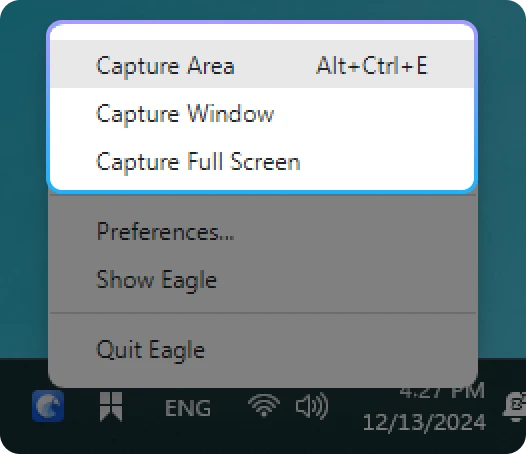
-
macOS
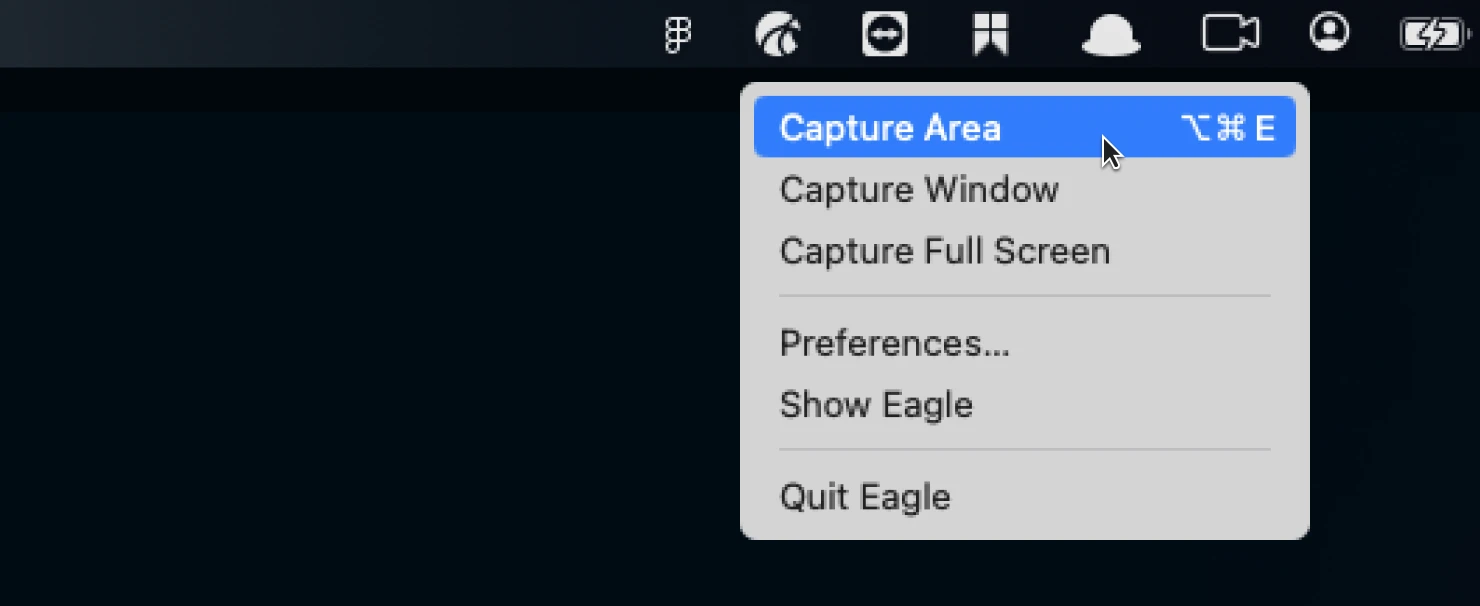
With these shortcuts configured, you can play videos in any player and press your designated shortcuts to capture the current frame and save it directly to Eagle. Your captured screenshots will be available in the "All Items" page within Eagle.
Screenshots from Eagle's Built-in Video Player
To capture screenshots while watching videos directly in Eagle:
- Double-click the video file or press
Enterto enter the video's detail view - When you reach the frame you want to capture, pause the video
- Right-click to open the context menu
- Choose one of these options:
- "Copy Current Frame" (Shortcut:
Shift+C), then paste withCtrl+V - "Save Current Frame" (Shortcut:
Shift+S) to save directly
To find your recently captured frames, go to an empty area in the "All Items" list, right-click to open the sorting menu, and select "Creation Date" in ascending order. Your screenshots will appear in the upper left corner of the "All Items" list.
Key Points to Remember
- Eagle must be running in the background for the global screenshot shortcuts to work
- For the best quality, pause the video at the exact frame you want to capture
- You can organize your video screenshots into collections for better management