
Overview
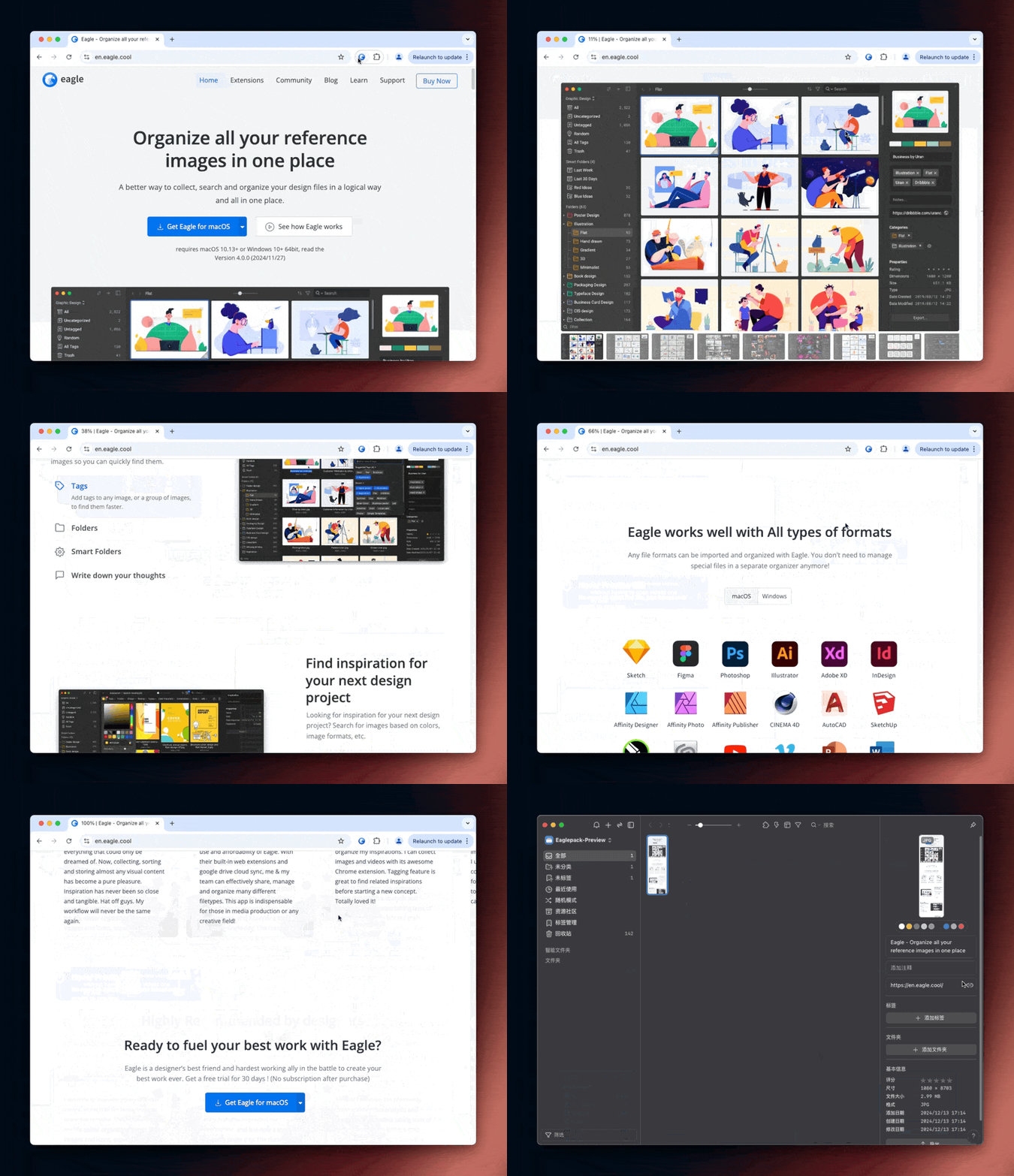
Eagle provides two convenient methods for capturing long screenshots of webpages, allowing you to save entire web content for reference and inspiration.
Screenshot Methods
Full Page Screenshot
- Click on the extension's Full Page Screenshot feature to capture the entire webpage from top to bottom in one image.
Area Screenshot
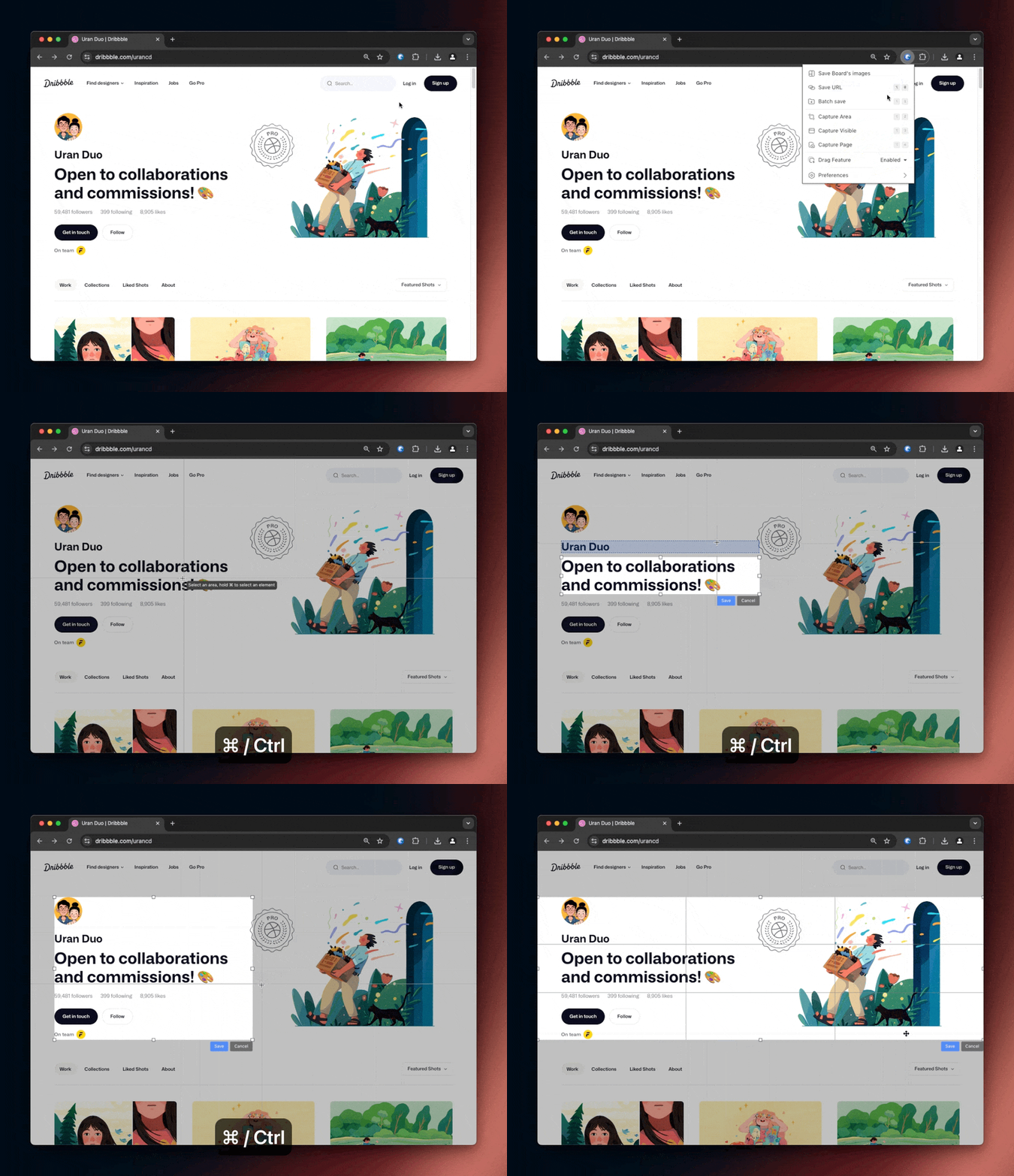
- Click on the extension's Area Screenshot option
- Use your mouse scroll wheel to navigate down to include your desired content range
- Click Save when you've selected the complete area you want to capture
Key Points to Remember
- Both methods work with the Eagle browser extension
- Full Page Screenshot is ideal for capturing entire articles or pages
- Area Screenshot gives you more control over exactly what content to include
- Screenshots are automatically saved to your Eagle library for organization