
When viewing images in Eagle, you may want images to automatically adjust to the optimal display effect based on the window size. This article will introduce how to set up space key preview mode to make images automatically fill the screen height.
Setup Method
You can set up adaptive image display through the following three methods:
1. Adjust through Preferences
- Open the software menu, select Preferences > Viewer
- Check [Smart Zoom] in the default image size options
- Save Changes
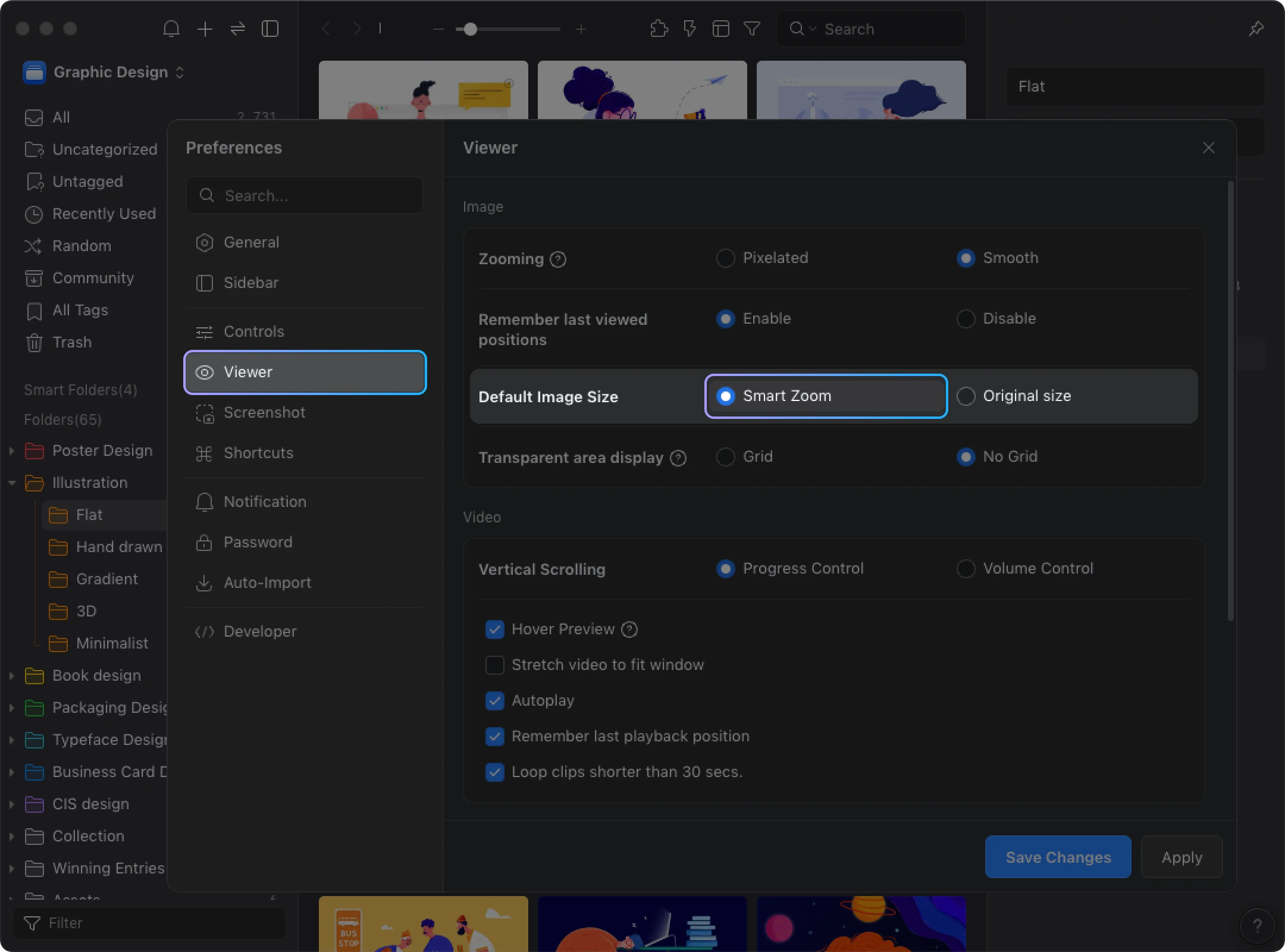
After completing the setup, when you use "Space Preview" or double-click an image to enter "Large Image Mode", the software will automatically adjust the image size to achieve the optimal display effect.
2. Set from "Detail Mode"
- Double-click an image to enter "Detail Mode"
- Click the "Fit to Window" icon in the top toolbar

After completing this setup, whether in "Detail Mode" or "Space Preview", images will automatically scale to the most suitable size.
3. Use Keyboard Shortcuts
In "Space Preview" mode, press the ` key above the Tab key on your keyboard to quickly enable or disable the smart judgment function.
Notes
- The smart judgment function will automatically adjust the optimal display ratio based on image dimensions and window size
- This setting will apply to all image preview methods
- You can temporarily switch display modes using shortcuts at any time