
Introduction
Although Eagle currently doesn't provide an "all folders view" feature, you can set folder covers to better identify and organize your folders. Custom folder covers can help you quickly recognize the content of different folders and improve work efficiency.
Steps to Set Folder Covers
To set a custom cover for a folder, please follow these steps:
- Open and enter the folder you want to set a cover for
- Find the image you want to use as the cover in the folder
- Right-click on the image and select "Set as Folder Cover" from the context menu
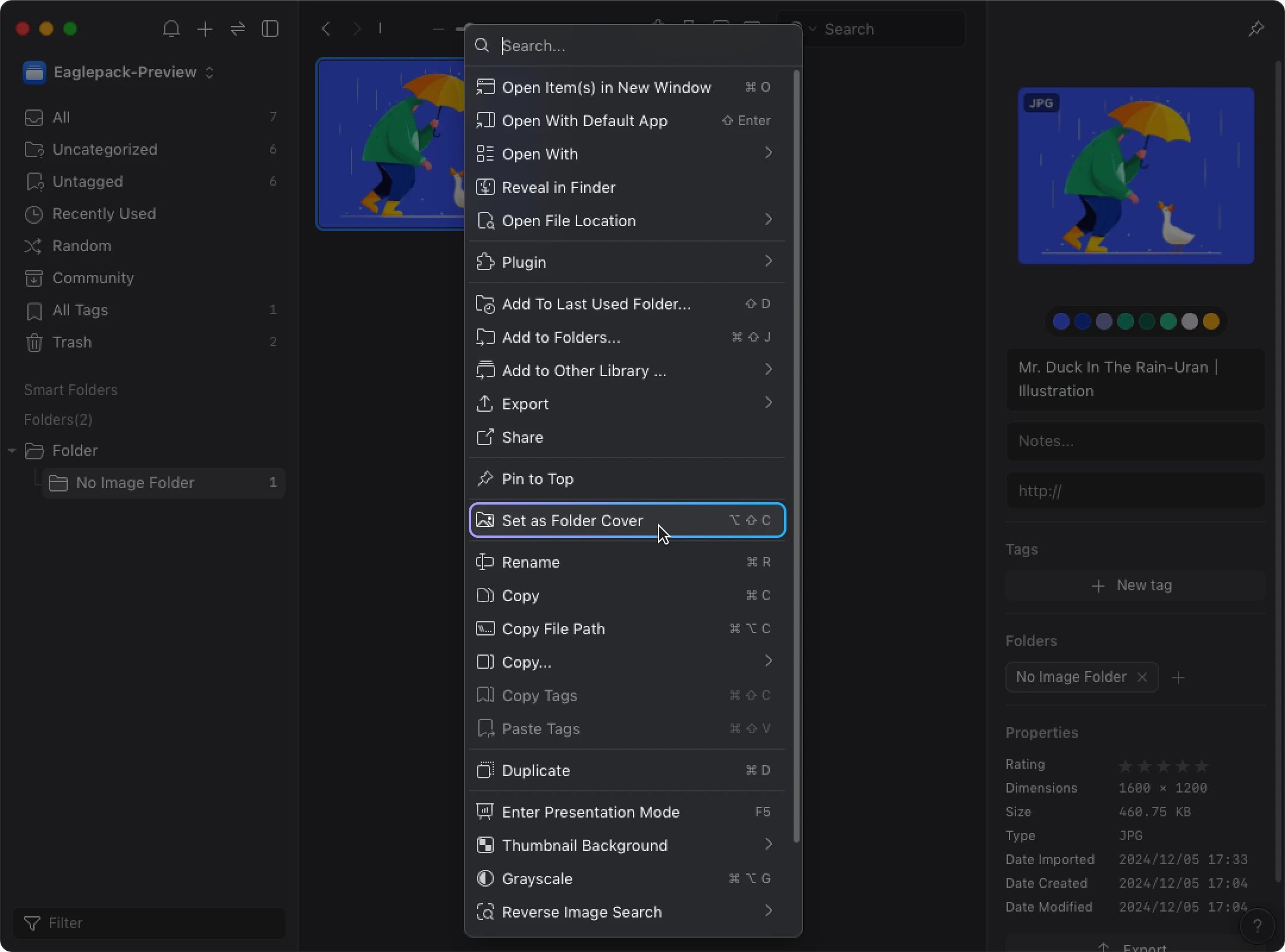
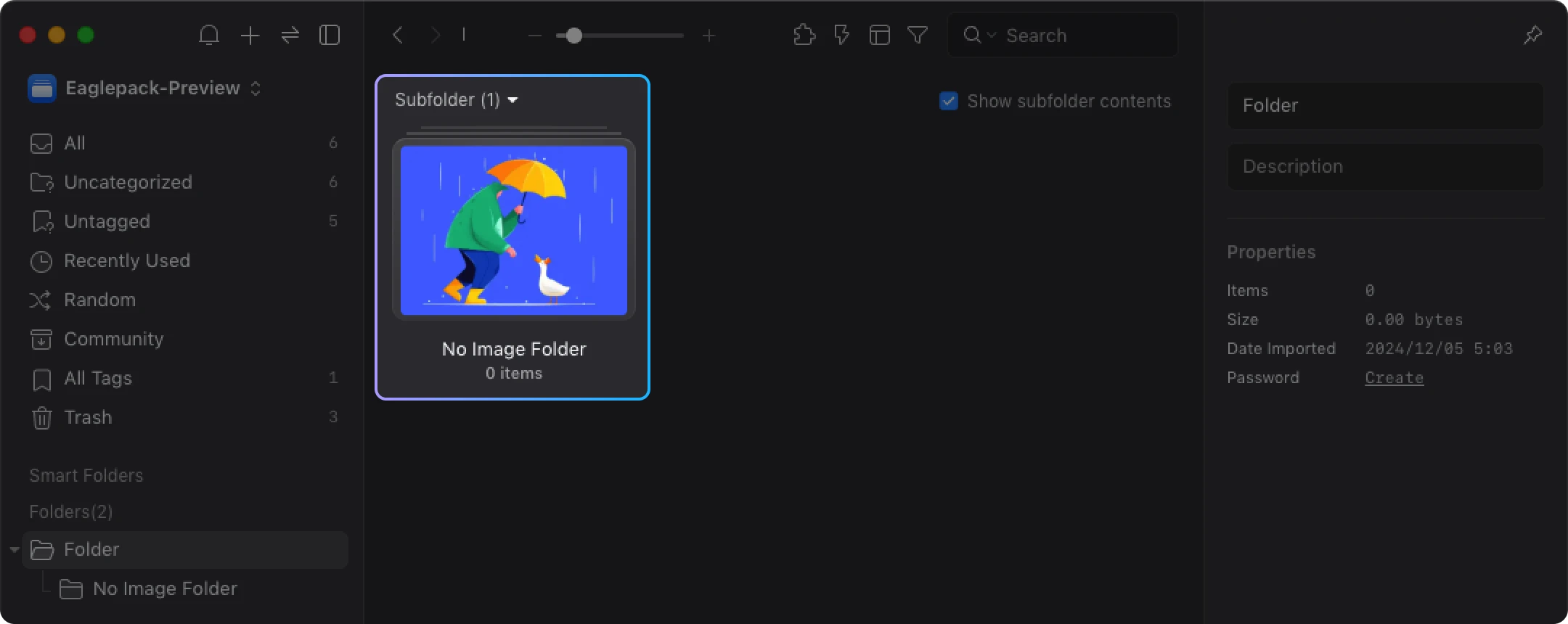
You can also use the keyboard shortcut: Alt / Option + Shift + C
Important Notes
- Setting folder covers is an alternative method to the "all folders view" feature
- Folder covers can be changed at any time, and choosing representative images can help you identify folder contents more intuitively
- Only image files can be set as folder covers