
In Eagle, even when a folder contains no files, you can still set a beautiful cover image for it to help you better organize and identify folders. This article will guide you through this process.
Steps to Set an Empty Folder Cover
To set a cover image for an empty folder, please follow these simple steps:
-
First, add the image you want to use as the cover to the empty folder
-
Open the image in the folder, then right-click on it
-
Select "Set as Folder Cover" from the right-click menu, or use the shortcut key
Alt/Option+Shift+C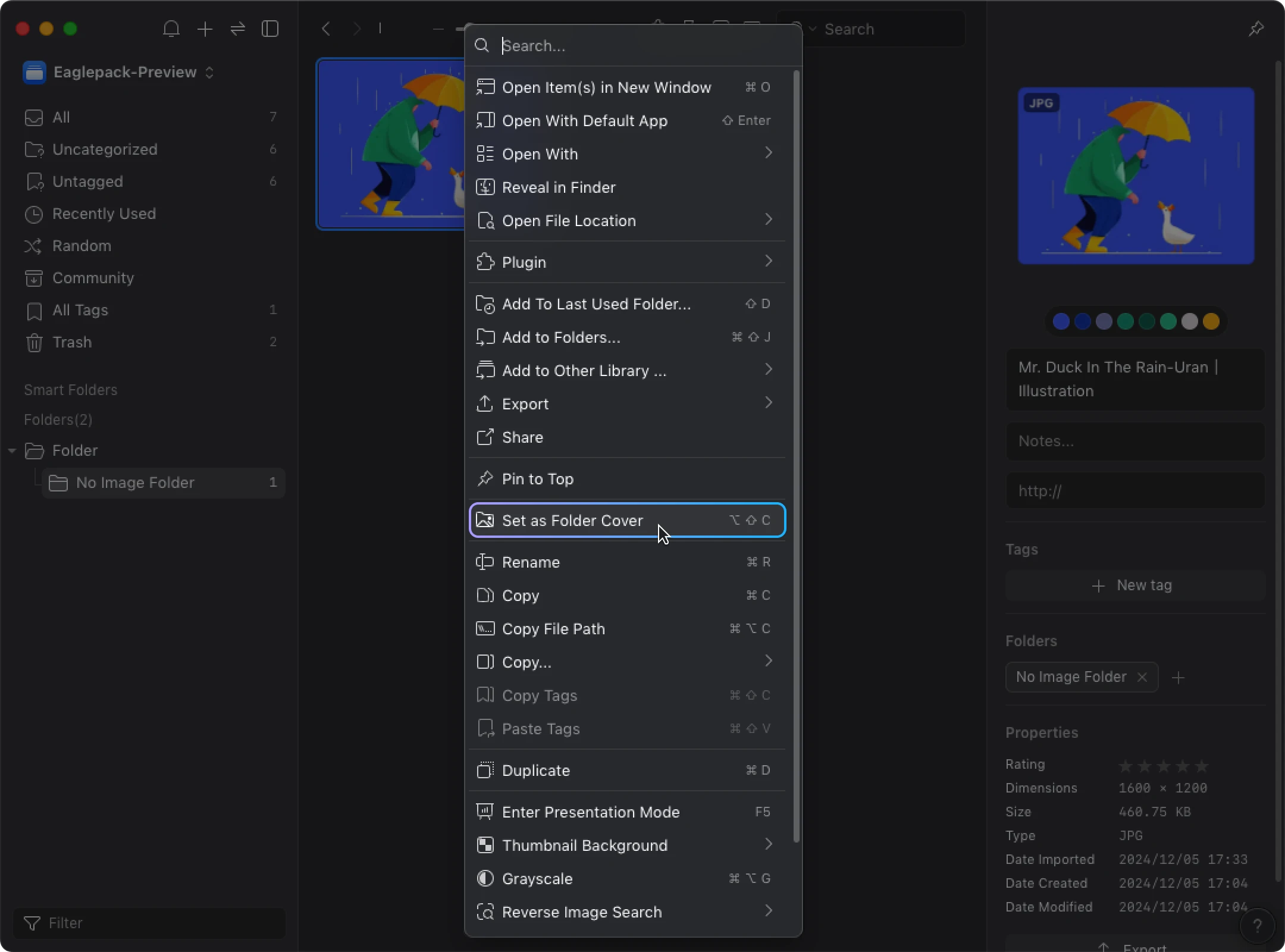
-
After setting is complete, remove the image from the folder (you can move it to another folder or delete it directly)
-
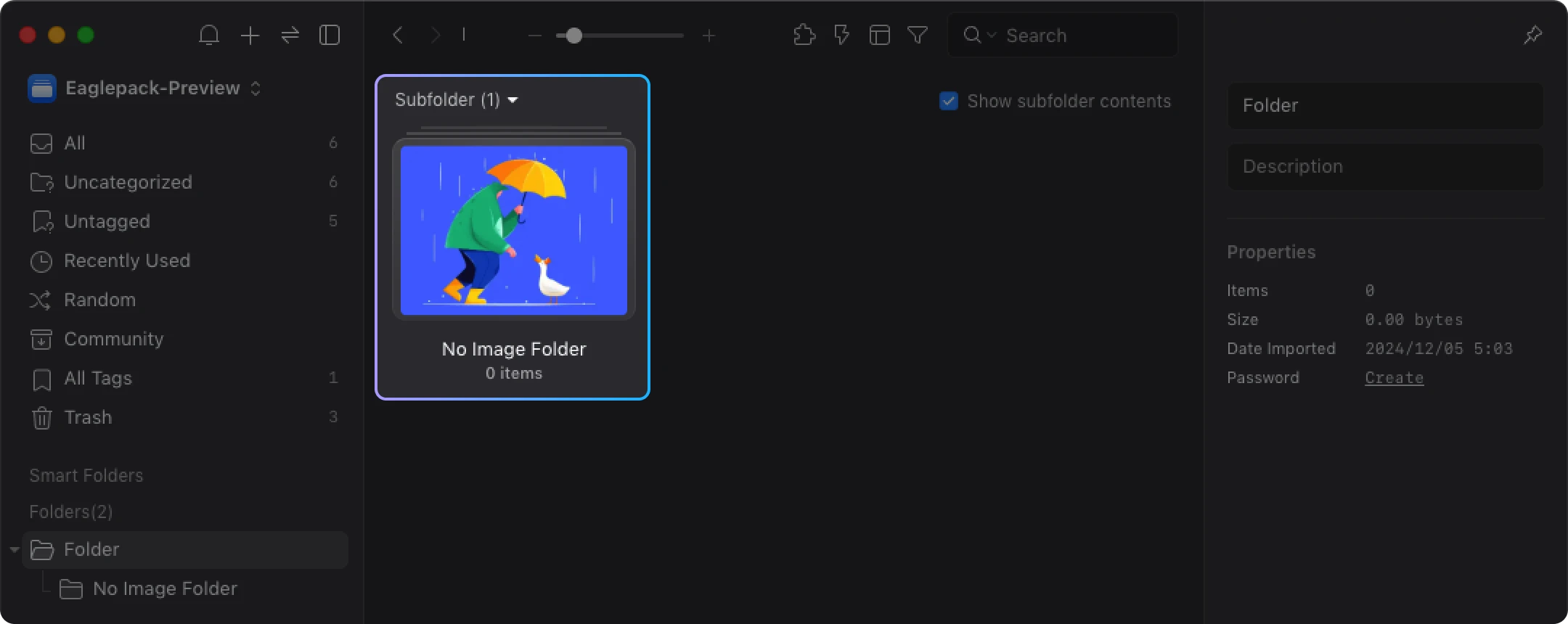
Now your folder remains empty while having a custom cover image
Important Notes
- The folder cover image will display on the folder thumbnail, helping you more intuitively identify folder contents
- You can change the folder cover at any time by adding a new image and repeating the above steps