
In Eagle, when you need to quickly find a specific folder, the software provides two convenient methods to help you navigate efficiently.
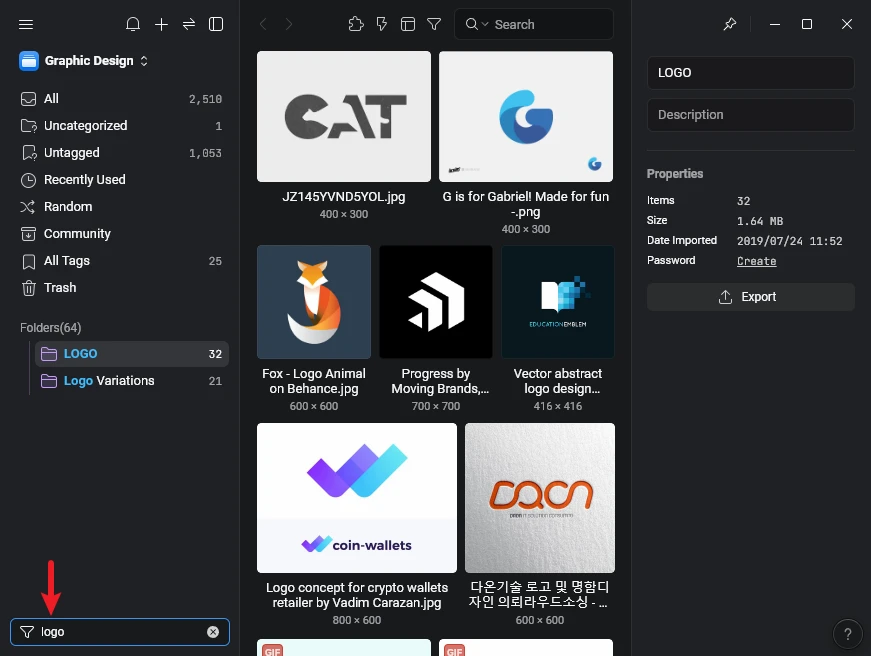
Method 1: Using the Search Function in the Bottom Left Corner of the Interface
- Open the Eagle software and locate the bottom left corner of the interface
- Enter the name of the folder you want to find in the search box
- The system will automatically filter matching folders, and you can directly select the desired folder from the search results
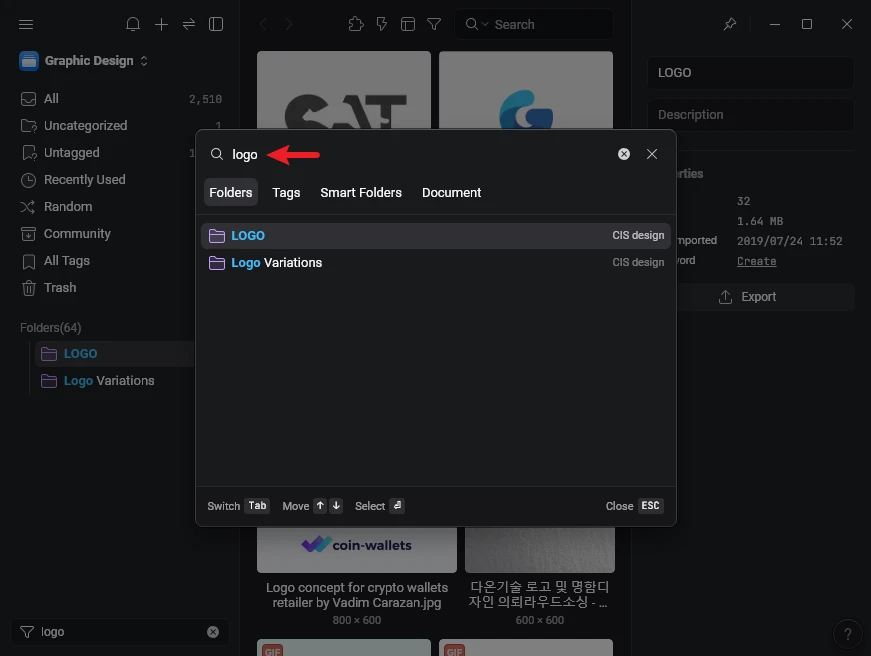
Method 2: Using the "J" Shortcut Key to Jump
- From anywhere in the Eagle interface, directly press the "J" key on your keyboard
- After pressing the shortcut key, a search input box will pop up
- Enter the name of the folder you want to jump to in this input box
- Once the search results appear, click to jump to the specified folder location
Important Notes
- The search function supports partial matching, so you don't need to enter the complete folder name
- Searches are case-insensitive, improving search efficiency
- Using the "J" shortcut key allows for quick jumping in any view, enhancing work efficiency