
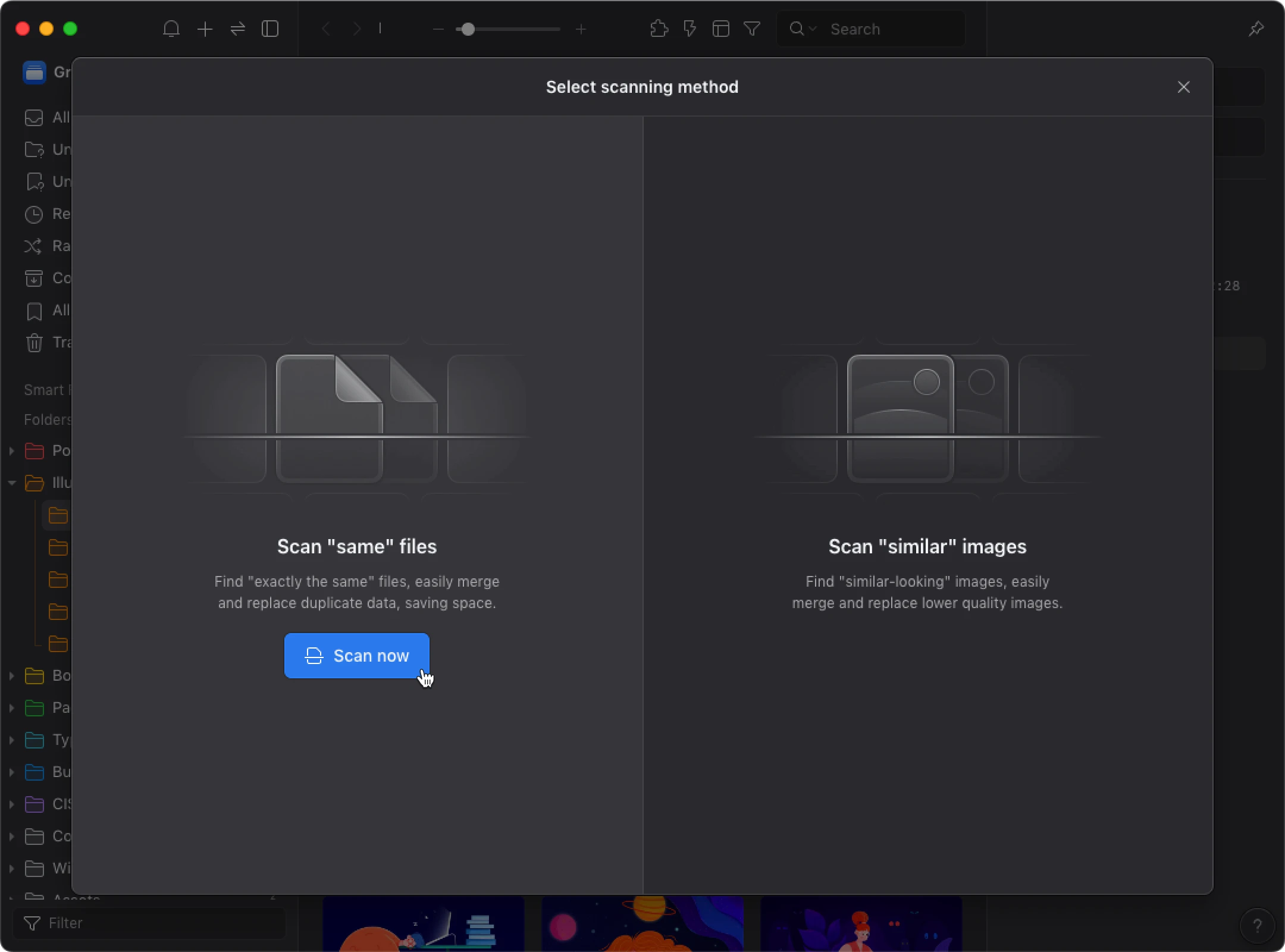
Eagle's duplicate file scanning tool provides two modes to help you effectively manage your image library and save storage space. Whether you need to find completely identical files or visually similar images, both can be easily accomplished.
Introduction to Two Scanning Modes
Starting from Eagle 4.0, we have divided the scanning functionality into two modes to meet different user needs:
- Scan Same Files - Find completely identical duplicate files
- Scan Similar Images - Discover images with similar visual content but different formats or resolutions
Scan Same Files
Suitable for situations where you need to find completely identical files. This mode ensures that only perfectly matching files are identified as duplicates.
- Open the "Find Duplicated Items" tool
- Click the "Scan same Files" option on the left side of the interface
- Follow the prompts to complete scanning and cleanup
Scan Similar Images
Suitable for finding images that are visually similar but may differ in resolution, format, and other aspects.
- Open the "Find Duplicated Items" tool
- Click "Scan Similar Images" on the right side of the interface
- Click the "Start Scan" button
- After scanning is complete, adjust the similarity threshold using the slider in the bottom right:
- Slide right to increase similarity requirements and reduce the number of similar files displayed
- Slide left to decrease similarity requirements and increase the number of similar files displayed
- Click "Next" after adjusting
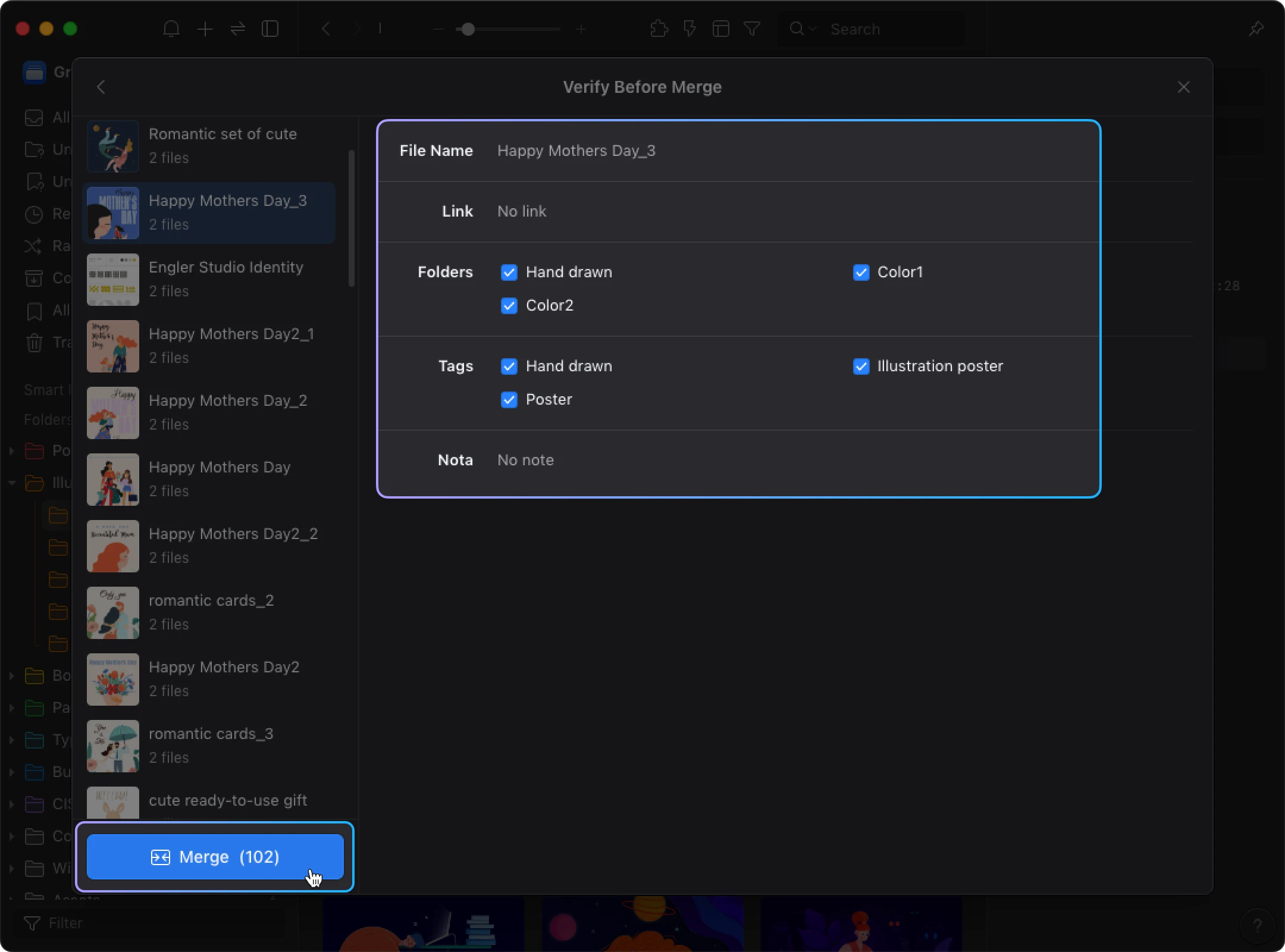
- Select the file attributes you wish to retain (filename, links, categories, tags, and comments)
- Click "Merge" to complete the operation
Important Notes
- The "Scan Similar Images" feature uses complex algorithms, and the scanning process may take a considerable amount of time. Please be patient
- Before merging, it's recommended to carefully review similar image groups to ensure you won't accidentally delete different versions that need to be retained
- For important materials, it's advisable to create backups before large-scale cleanup operations