
When you double-click Eagle.exe and nothing happens, and you see the Eagle process briefly appear and disappear in Task Manager, this may be caused by Winsock protocol configuration issues. This article will guide you on how to resolve this problem by resetting the Winsock catalog.
Problem Cause
Eagle startup failure may be related to abnormal Winsock protocol configuration on your computer. This network connection issue is usually caused by parameter errors resulting from software conflicts or malicious programs. By resetting the Winsock catalog, you can reinitialize the network environment and resolve related issues.
Solution Steps
-
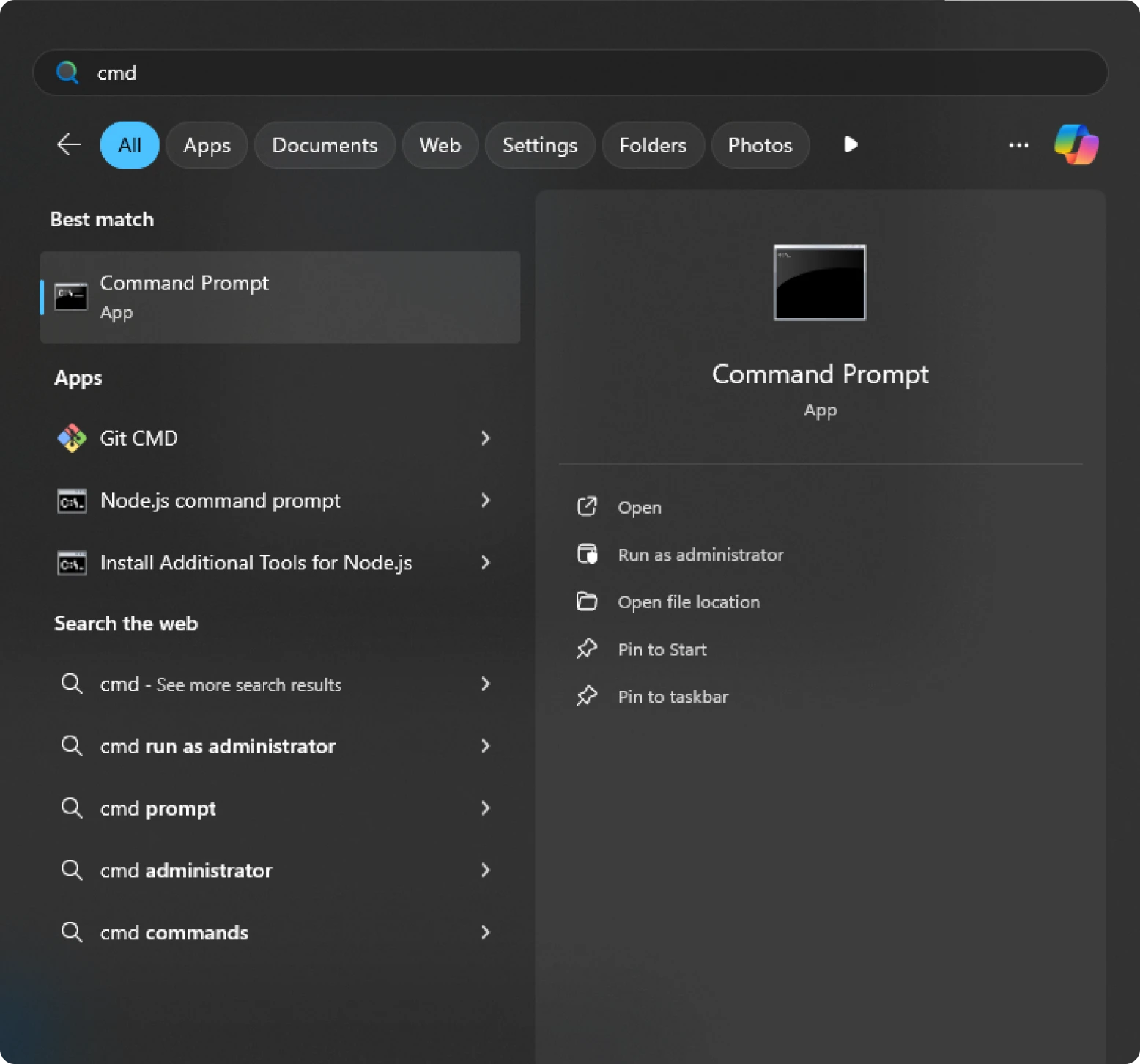
Open the search bar in the lower left corner, type cmd, then right-click on Command Prompt and select "Run as administrator".
-
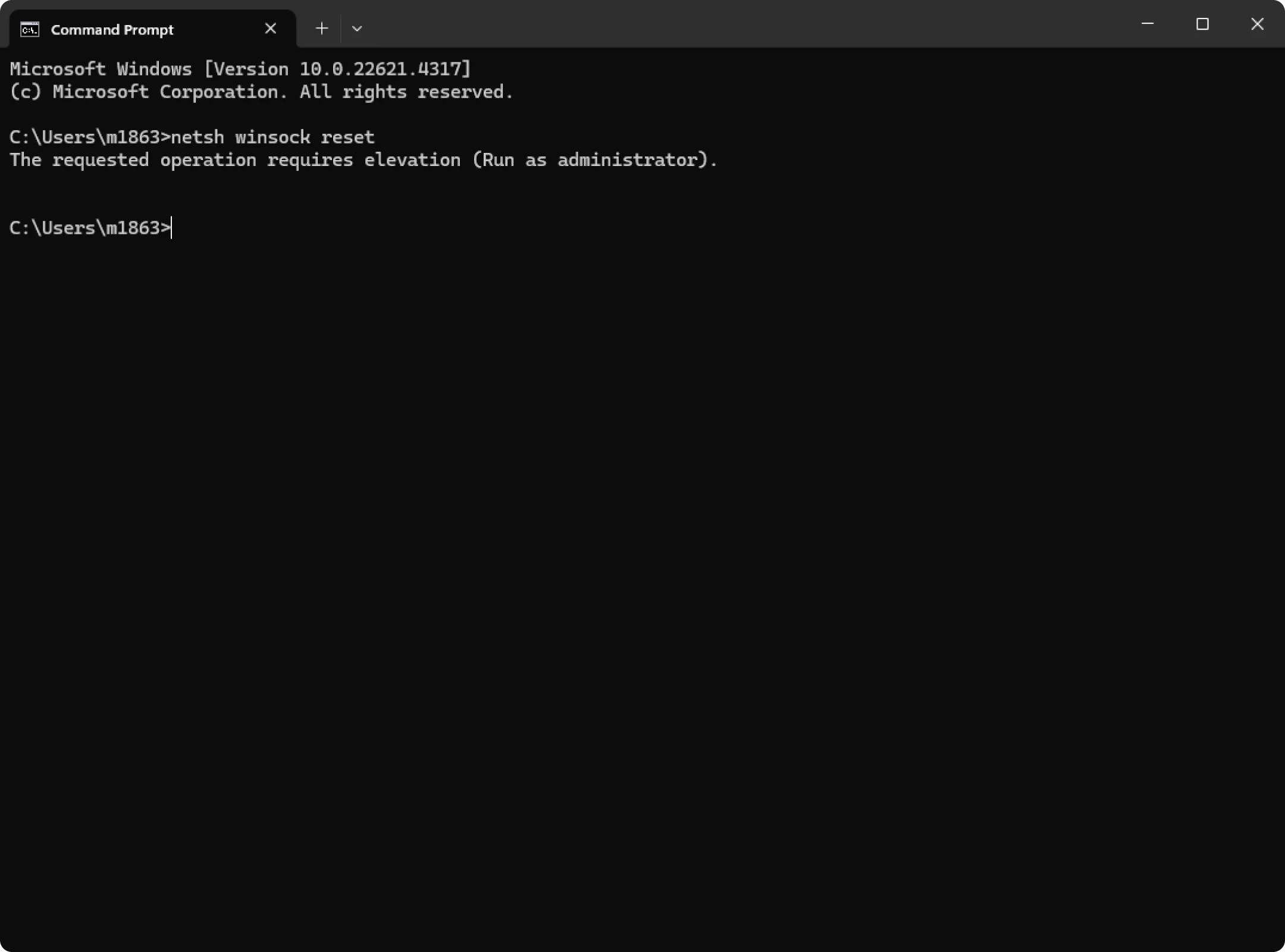
In the Command Prompt window, type the following command and press Enter:
netsh winsock reset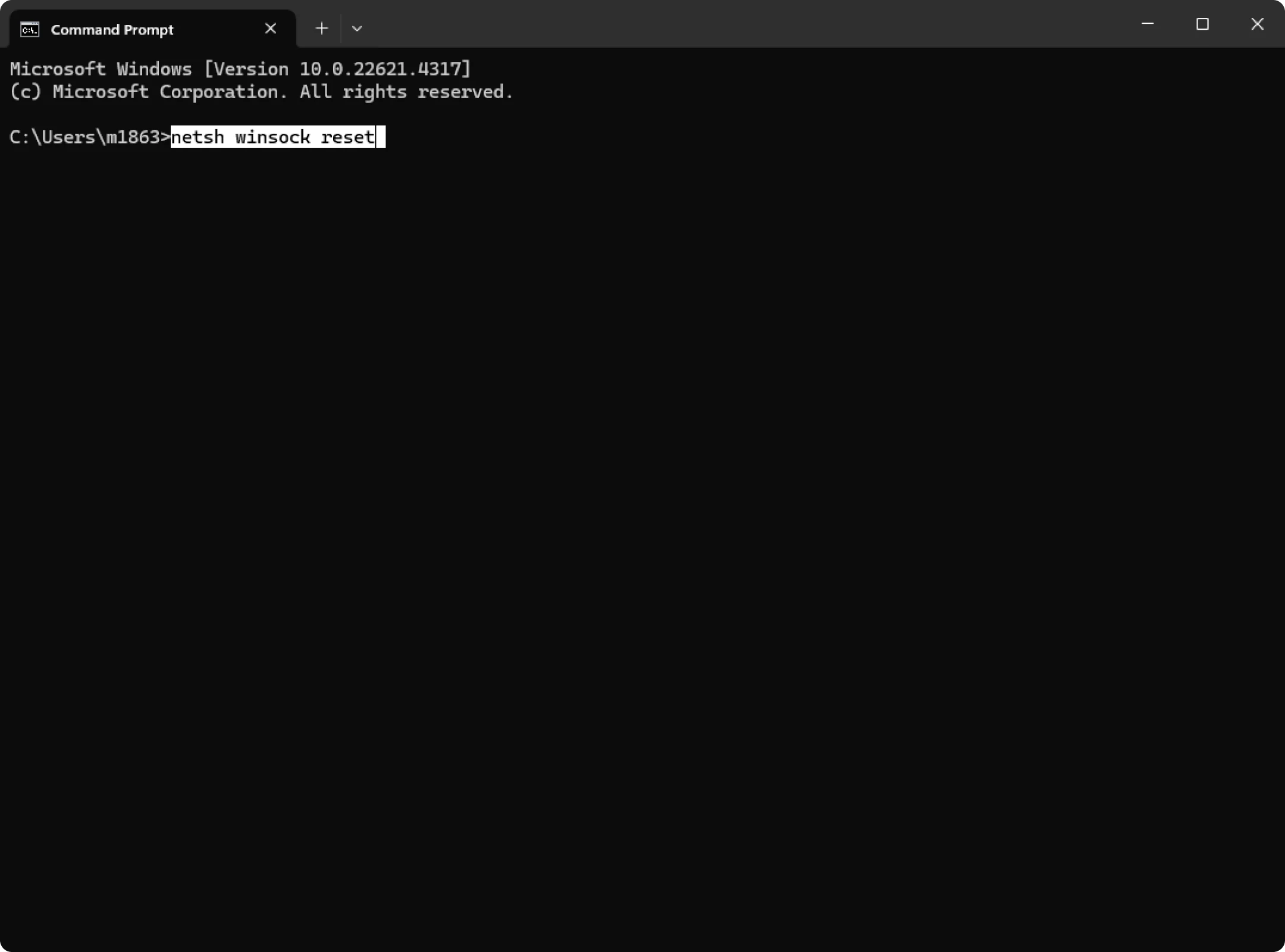
-
After completing the above steps, restart your computer. After restarting, try opening Eagle software again to check if the problem has been resolved.
Important Notes
- This operation requires administrator privileges to execute
- You must restart your computer after resetting for the changes to take effect
- This method is applicable to Eagle startup issues caused by network protocol configuration problems