
When Eagle software becomes unresponsive or encounters file conflicts, clearing cache files may help. This article will guide you on how to reset Eagle's cache files on Windows and macOS systems.
Reset Cache Scenarios
When Eagle software becomes unresponsive or encounters file conflicts, clearing the Eagle cache folder can reset the entire software operating environment. This operation will delete all previously used data, log records, and preference settings, restoring the software to its initial state and eliminating factors that may cause problems. Please note that you will need to reconfigure the software after resetting.
Clearing Methods
-
Close Eagle Software
Make sure Eagle software has completely exited.
-
Open AppData Folder
Click the Windows Start button in the bottom left corner, search for
%appdata%and click on the search result to enter.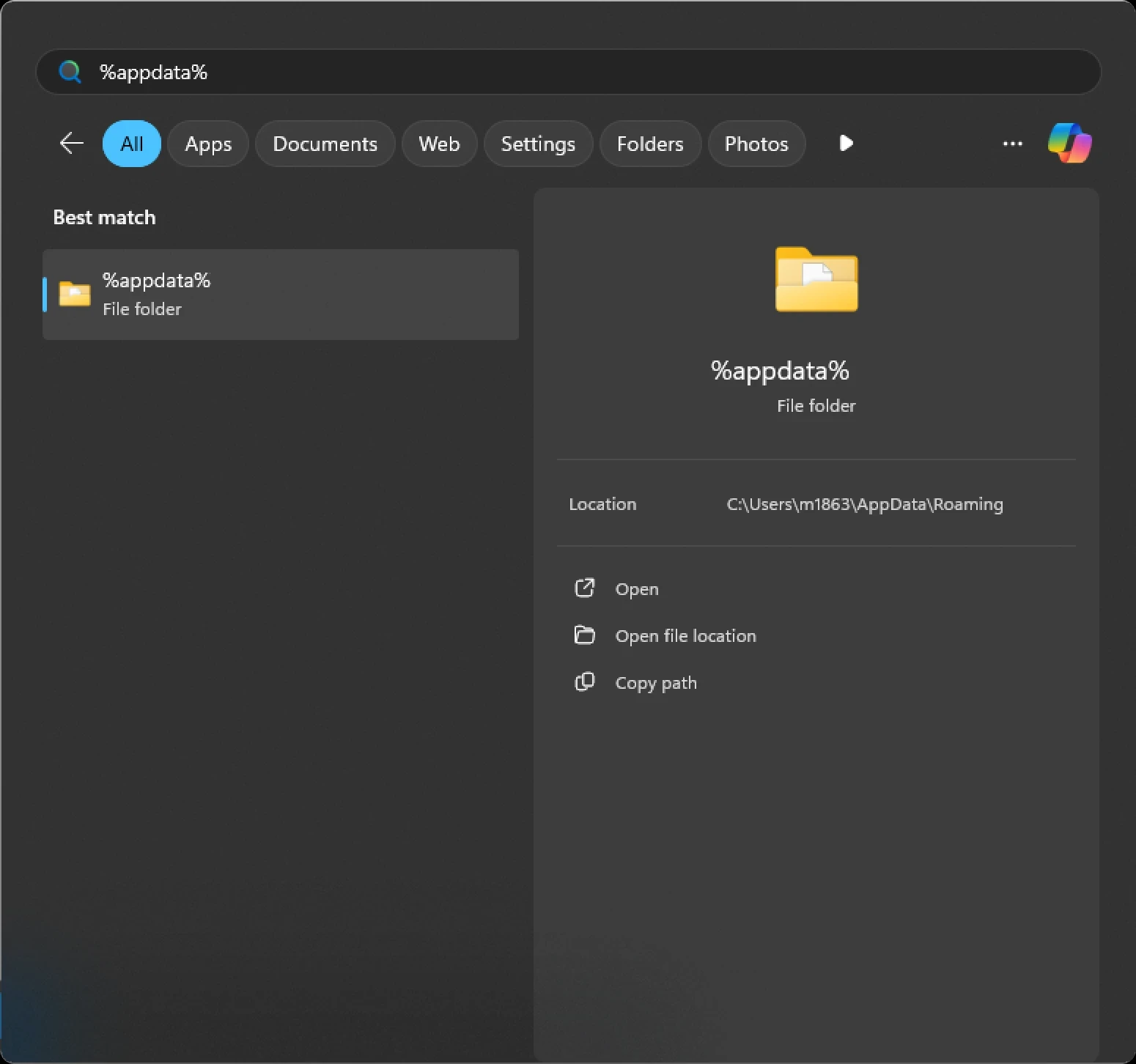
-
Delete Eagle Folder
Find and delete the
Eaglefolder in the AppData folder.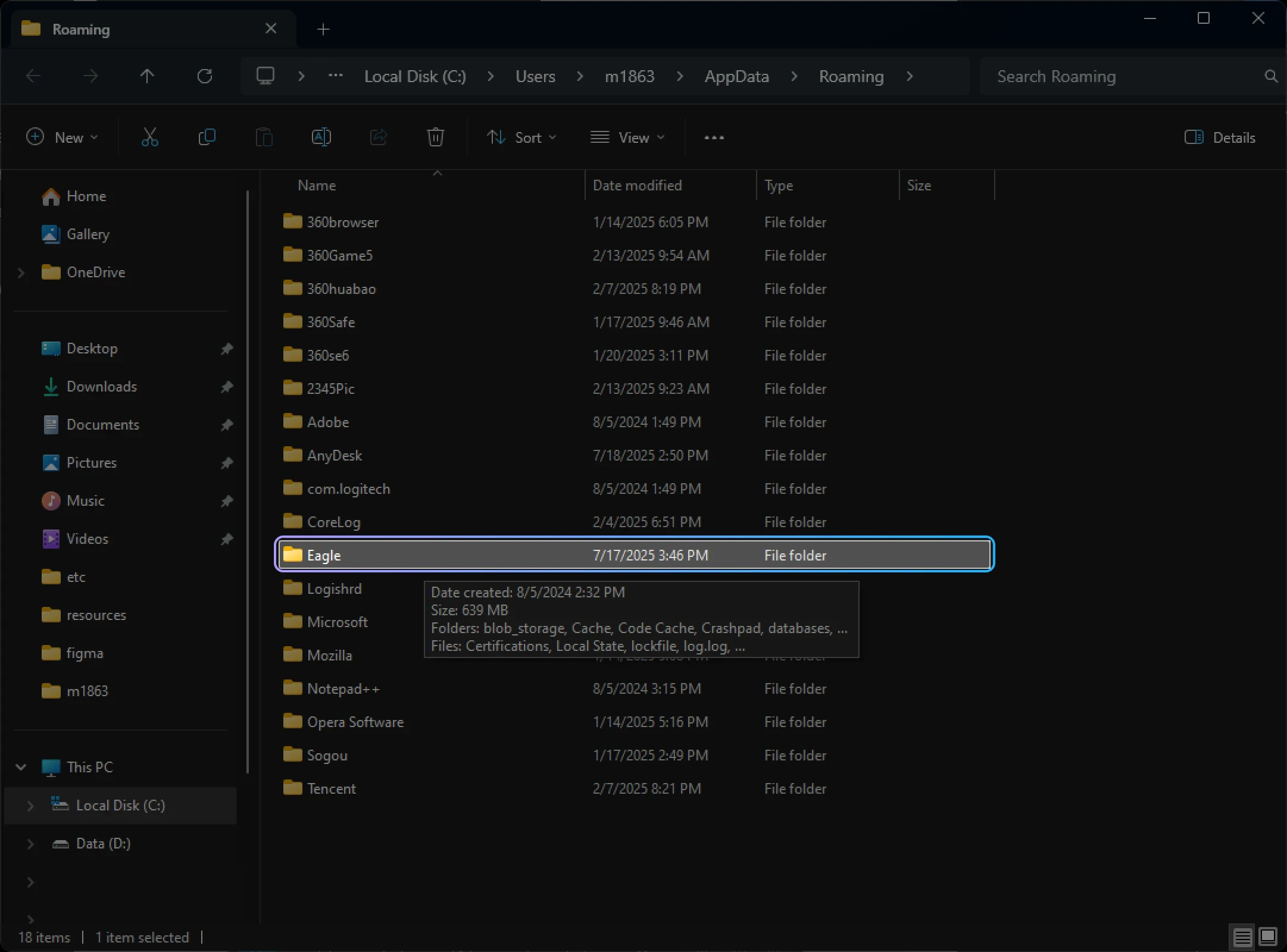
-
Restart Eagle Software
Restart Eagle software and check if the problem has been resolved.
-
Close Eagle Software
Make sure Eagle software has completely exited.
-
Open Finder and Navigate to Application Support
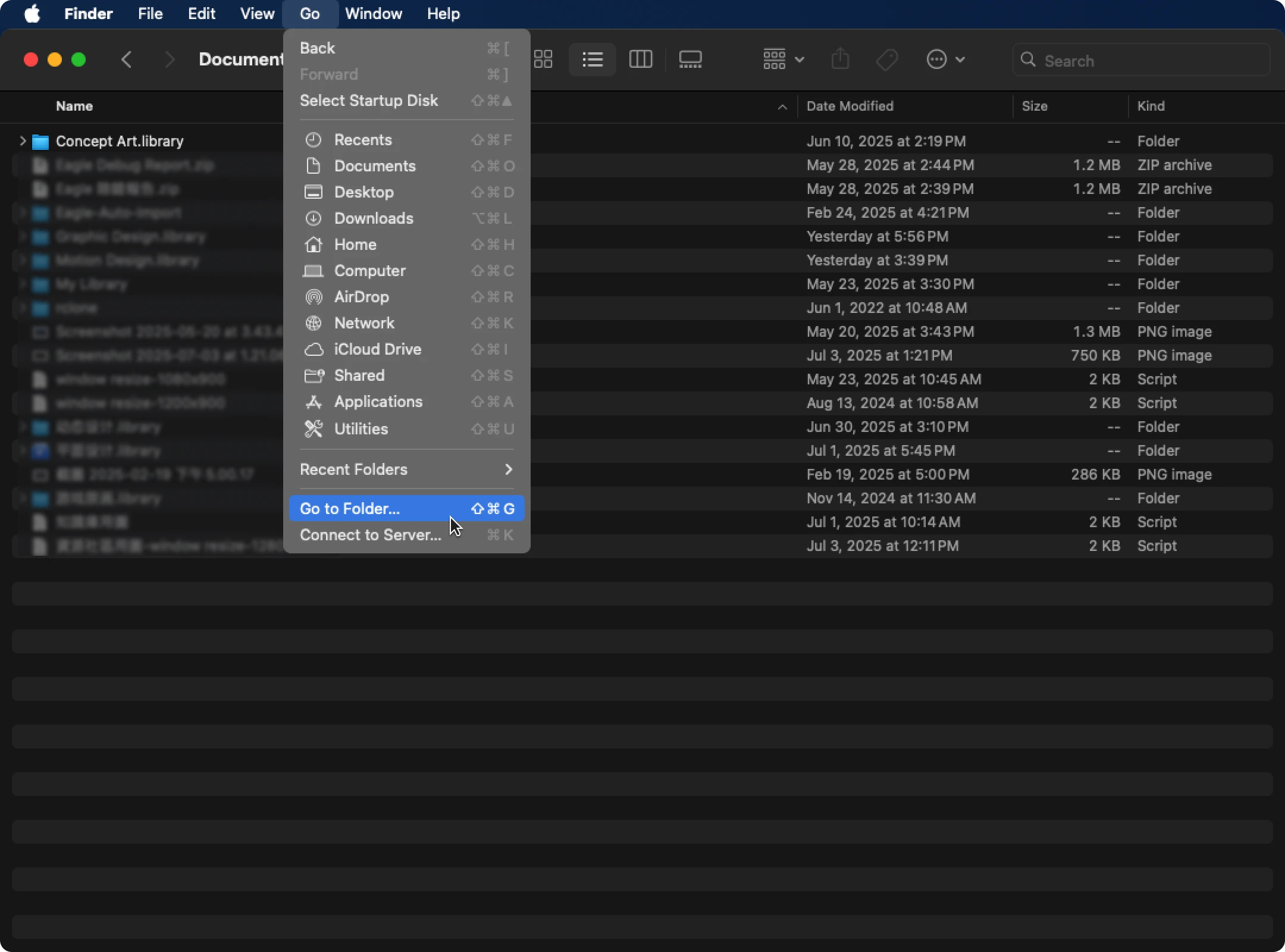
Open Finder and click on "Go" > "Go to Folder" in the top menu.
-
Enter Path
In the popup window, enter the path
~/Library/Application Support/and click "Go". (Make sure the path starts with the ~ symbol)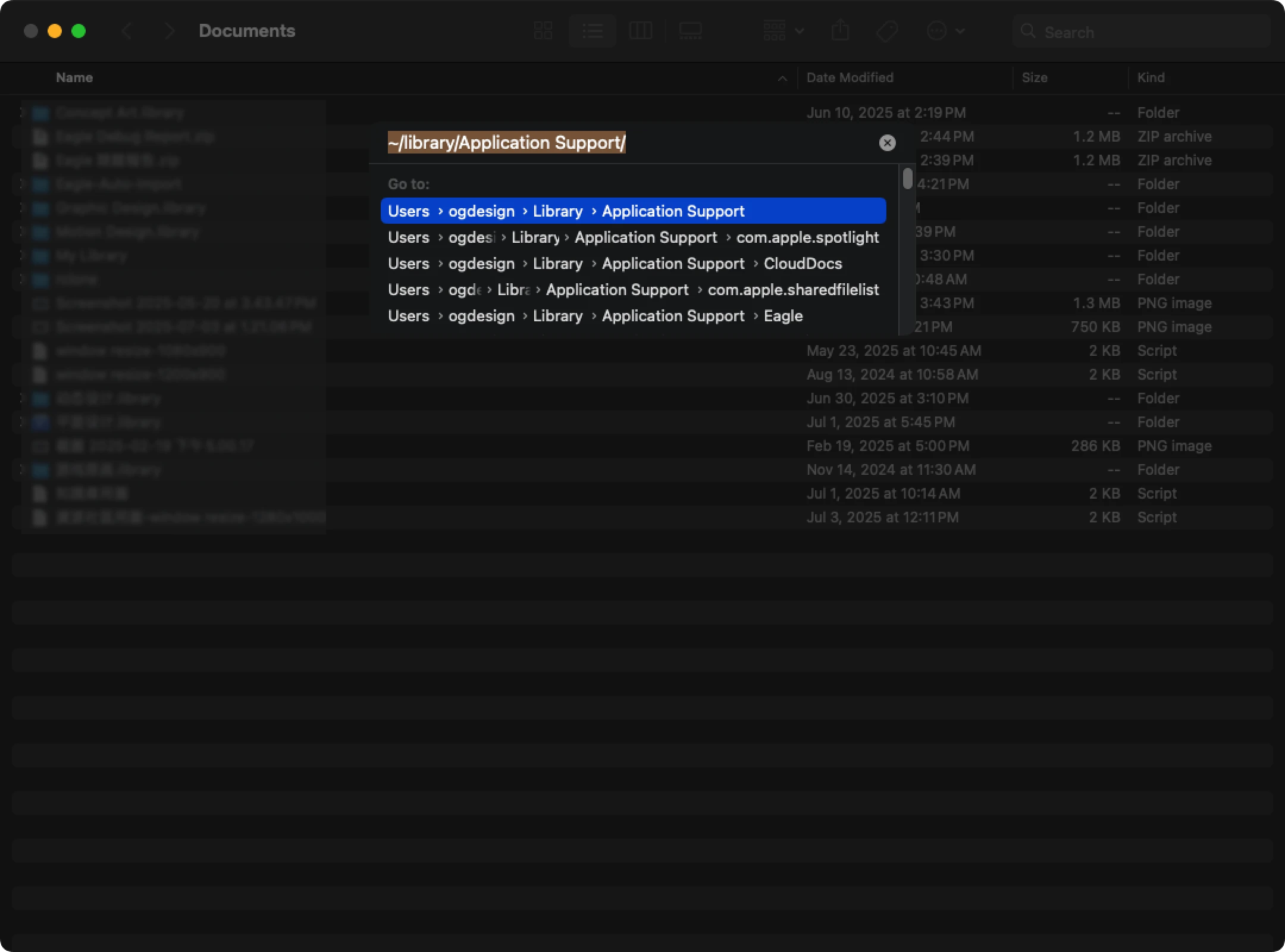
-
Delete Eagle Folder
Find and delete the
Eaglefolder in the Application Support folder.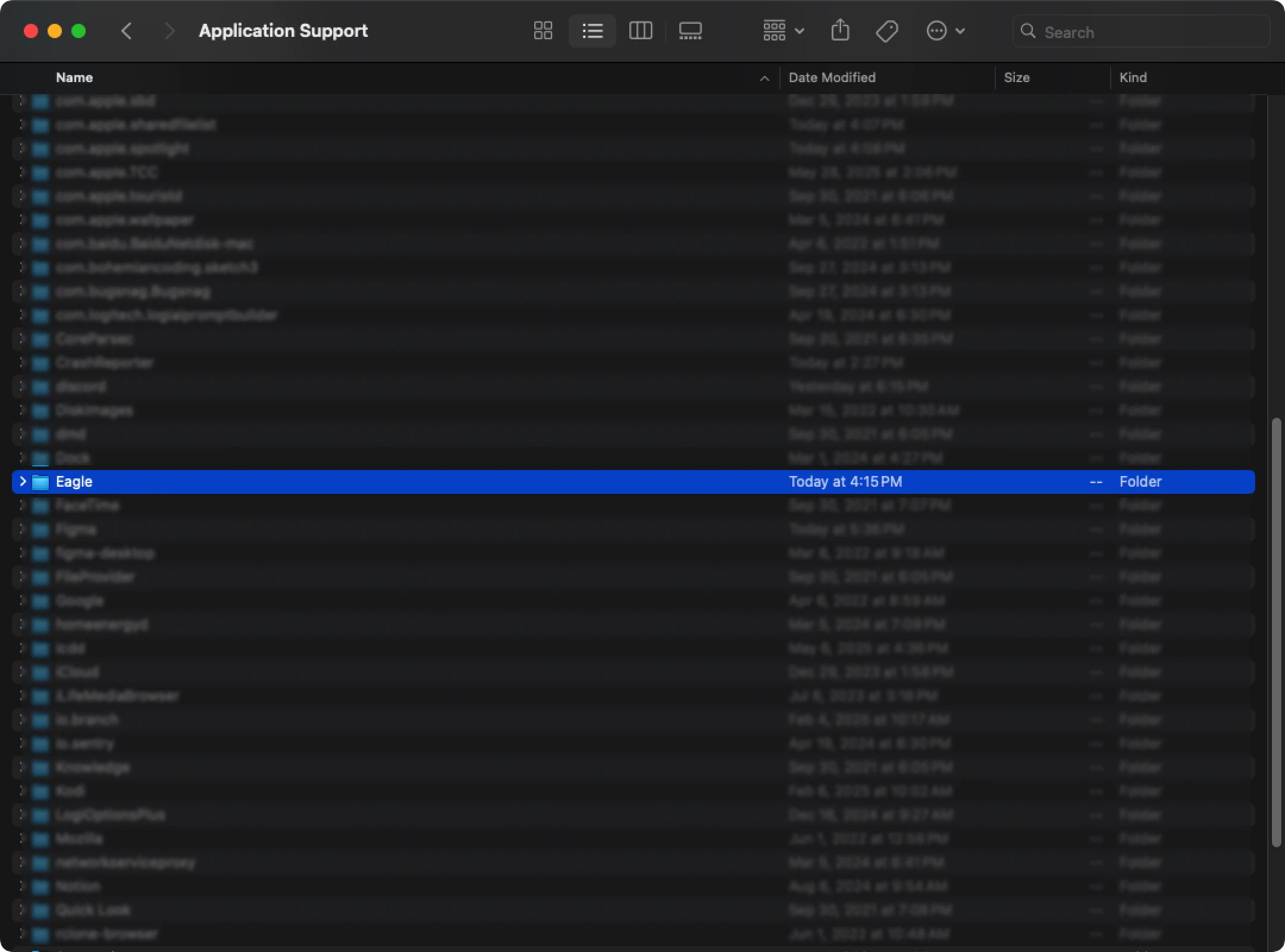
-
Restart Eagle Software
Restart Eagle software and check if the problem has been resolved.