
In Eagle, even with the sidebar closed, you can still efficiently navigate between different folders. This article introduces how to use keyboard shortcuts to quickly switch between folders.
Steps
- First, press the keyboard shortcut
Tabto close the left and right sidebars for a larger viewing space - Then, press the keyboard shortcut
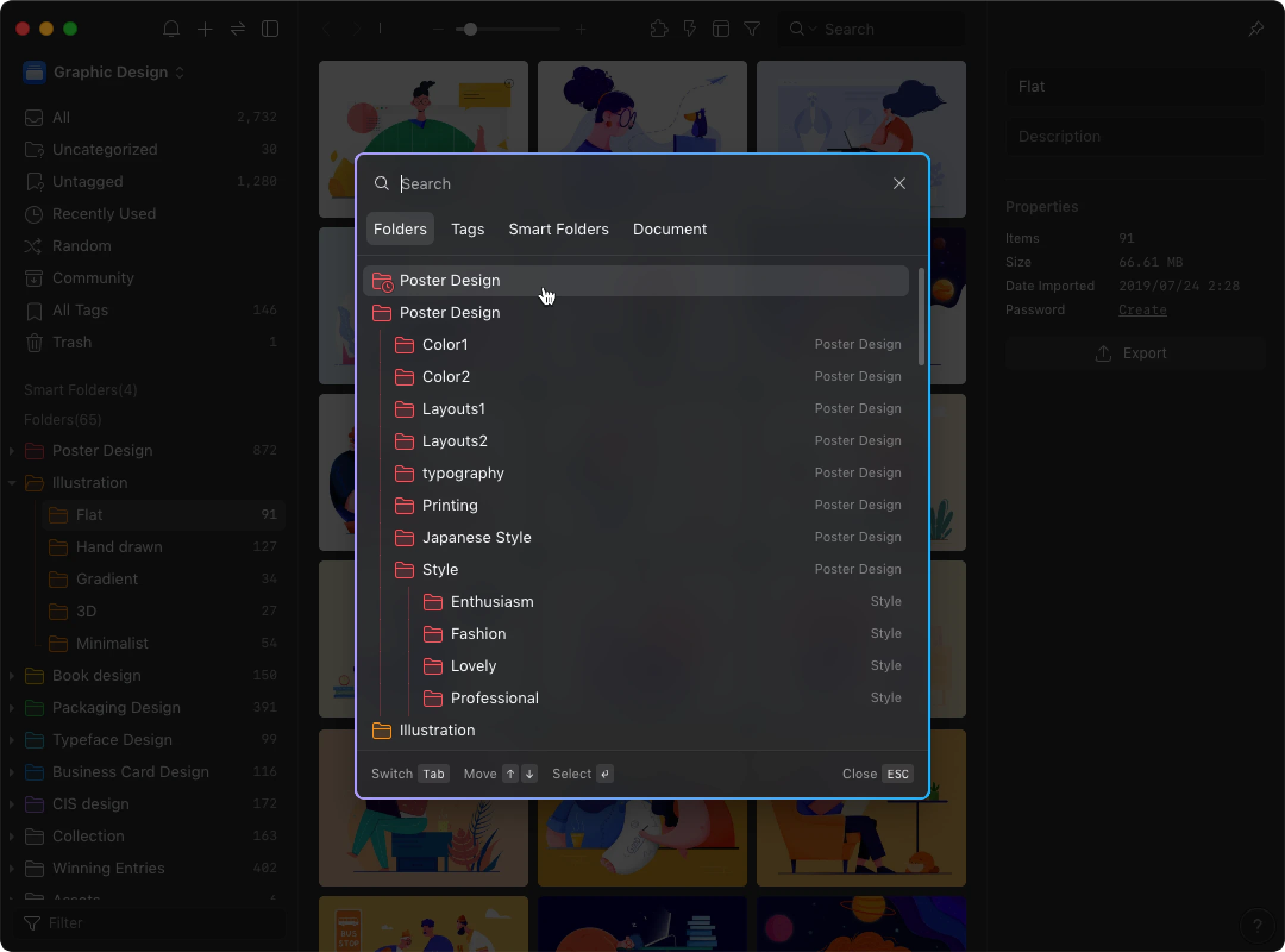
Jto bring up the "Quick Switch" window - In the "Quick Switch" window that appears, you can:
- Switch between different folders
- Switch tabs
- Switch smart folders
- Switch files
- Search using keywords

Key Points to Note
- Using the "Quick Switch" feature can significantly improve operational efficiency, especially when browsing materials in full screen
- You can enter keywords in the "Quick Switch" window to quickly locate specific folders or files
- This feature is particularly suitable for users who want to maximize the viewing area while still needing quick navigation