
When you need to backup or migrate a large Eagle library of several hundred GB, direct copying may consume a significant amount of time. Through compression and packaging, you can significantly improve transfer efficiency, especially when dealing with libraries containing a large number of small files.
Efficient Migration Steps
Using Lossless Compression Packaging
Compressing the entire library into a single file can bring the following advantages:
- Prevent scattered files in the library root directory from being lost during migration
- Dramatically improve transfer speed
- Simplify management process by only handling one file
Compression Operation Guide
-
Right-click on your Eagle library folder
-
Select WinRAR (or other compression software)
-
Click "Add to 'Your Library Name.library.zip'"
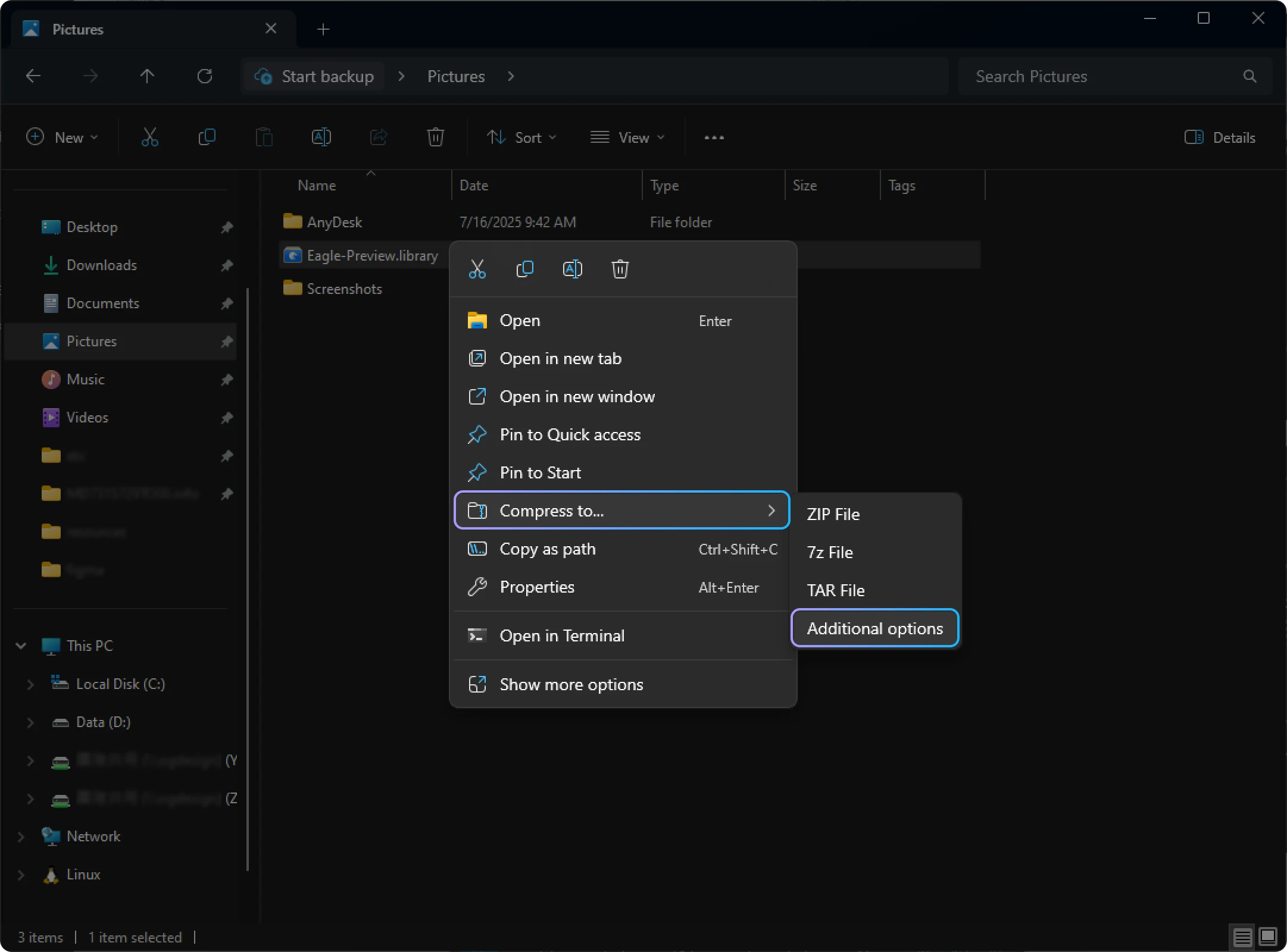
Choosing the Right Compression Level
If you prioritize speed over final file size, it's recommended to choose "Store" level compression. This method only packages files without actual compression, which can greatly save processing time.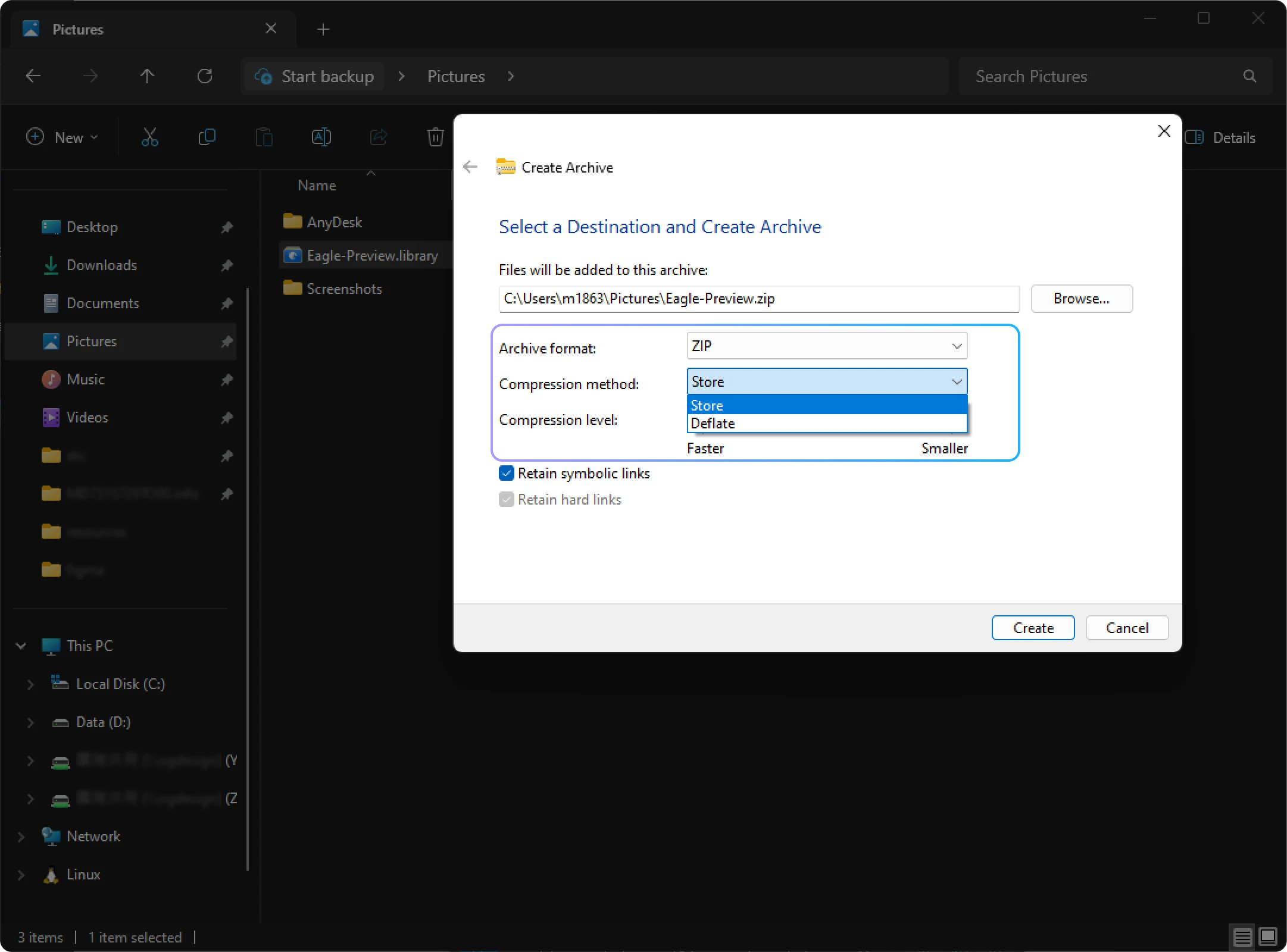
Transfer and Extraction
- Transfer the compressed single file to the target location (much faster than directly transferring numerous small files)
- Extract the file at the new location to complete the library migration
Factors Affecting Migration Speed
- Hardware Performance: SSD drives provide faster read/write speeds than HDD drives
- File Structure: Libraries with numerous small files have higher transfer efficiency when compressed
- Network Connection: For cross-network transfers, ensure you use a stable, high-speed network
Security Considerations
- Before starting migration, be sure to create a library backup first
- Use "copy and paste" instead of "cut and paste" to ensure original files remain available in case of unexpected situations
- After completing migration, confirm that the new library opens normally before considering deleting the original files