
Introduction
Eagle currently supports importing only one resource pack at a time and does not offer a batch import feature. When you need to import multiple Eagle resource packs, you'll need to import each one individually to ensure all file contents are completely transferred.
Alternative Methods for Transferring Materials
Between Libraries on the Same Computer
If you're transferring materials between Eagle libraries on the same computer, you can use the "Adding images to other libraries" feature to simplify this task:
-
Navigate to the target folder and right-click to select "Add to Other Library…"
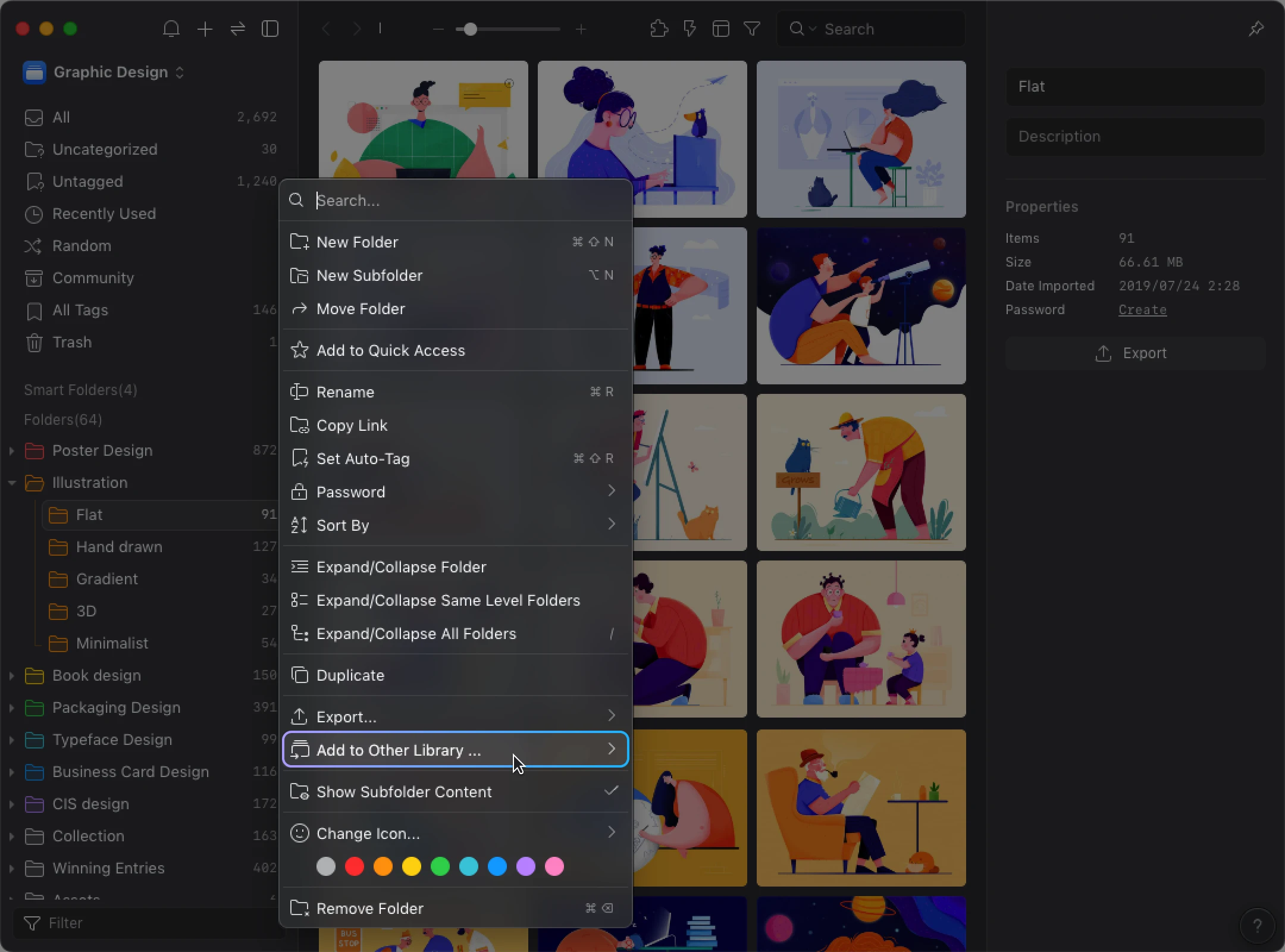
-
In the pop-up interface, select your target library; the system will automatically copy folders and files according to the original folder structure
-
Switch to the target library to verify that all files and folders have been correctly transferred
-
Delete the corresponding folders and files in the original library if needed
Migrating Your Eagle Library to a Different Device
Preparation
- Install Eagle on the new device: Download and install the latest version of Eagle software from the Eagle Official Website
- Back up your existing library: On your old device, compress your library folder (e.g.,
Eagle.library) into a ZIP file to ensure complete file transfer
Migration Process
- Transfer the compressed file to the new device:
- Use an external hard drive or network sharing to transfer the compressed library file to your new device
- Extract the library:
- On your new device, extract the ZIP file to your desired storage location
- Open the library in Eagle:
- Launch Eagle software
- Select "Library" > "Switch Library…" from the menu
- Navigate to the extracted
Eagle.libraryfolder and wait for the software to load its contents
Confirmation and Cleanup
- Verify data integrity: Check that all materials display correctly and function properly
- Delete data from the old device (optional): If the migration is successful and you no longer need the data on your old device, you can delete it to free up space
Important Notes
- Ensure both computers are running the same version of Eagle software to avoid compatibility issues
- If using an external hard drive, be aware of compatibility issues between different operating systems' disk formats. For more details, please refer to these articles: "macOS System Tuxera NTFS Precautions" and "Library Usage Issues on External Hard Drives across macOS / Windows Systems"