
Eagle currently doesn't support directly importing local folders into existing Eagle categories. However, you can still maintain your folder structure when importing files into Eagle using the methods described below.
Import Methods
1. Drag and Drop Method
Drag the folder from your local drive into Eagle's left sidebar to import the folder along with its structure and contents.
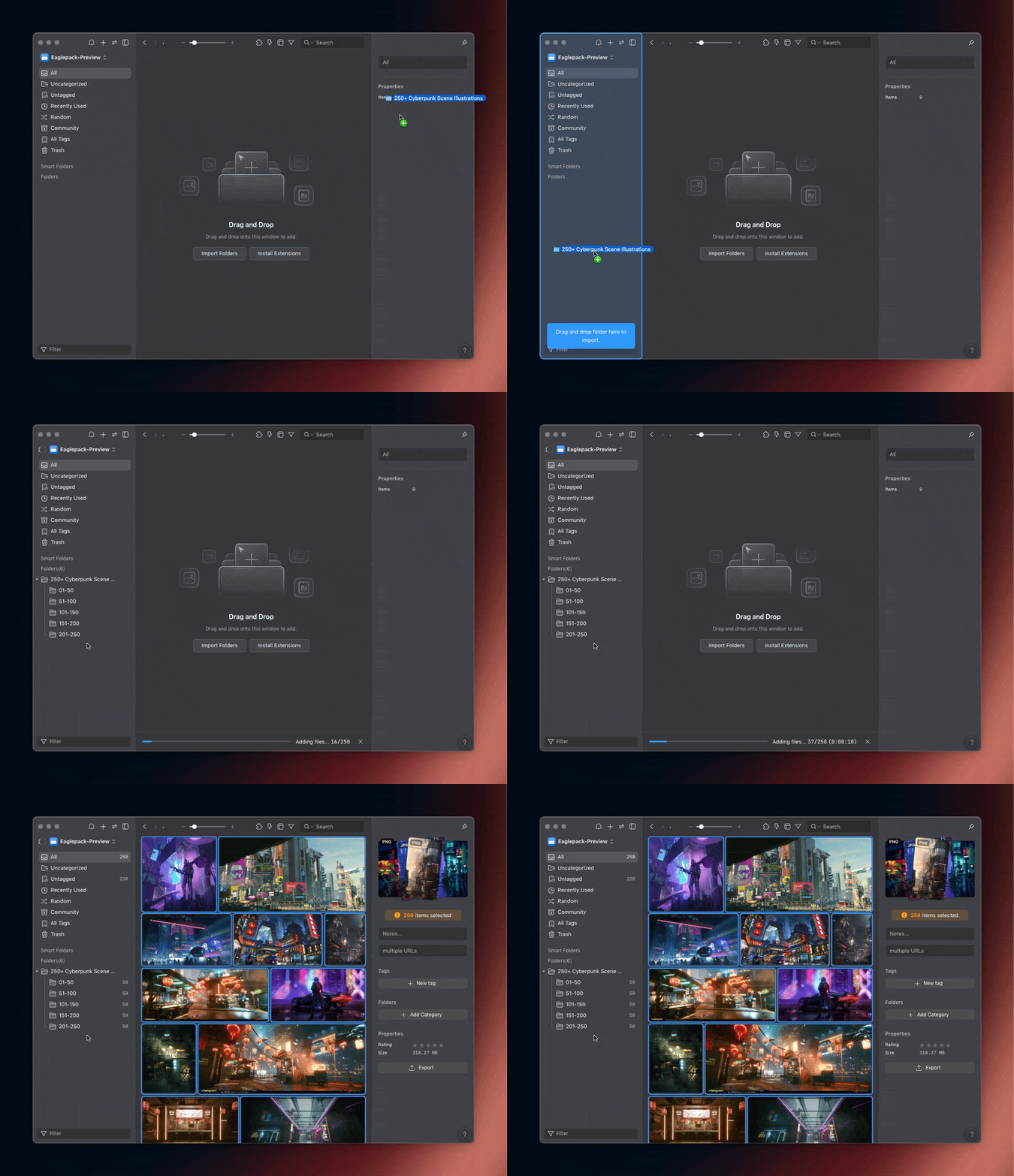
2. Import Local Folder Feature
-
Before importing, organize your files into folders with appropriate sub-levels
-
Click the "+" button in the upper left corner of the Eagle window or use the shortcut
Ctrl/⌘+Nto open the menu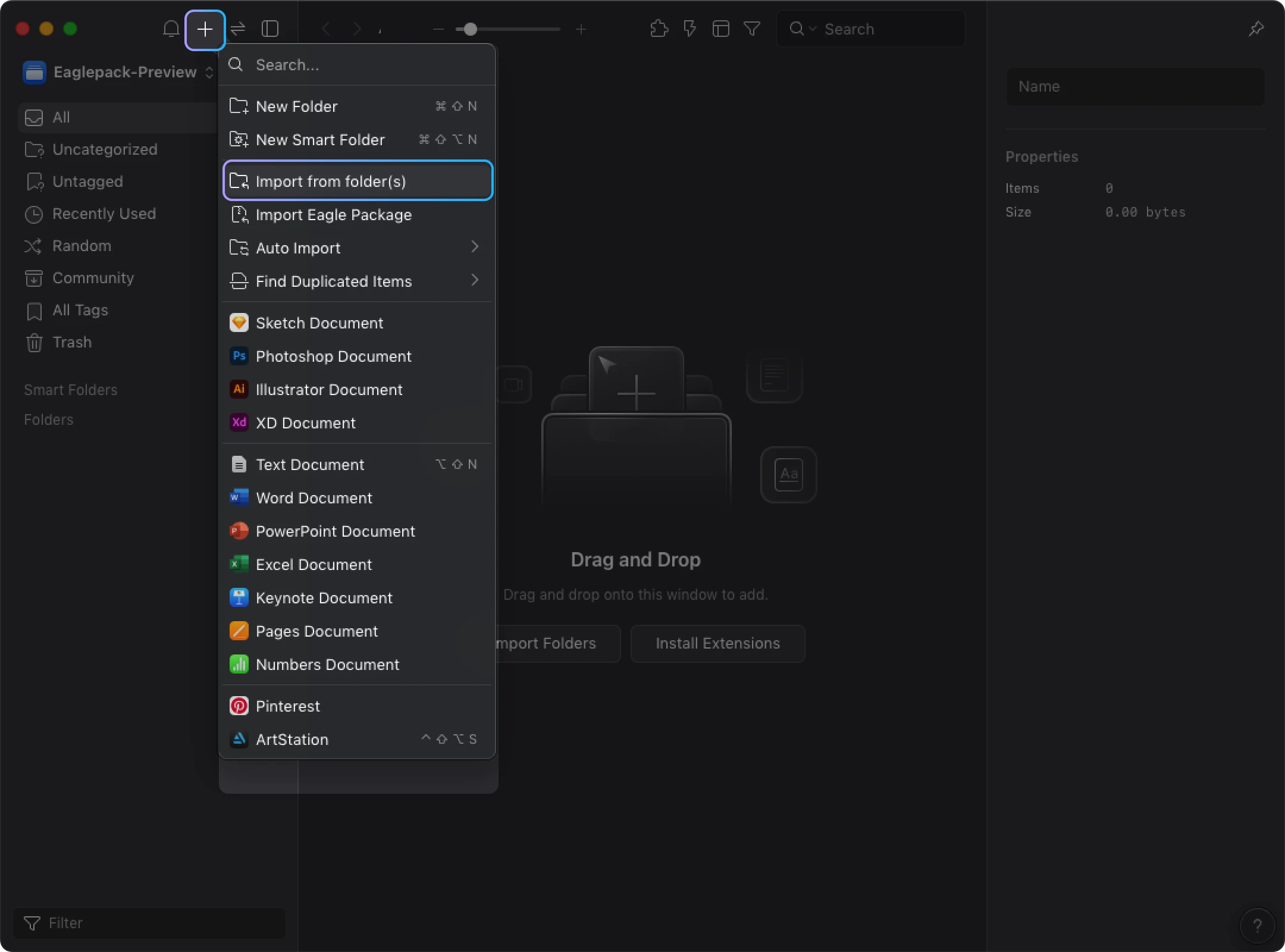
-
Select "Import Local Folder" and choose the folder you want to import
Notes
- You'll need to manually create folder categories in Eagle first if you want a specific structure
- After importing, you can further organize files by moving them to different categories
- The imported folder structure will be preserved as new folders in Eagle