
Eagle 4.0 build6 version has comprehensively upgraded the tag selection window, allowing users to customize the interface display content according to their personal preferences. This article will introduce how to set whether to display "Frequently Used Tags", "Recently Used", "Recommended Tags" and other features.
Feature Overview
In Eagle 4.0 build6 version, we have optimized the tag selection window to better adapt to users' diverse operating habits and ensure that users in different language environments can enjoy a consistent interface experience.
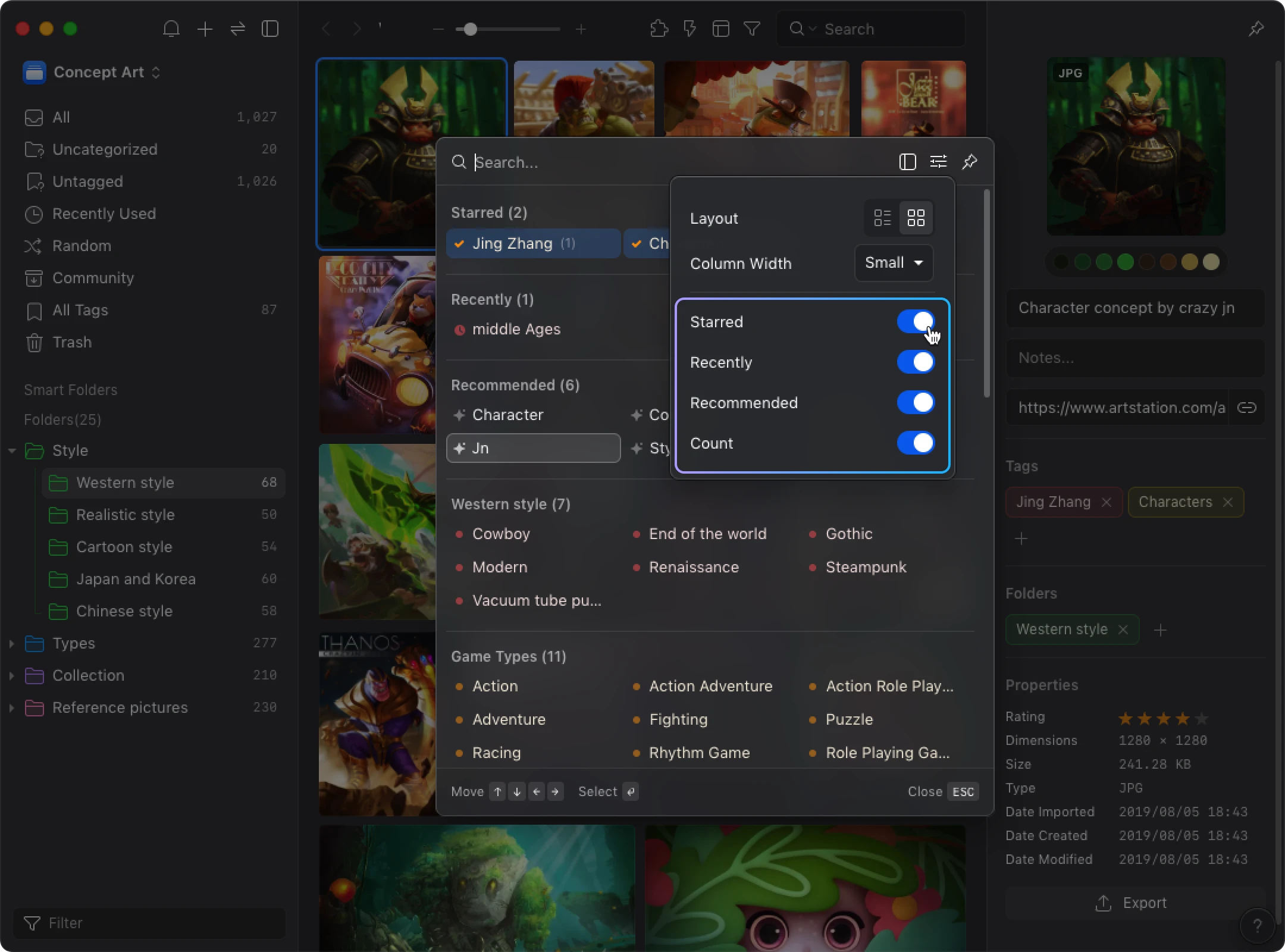
Users can now customize the following four display options:
- Frequently Used Tags
- Recently Used
- Recommended Tags
- Display Quantity
How to Use
- Open Eagle software
- Enter the tag selection window
- Click the settings icon
- Check or uncheck the corresponding options according to your personal needs
- Settings take effect immediately after completion
Learn More
If you want to learn more about the new features and improvements in Eagle 4.0 build6 version, please visit our official blog: /blog/post/eagle4-build6