
Eagle currently doesn't have a direct feature to hide image materials, but you can use the "Folder Encryption" feature to prevent images in specific folders from appearing in the "All" view. Here's how to do it:
Setting Up Folder Encryption
-
Select the folder containing the images you want to hide
-
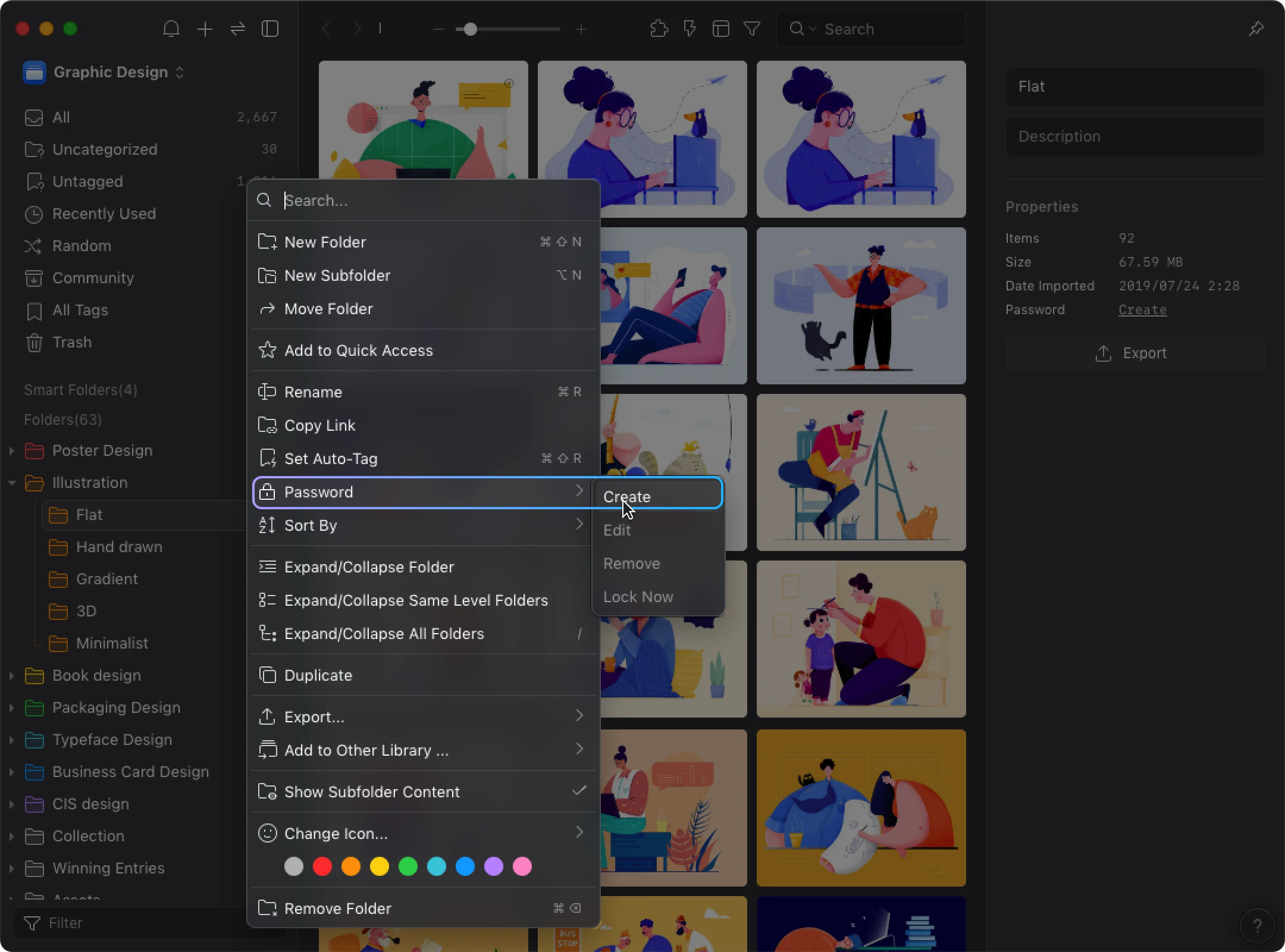
Right-click on the folder in the left sidebar and select "Password" > "Create"
-
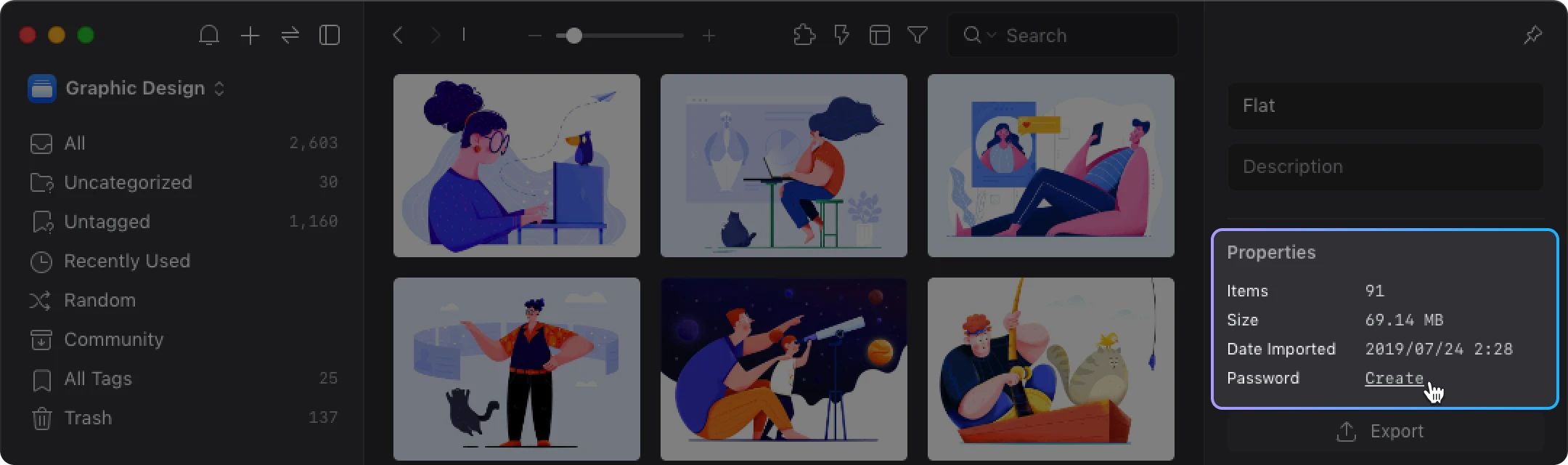
Alternatively, find "Password" in the basic information section of the inspector panel on the right side and click "Create"
-
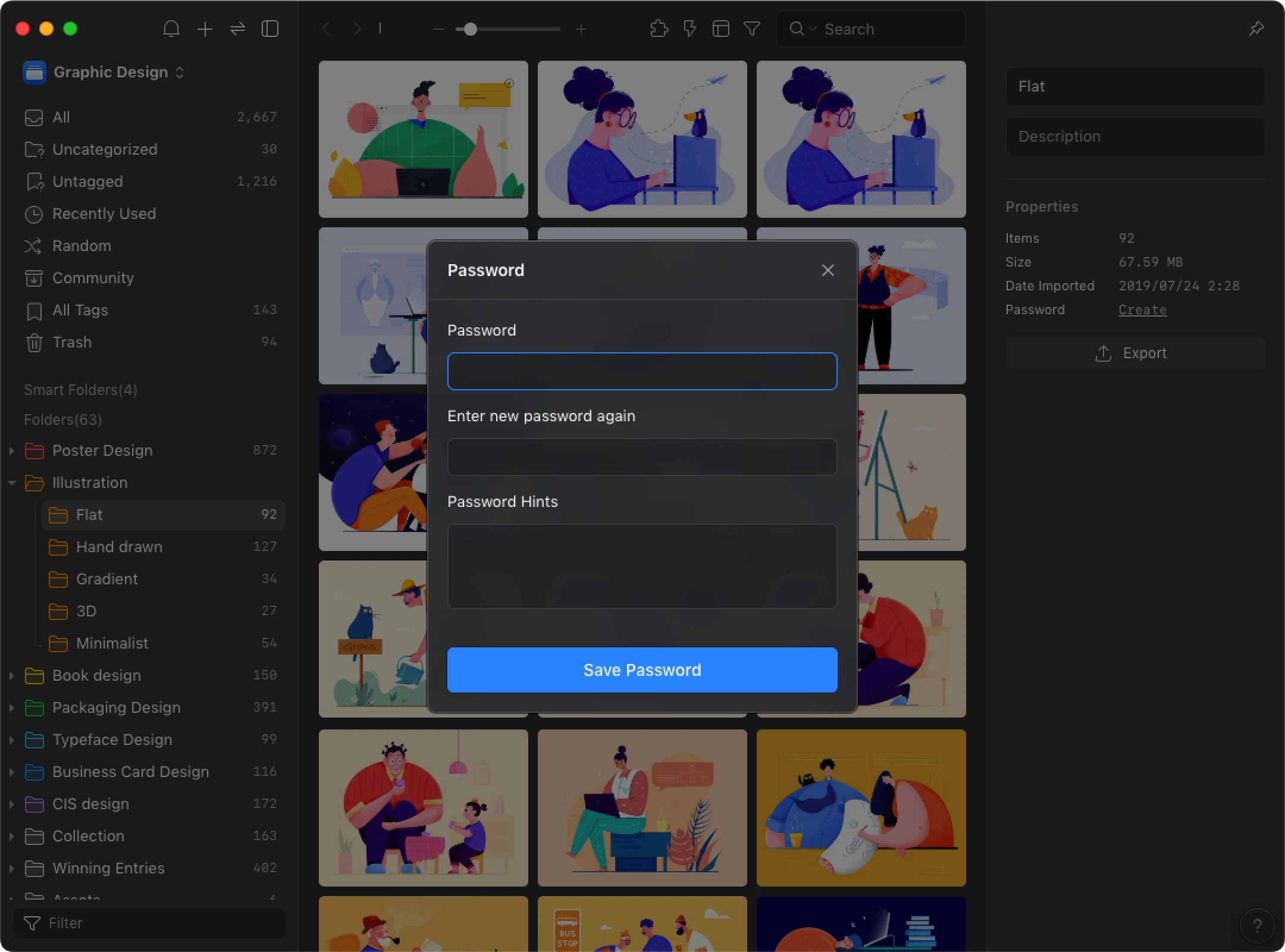
Enter a password and a hint when prompted
Important Notes
-
After setting the password, the folder will be immediately locked and its files will be hidden from the "All" view
-
If you unlock the folder during your Eagle session, previously hidden files will reappear in the "All" category
-
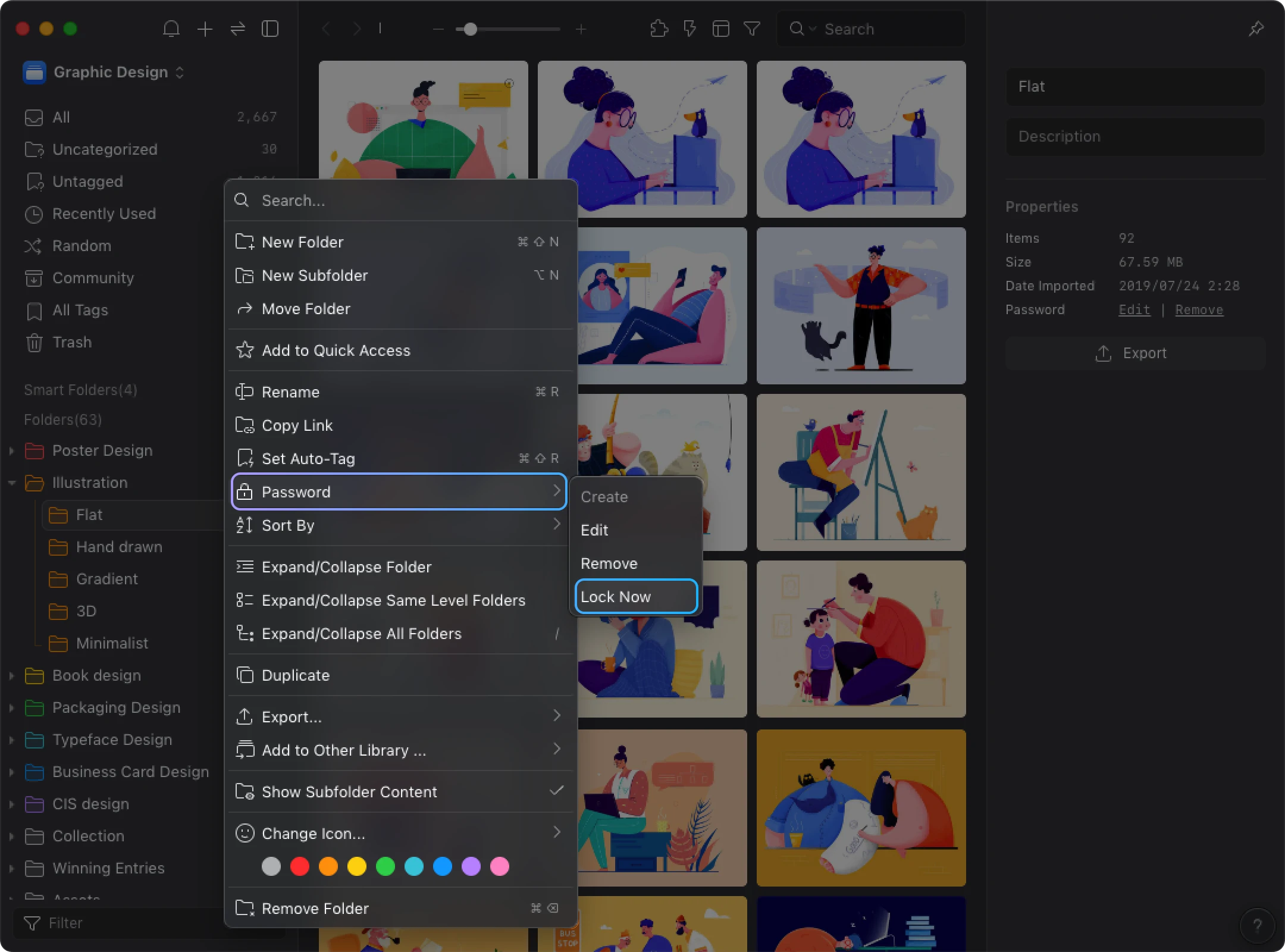
To hide them again, right-click on the password-protected folder in the left sidebar, select "Password", then click "Lock Now"
Frequently Asked Questions
Q: Will encrypted folders be visible in searches? A: No, content in locked folders won't appear in search results until the folder is unlocked.
Q: Can I encrypt multiple folders with the same password? A: Yes, you can apply password protection to as many folders as needed, using the same or different passwords.