
When importing Office files in Eagle, thumbnail display issues may sometimes occur, where application icons are shown instead of file content previews. This happens because Eagle's thumbnail generation relies on the system's "QuickLook" quick preview feature, and when this feature encounters problems, thumbnails cannot be displayed correctly.
Solution
Check if QuickLook function is working properly
Before attempting repairs, please first confirm whether the file's quick preview function is working normally in the system:
-
In Eagle, select the file with abnormal thumbnail display, right-click and select "Reveal in Finder"

-
In the Finder window, select the file and press the "Space" key on your keyboard
If you can only see the application icon instead of the file content, it indicates that the QuickLook function has issues. Please try the following repair methods:
Method 1: Reset QuickLook Service
- Open the "Terminal" application
- Enter the following command and press Enter to execute:
qlmanage -r cache - This command will reset QuickLook plugins and refresh the cache
Method 2: Reinstall Related Applications
Visit the official website of the Office application to download and install the latest version. This ensures that the .qlgenerator files are correctly installed in the system's QuickLook plugin directory, resolving issues that may arise from outdated versions.
Method 3: Re-save the File
Open the file using the Office application installed on your current computer, then re-save or export it to update the file's thumbnail information.
Refresh Thumbnails in Eagle
After completing the above repair steps, please return to the Eagle software:
- Select the previously problematic file
- Right-click and select "More - Refresh Thumbnail"
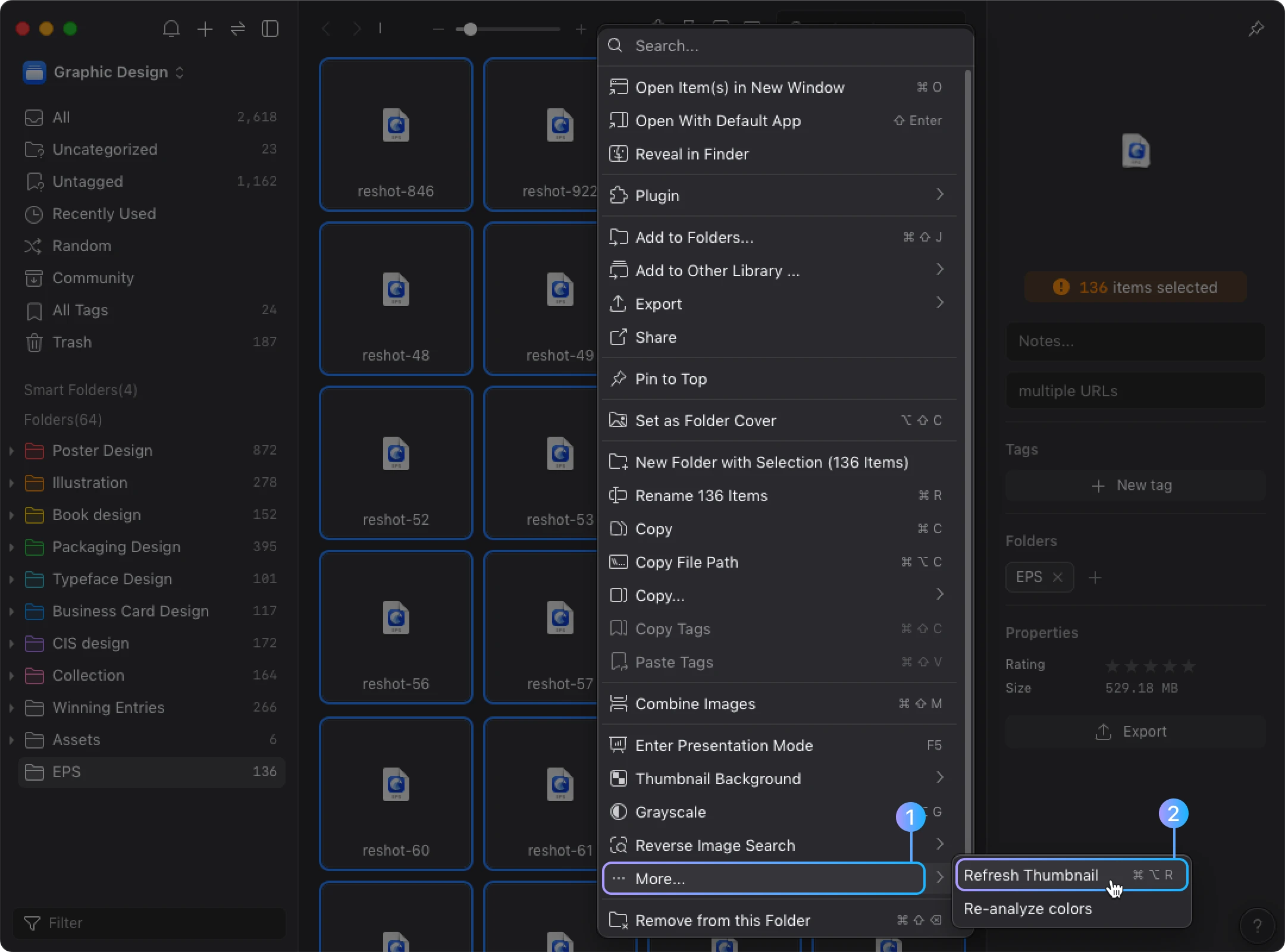
Eagle will attempt to regenerate the file's thumbnail, displaying the actual file content instead of the application icon.