
If your interface suddenly appears in black and white (grayscale), don't worry. This usually happens when the "Grayscale" feature is accidentally enabled. Here's how to quickly restore the color display.
Why Your Interface Changed to Black and White
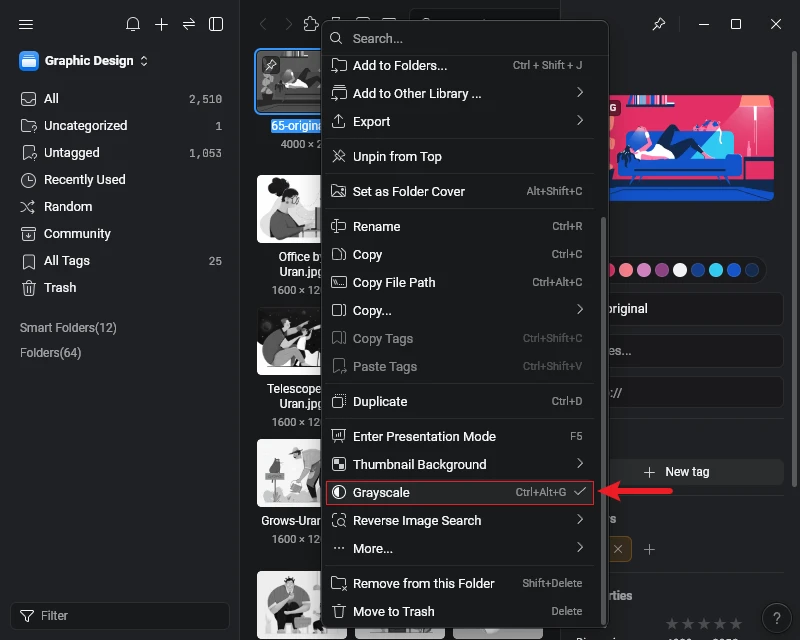
When the Grayscale feature is activated, all elements in the interface will display in black and white, as shown below:

How to Restore Color Display
To switch back to the normal color display:
- Right-click on any image in your library
- Click "Grayscale" in the context menu to toggle it off
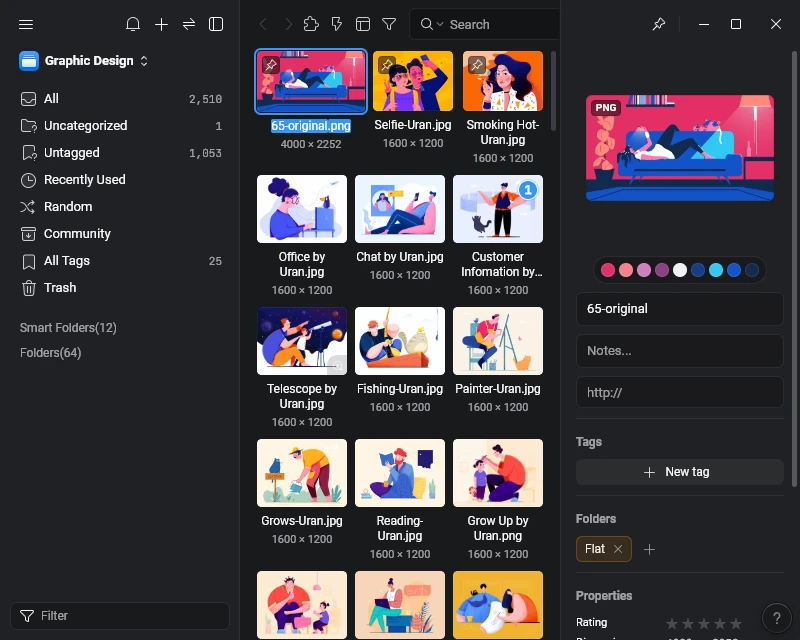
After completing these steps, your interface will immediately return to full color:
Key Points to Remember
- The Grayscale feature works as a toggle. Clicking it once enables black and white mode, clicking it again returns to color mode
- This feature can be useful for designers who need to check contrast and visual hierarchy without color influence
- Your original files remain unchanged in their original color format