
In Eagle, you can select multiple folders simultaneously for export to improve work efficiency. This article introduces two methods for batch exporting folders.
Method 1: Direct Export to Computer
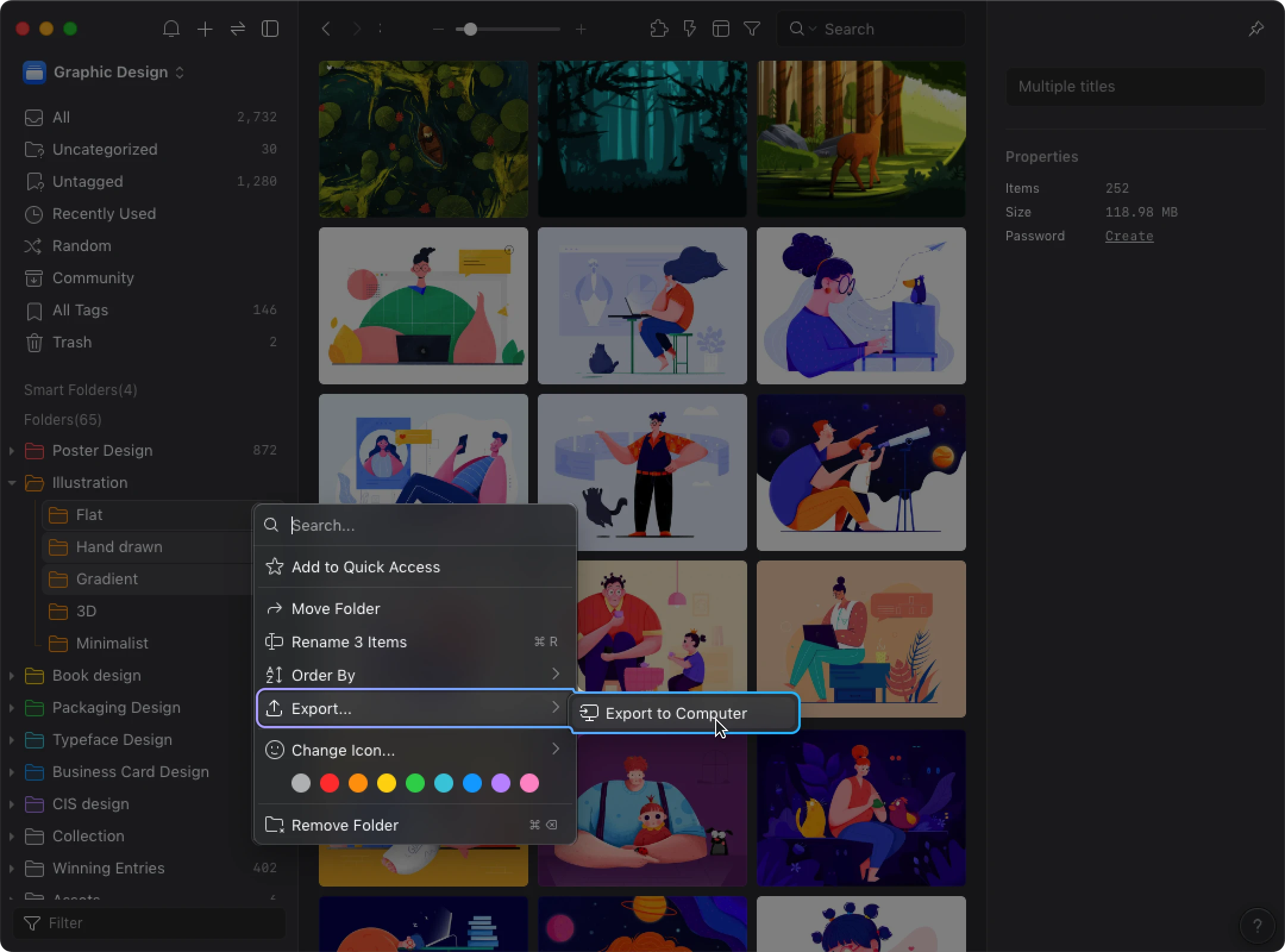
If you need to export multiple folders to your computer's local storage:
- Hold Ctrl key (Mac users hold Command key) while selecting multiple folders you want to export
- Right-click the selected folders and choose "Export" > "Export to Computer"
- Select the export location and complete the batch export operation
Method 2: Export as Eaglepack
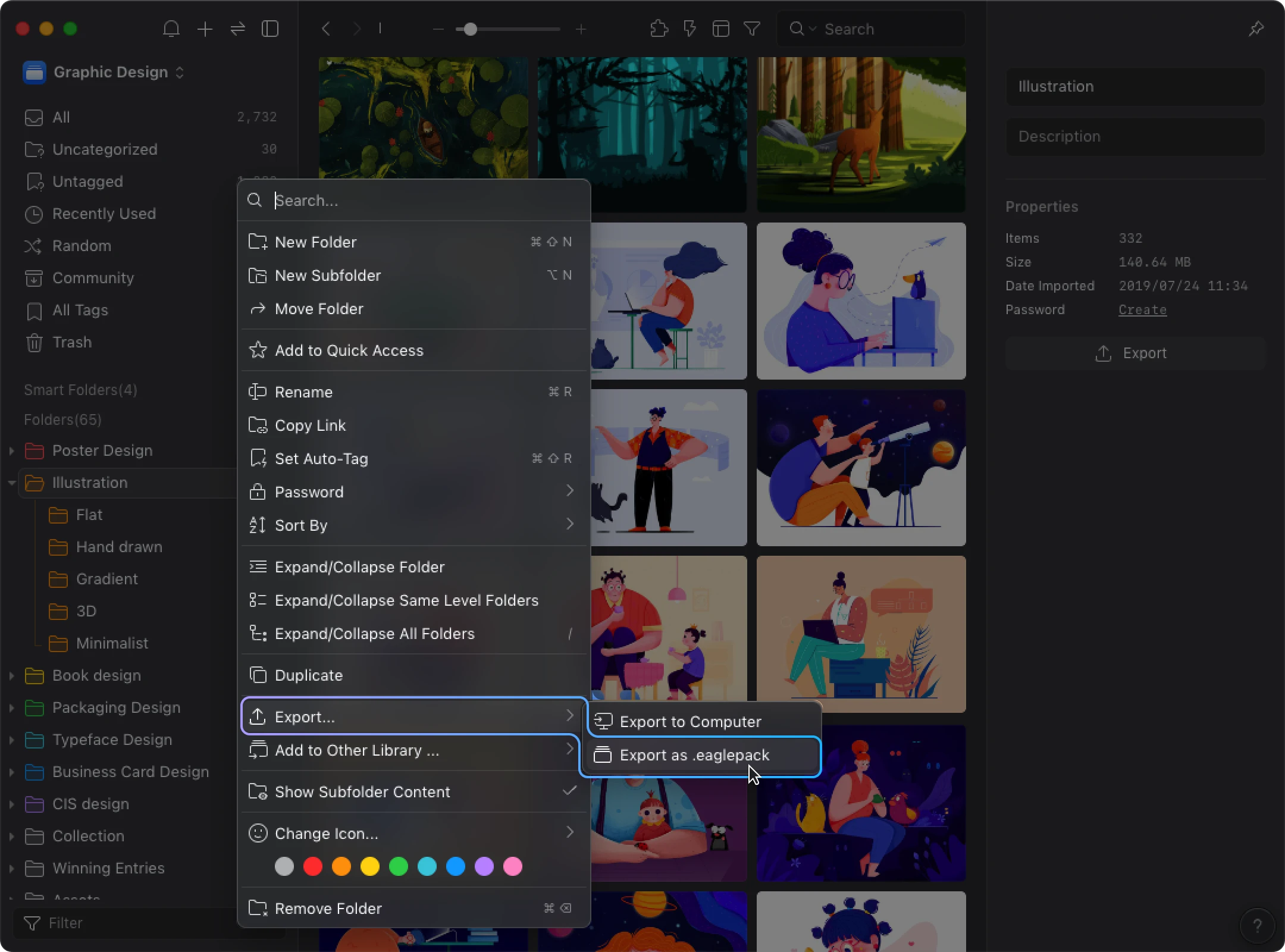
If you want to integrate multiple folders into one Eagle asset pack:
- Create a new parent folder
- Move all folders you need to export into this parent folder
- Right-click the parent folder and select "Export" > "Export as .eaglepack"
- Set the asset pack save location and complete the export
Important Notes
- When exporting to computer, Eagle will preserve the original folder structure
- Exporting asset packs is suitable for scenarios where you need to migrate or share resources between different devices
- Exporting large amounts of files may take considerable time, please wait patiently for the export to complete