
By default, Eagle enables GPU hardware acceleration to provide the best performance experience. However, specific graphics card compatibility issues may cause software anomalies, such as inability to open, abnormal video playback, etc. This article will guide you on how to disable or enable this feature to resolve these issues.
Reasons to Disable GPU Hardware Acceleration
You may need to disable GPU acceleration when encountering the following issues:
- Eagle cannot start or open normally
- Videos cannot play normally
- Video colors display abnormally
- Graphics rendering issues occur during software operation
How to Disable GPU Hardware Acceleration
- Open Eagle Main Menu:
Click the Eagle main menu and select "Preferences".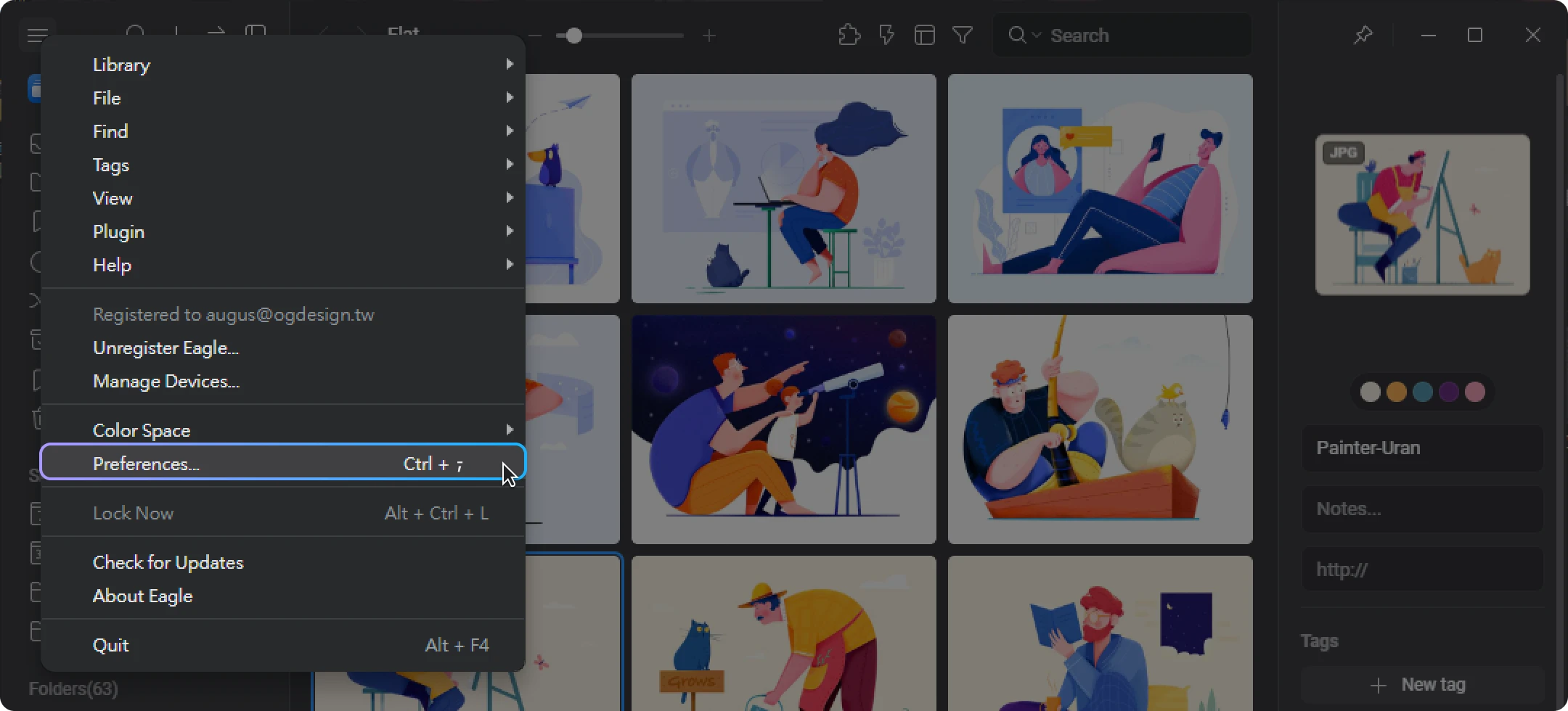
- Go to "General" Settings Page:
In the "General" page, find the [Enable GPU acceleration] option in the startup section. - Disable GPU Hardware Acceleration:
Uncheck the [Enable GPU acceleration] option to disable this feature.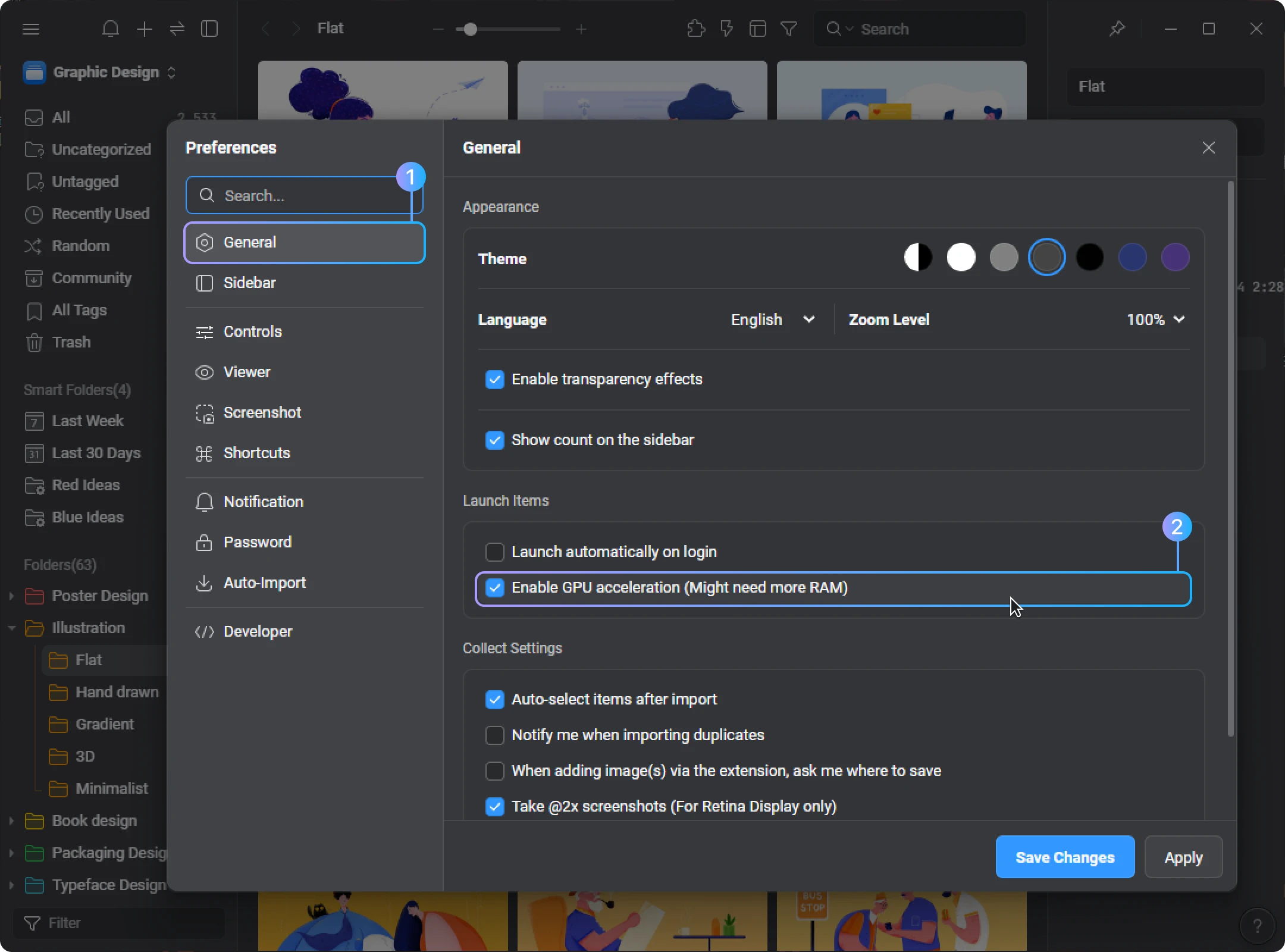
- Open Eagle Main Menu:
Click the Eagle main menu and select "Settings...".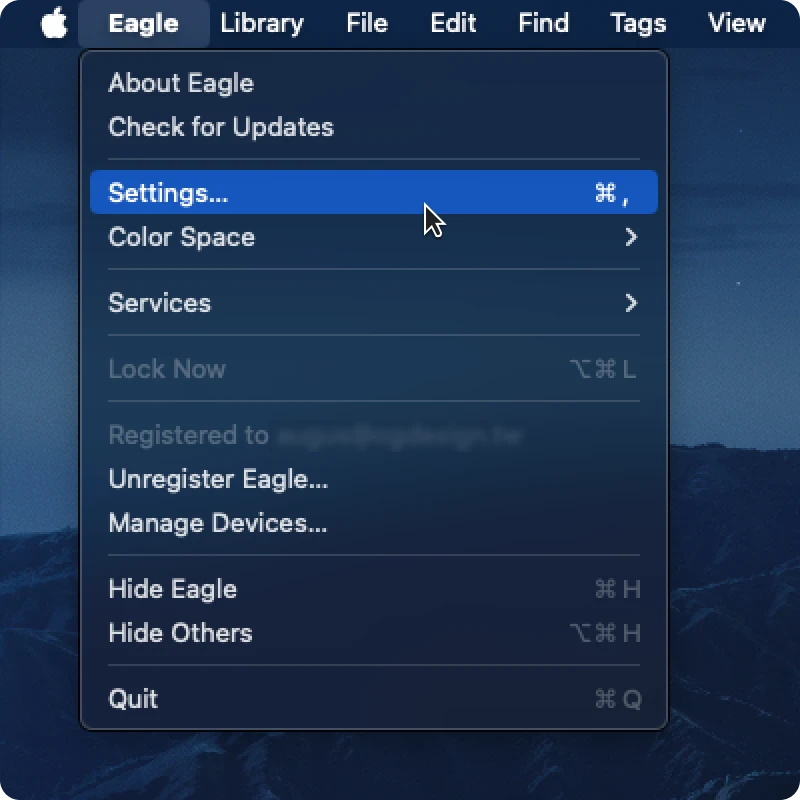
- Go to "General" Settings Page:
In the "General" page, find the [Enable GPU acceleration] option in the startup section. - Disable GPU Hardware Acceleration:
Uncheck the [Enable GPU acceleration] option to disable this feature.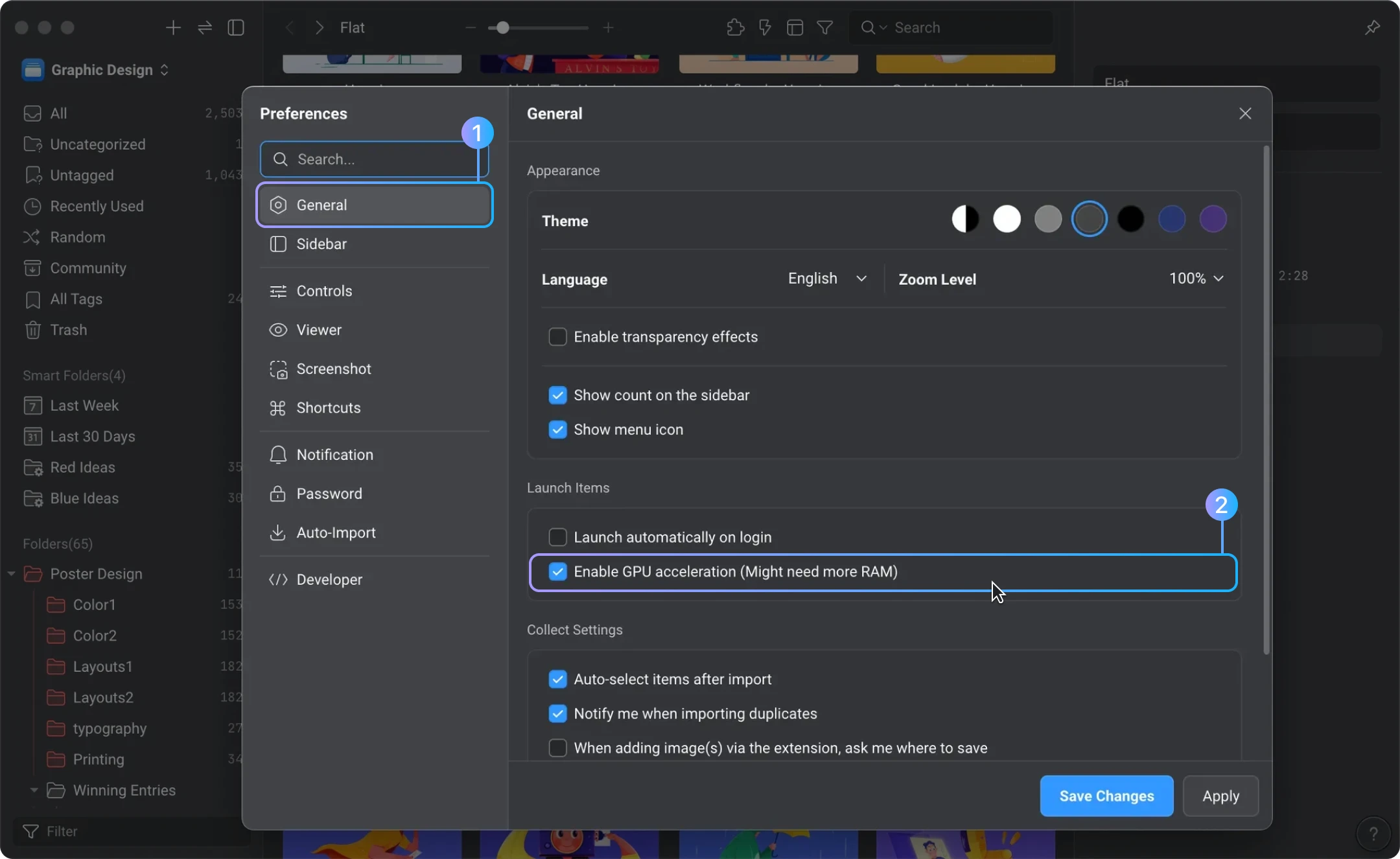
Note: The Mac Apple version does not support this feature, only the Mac Intel version supports this feature.
Important Notes
- After disabling GPU hardware acceleration, Eagle will use CPU for image processing, which may affect software performance
- If the problem is resolved after disabling GPU acceleration, you can continue using this setting
- After software updates, you can try re-enabling GPU acceleration to see if the issue has been fixed