
Eagle allows you to enable all fonts simultaneously, but this process might be interrupted by User Account Control (UAC) prompts in Windows. This article explains how to streamline the font enabling process.
Introduction
When enabling multiple fonts at once in Eagle, Windows UAC may repeatedly request authorization for each font installation. This can be disruptive when you're trying to enable many fonts simultaneously.
Steps to Enable All Fonts Without Interruptions
- Turn off UAC notifications
- To avoid constant permission prompts, temporarily disable UAC
- For detailed instructions, refer to When the font is enabled, Eagle keeps showing prompt message that asks for permission
- Filter uninstalled fonts in Eagle
-
Return to Eagle
-
Click on the text filter
-
Select the "Uninstalled" option to display all fonts that haven't been enabled yet
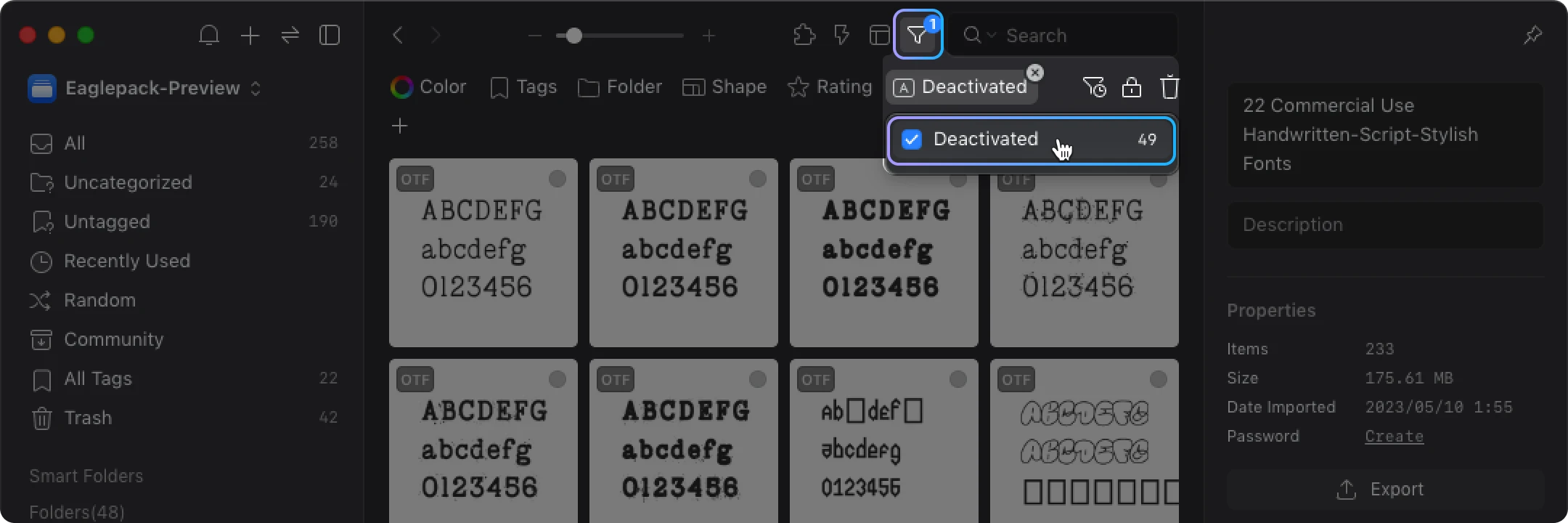
-
- Enable all fonts at once
-
Select all the fonts you want to enable
-
Right-click and select "Enable Font" from the context menu
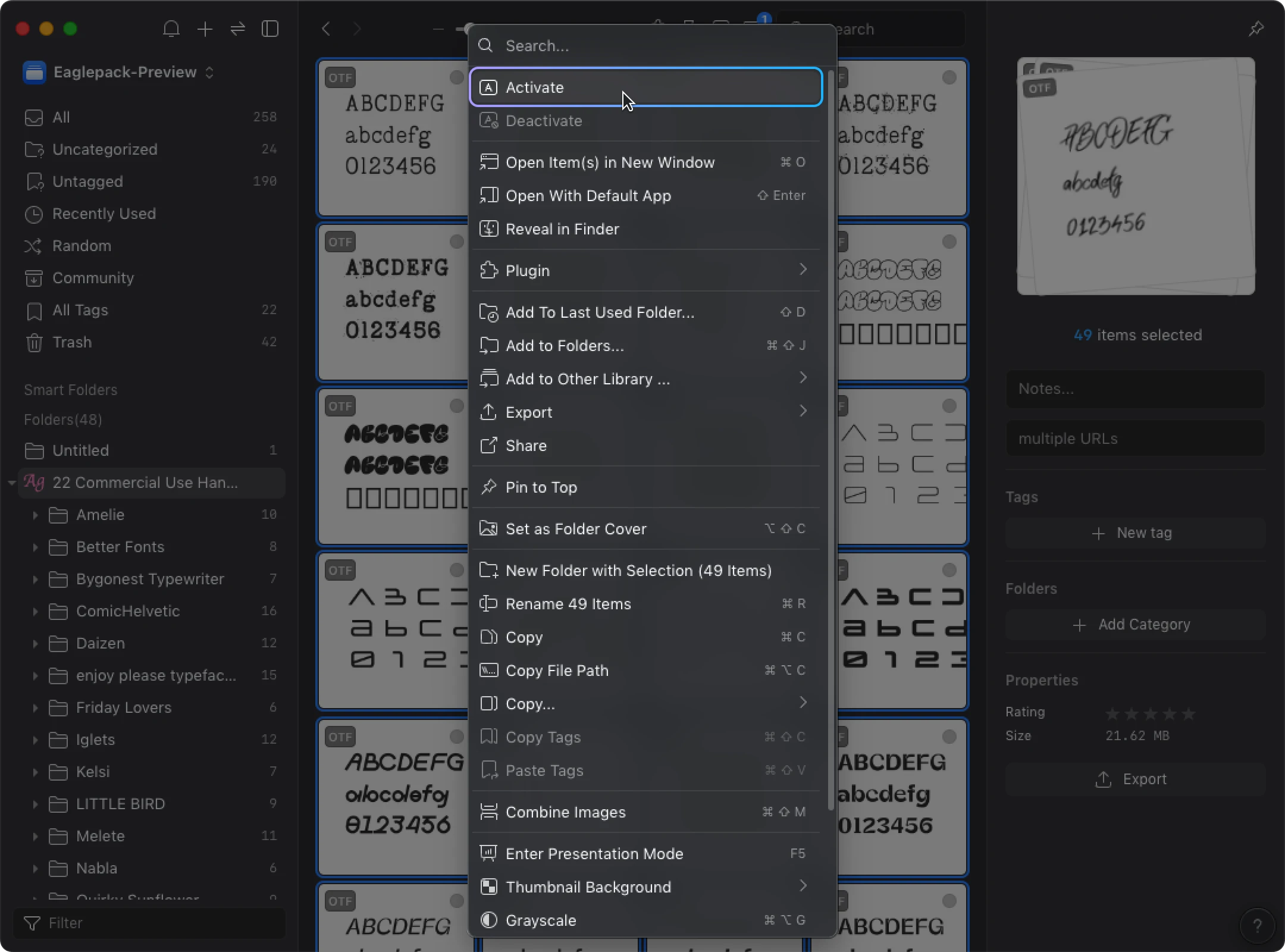
-
Important Notes
- Remember to re-enable UAC after completing the font installation process
- This method is particularly useful when you need to enable a large number of fonts
- The process may take some time depending on the number of fonts being enabled