
Clearing Eagle cache files can effectively resolve issues with incorrect software interface data display. When software cache files are not completely written back, it may cause data to not be properly updated. By clearing the cache folder and allowing the software to regenerate new cache files, normal interface display can be restored.
Applicable Scenarios
When you encounter the following situations while using Eagle, you can try clearing the cache:
- Incorrect interface data display
- Thumbnails not displaying properly
- Library loading abnormalities
- Data not updating promptly after operations
Clearing Method
- Close Eagle Software
Ensure all running Eagle programs are closed - Open Cache Folder Location
Click the Win button in the lower left corner, search and open %appdata%\eagle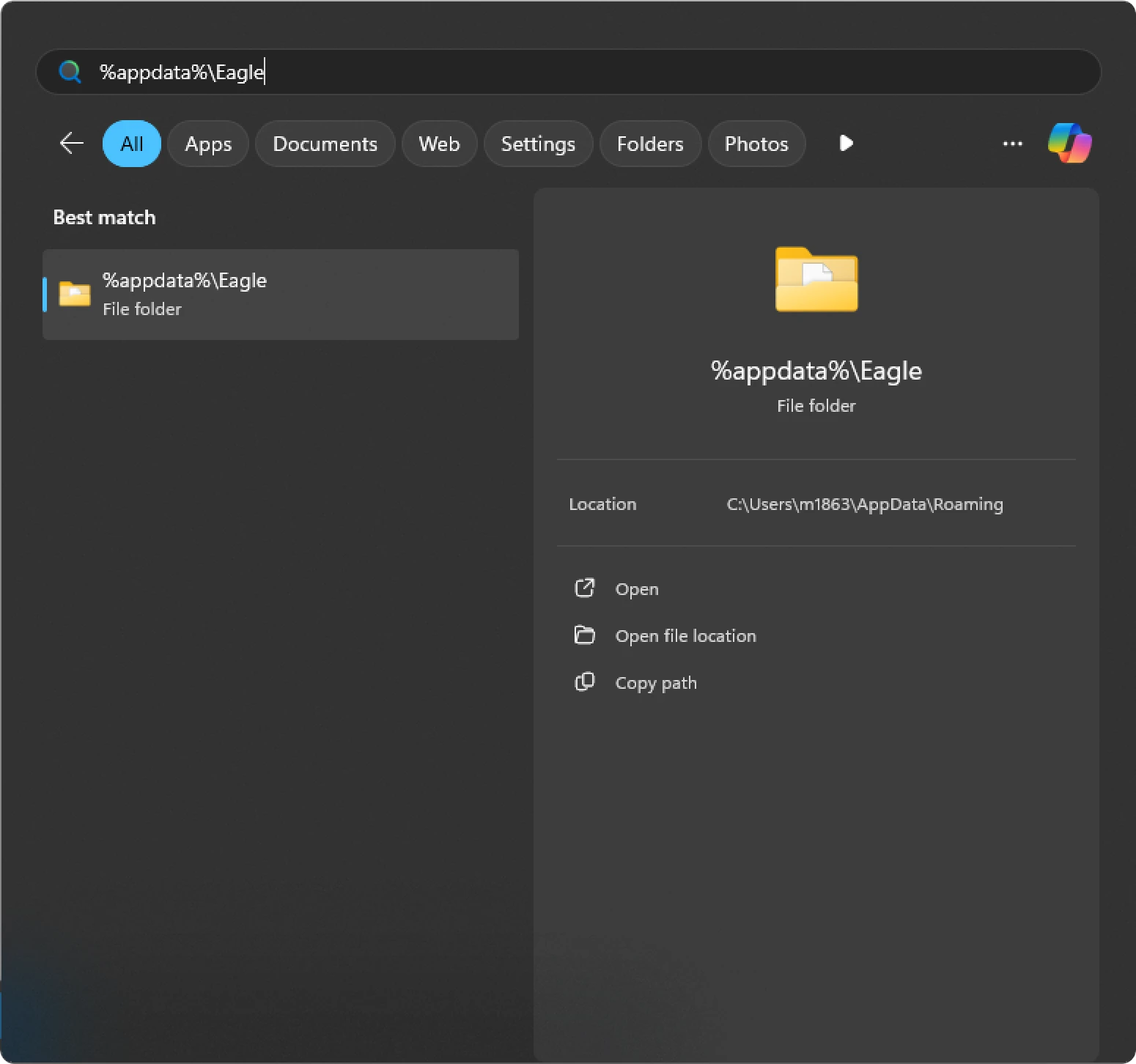
- Delete Cache Folder
Delete the folder namedlibrary-caches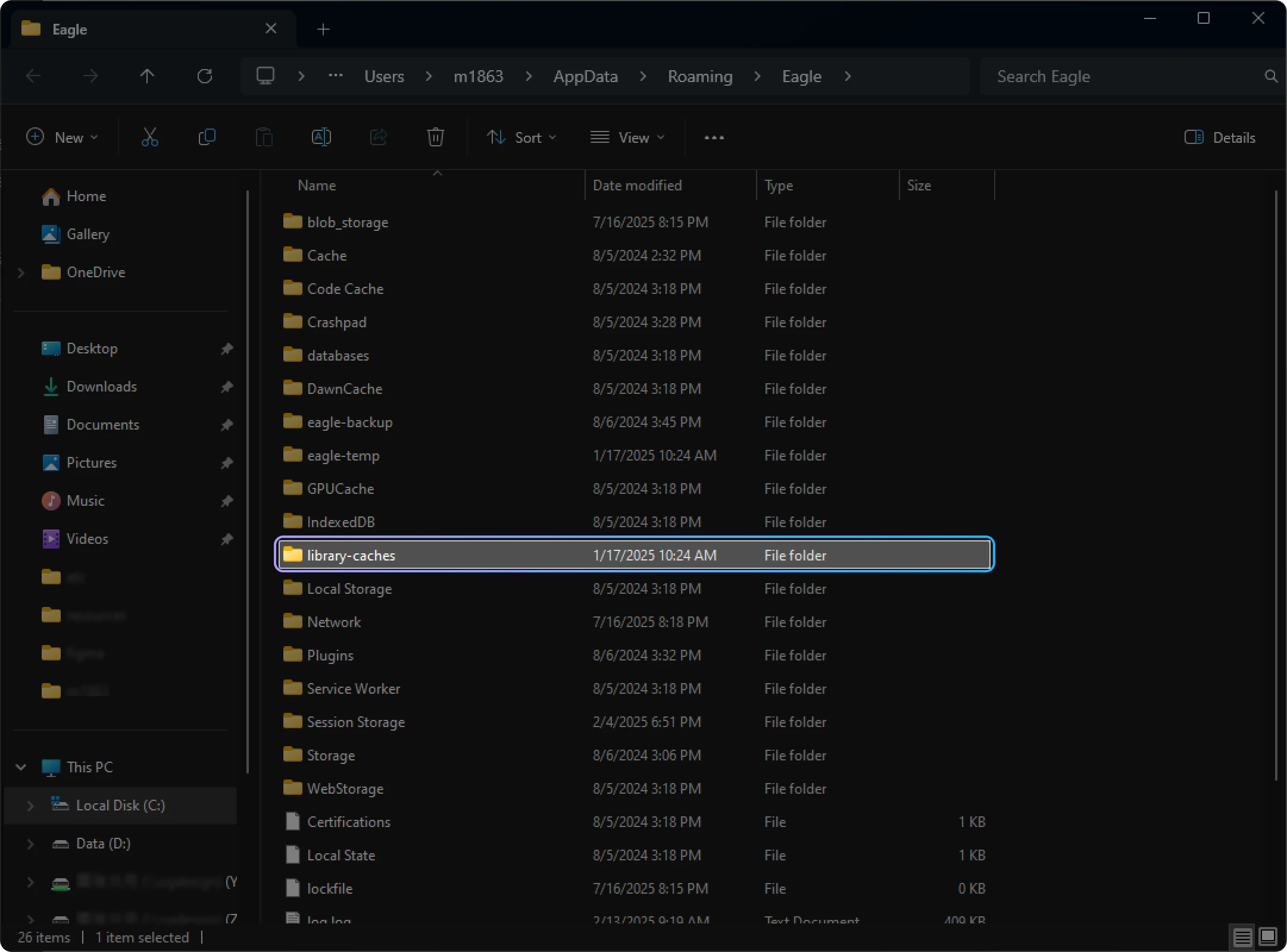
- Restart Eagle Software
Restart Eagle software and check if the issue has been resolved
- Close Eagle Software
Ensure all running Eagle programs are closed - Open Finder and Go to Folder
Open the Finder app, click "Go" > "Go to Folder" in the top menu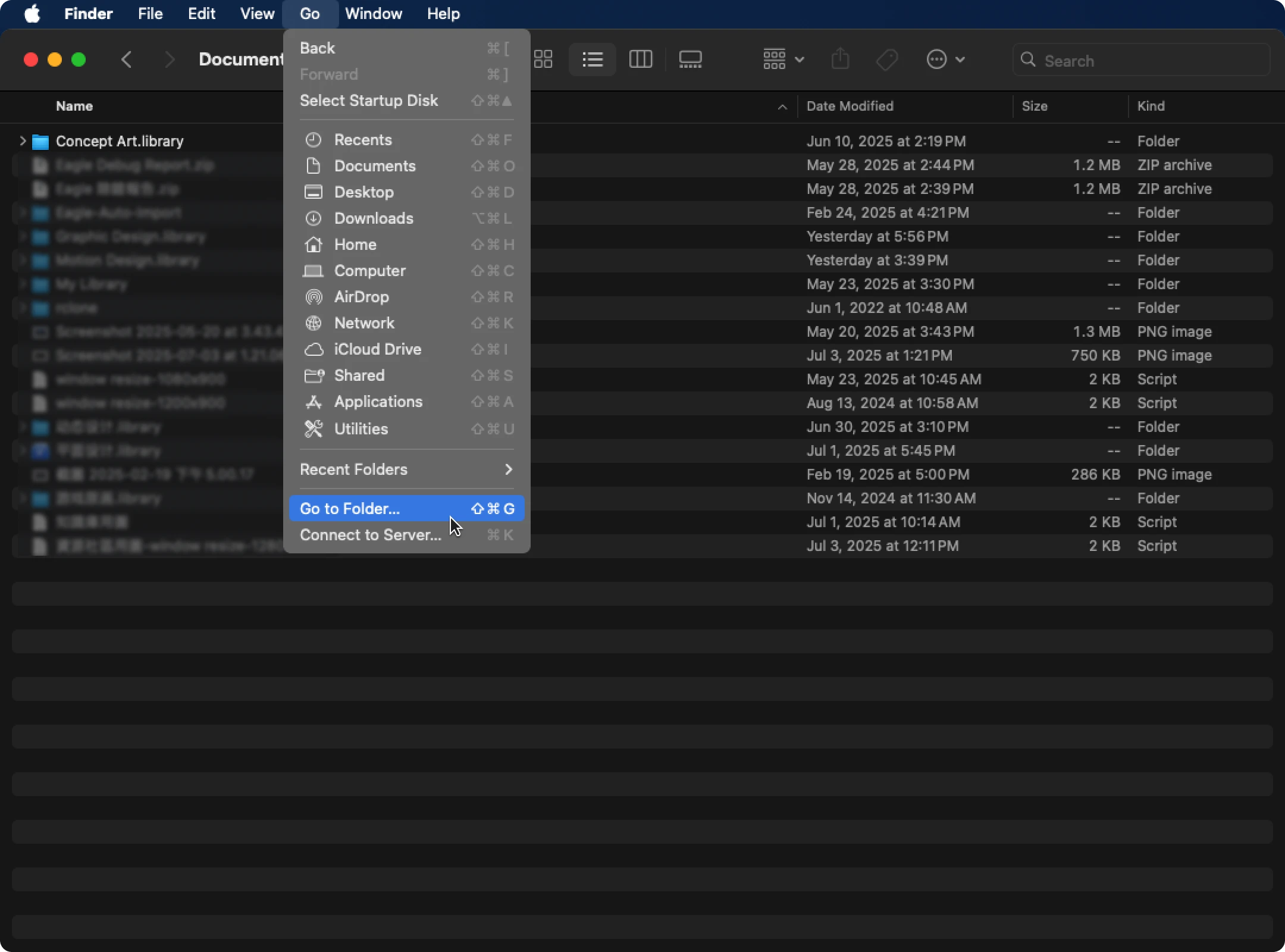
- Enter Cache Folder Path
In the pop-up dialog box, enter the path ~/Library/Application Support/Eagle/, then click "Go"
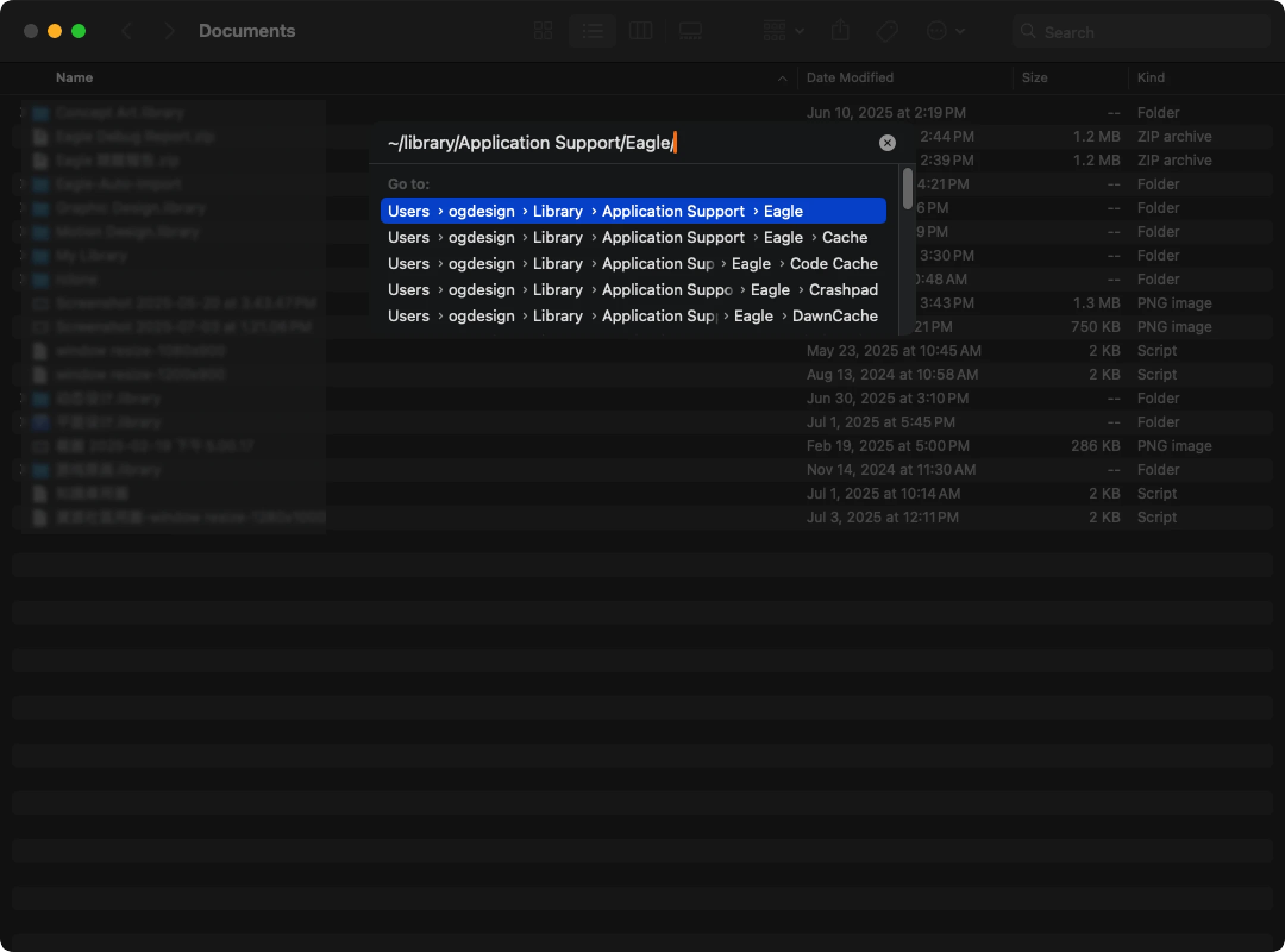
Make sure the path starts with the ~ symbol
- Delete Cache Folder
Delete the folder namedlibrary-caches
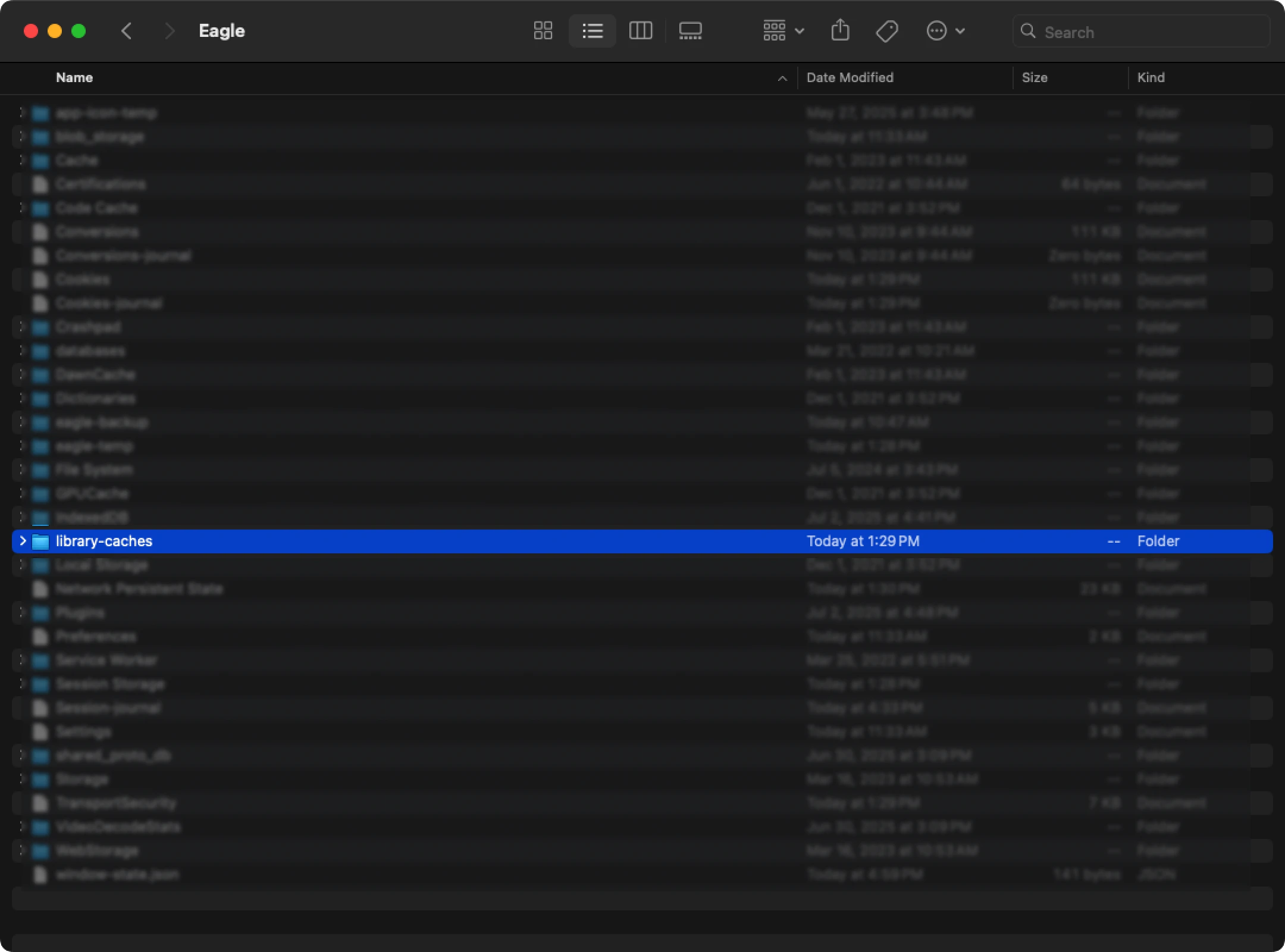
- Restart Eagle Software
Restart Eagle software and check if the issue has been resolved
Important Notes
- Clearing cache will not delete any of your resource files
- After clearing cache for the first time, restarting Eagle may take some time to regenerate the cache