
The disk "allocation unit size" is the smallest unit that makes up each file, which directly affects your storage efficiency and system performance. Larger allocation units can improve read speeds, but may lead to storage space waste. For example, a 512-byte file occupies 512 bytes of storage space when the allocation unit is 512 bytes; while a 513-byte file will occupy 1024 bytes of storage space when the allocation unit is 512 bytes.
Due to Eagle's unique storage structure that generates many fragmented small files, we recommend that your hard drive file system uses NTFS format and configure the "allocation unit size" to the default 4k (4096 kb). This can significantly reduce unnecessary capacity loss on your hard drive.
The traditional FAT32 format supports a very limited maximum number of files, while NTFS format can support virtually unlimited numbers of files.
Steps to Check and Set Allocation Unit Size
Here are the detailed steps to check the disk "allocation unit size":
-
Press Windows key + E to open "File Explorer"
-
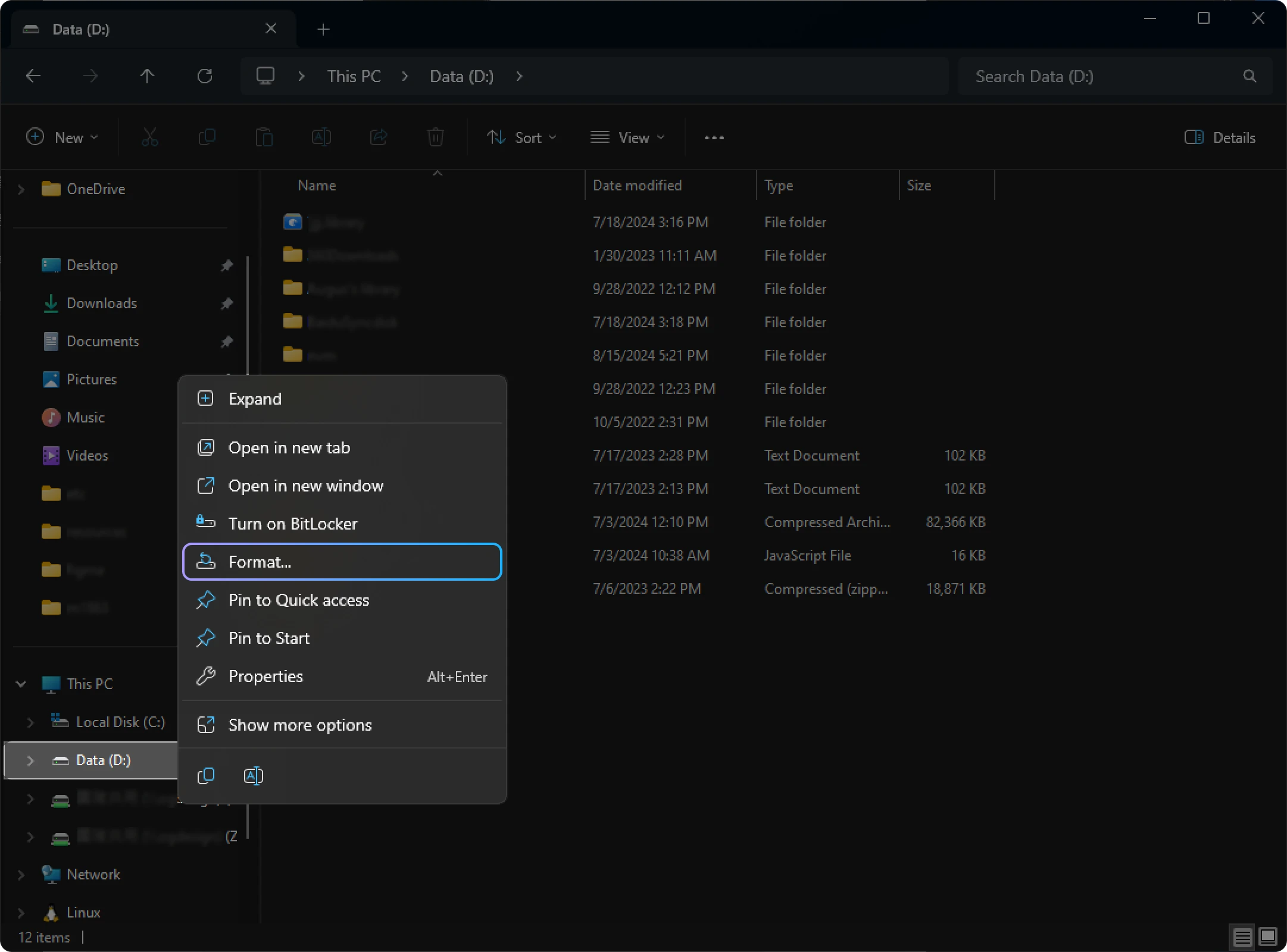
In the left file navigation area, find "This PC", click to expand the subdirectory, and select the hard drive you want to check or format. For example, if you want to format the E drive, right-click on "E:"
-
Select "Format..." from the pop-up menu, which will open a format hard drive window
-
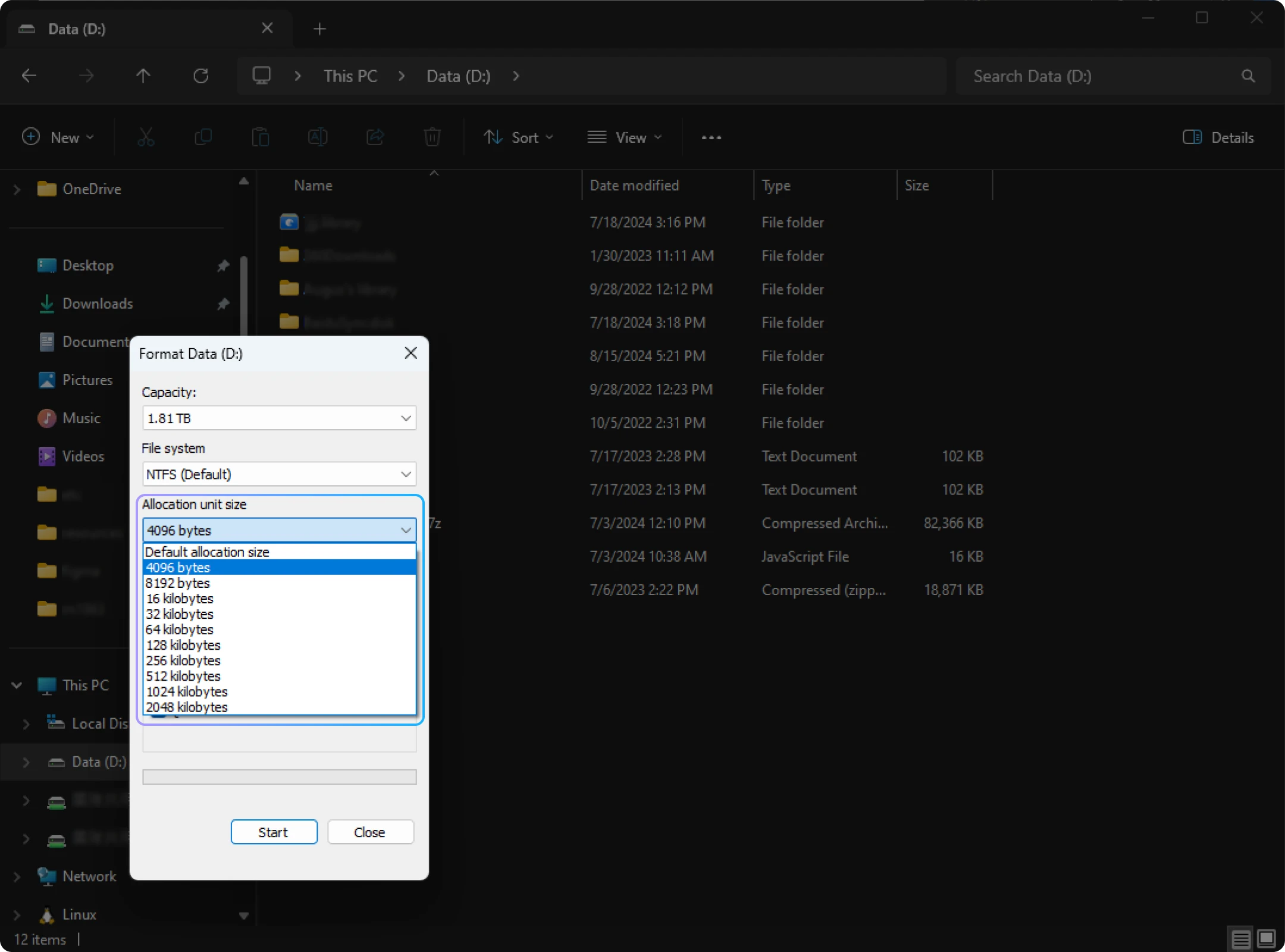
In the format window, you can set the file system type (such as NTFS) and allocation unit size (recommended to use the default configuration of 4096 kb size)
Important Notes
- Formatting will delete all data on the hard drive, please ensure you backup important files before formatting
- For hard drives storing Eagle libraries, NTFS file system and 4096 kb allocation unit size is the optimal choice
- If you are using an external hard drive, please ensure it supports NTFS file system