
When using Eagle, you may need to view the actual storage location of your library or individual files on your computer. This article will explain how to quickly find this location information.
View Library Storage Path
If you want to view the storage location of your current library on your computer:
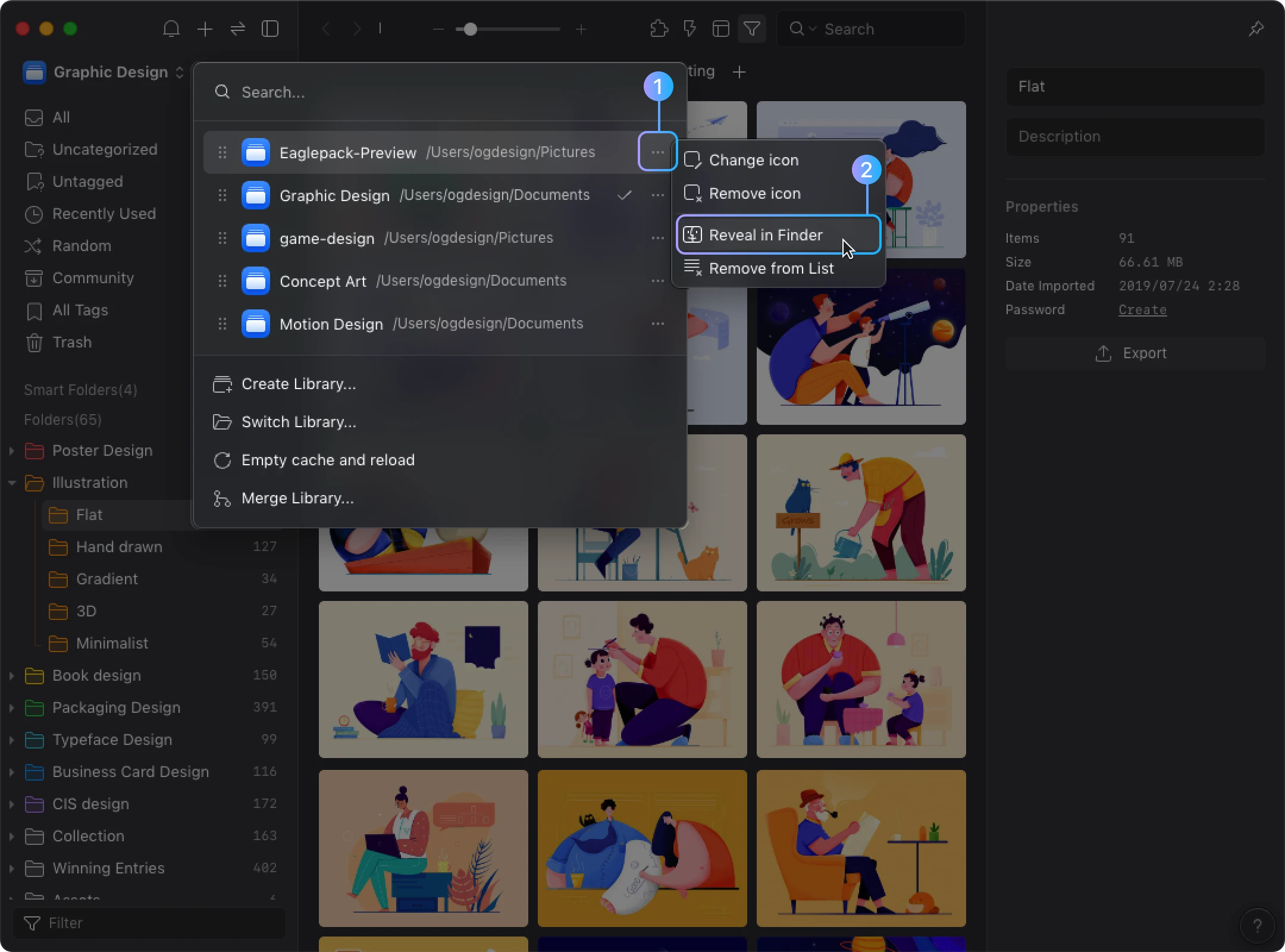
- Click on the library name area in the upper left corner of the software
- The system will display the "Library History" window
- In this window, you can see the complete storage path of the current library
- You can also click the "More" icon on the right side of this library to directly open that location using the system file manager
View Storage Location of Individual Images or Files
If you need to view the actual storage location of a specific file in your library:
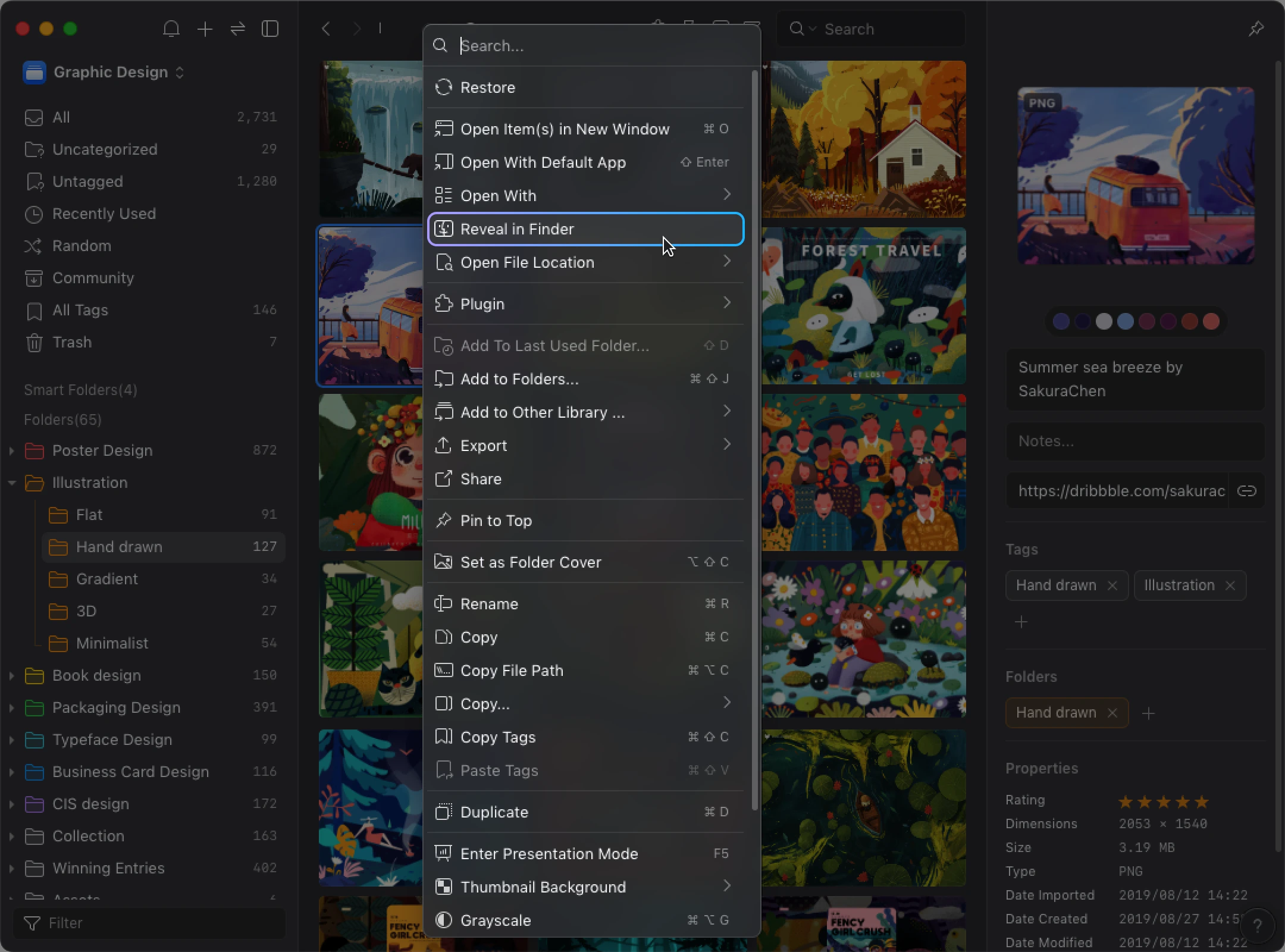
- Select the image or file you want to view
- Right-click and select "Open in Explorer"
- The system will automatically open the file manager and locate the actual storage location of that file
Important Notes
- Understanding the actual storage location of files helps with backup or file management operations
- Do not directly modify the file structure within Eagle libraries in the file manager, as this may cause library corruption