
Checking folder sizes in Eagle is very simple. This article will show you how to quickly view the capacity information for individual folders and folders containing subfolders.
Viewing Individual Folder Size
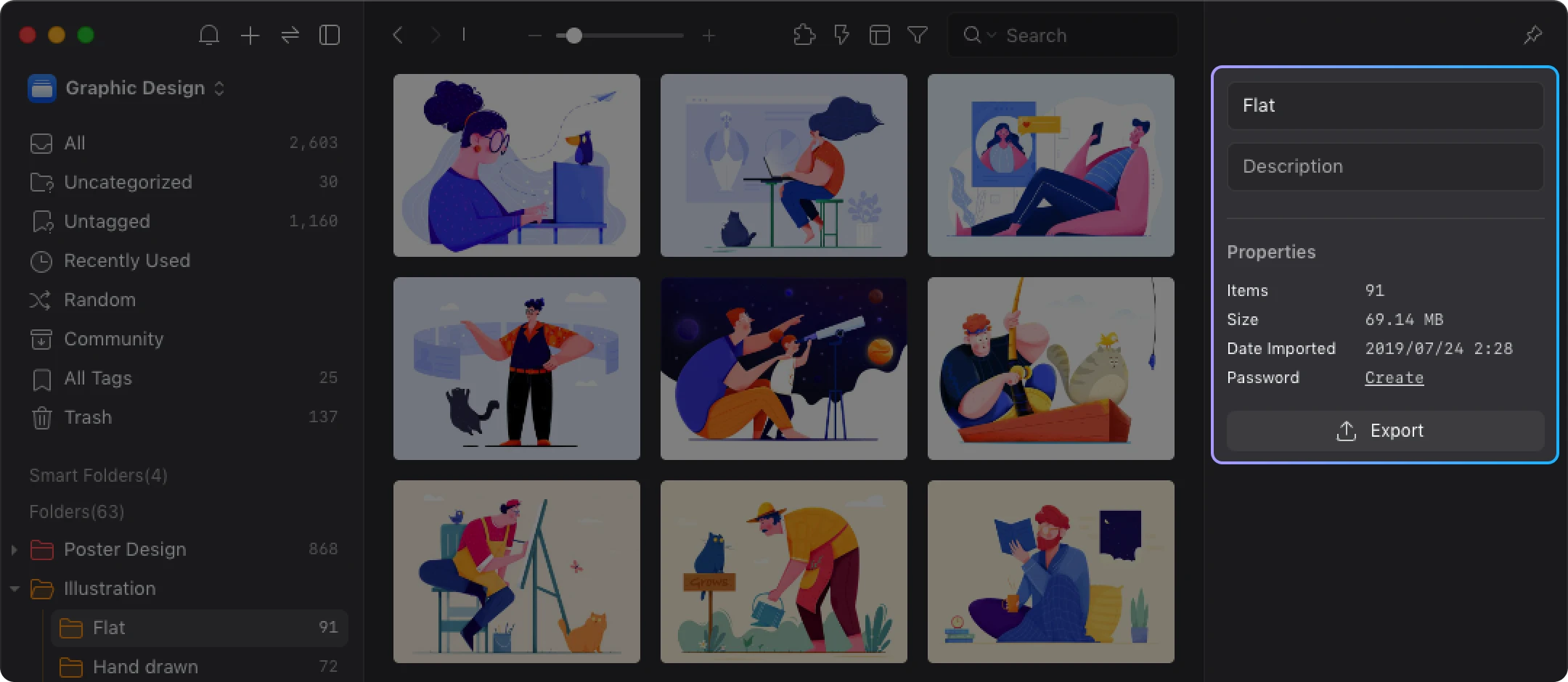
Checking folder size is very straightforward:
- Click on the folder containing files in the left sidebar
- The inspector panel on the right will automatically display the number of files and total size within that folder
Viewing Total Capacity Including Subfolders
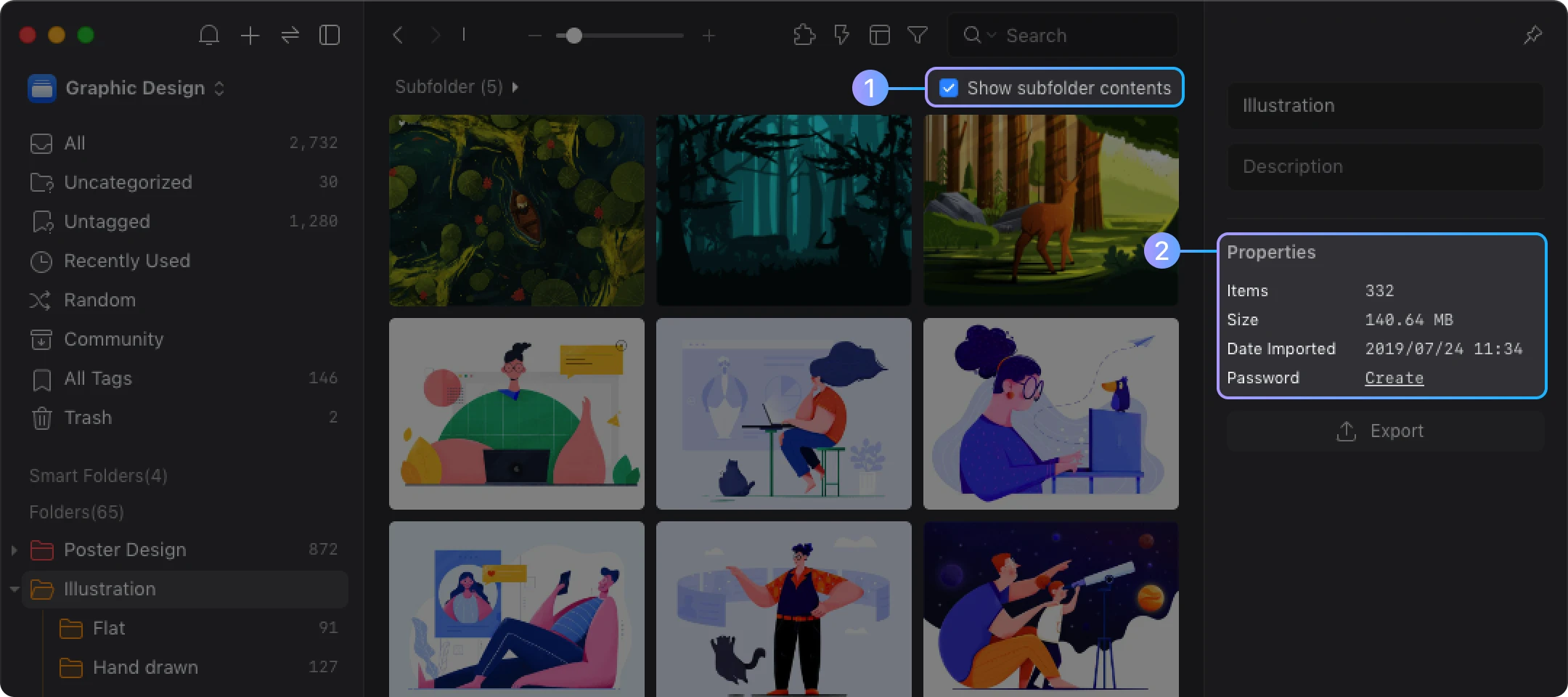
For parent folders that only contain subfolders without direct files, you can:
- Click on the "Show subfolder contents" option below the search bar in the upper right corner of the list
- After enabling this option, the right inspector will calculate the total number of files and total capacity size across all subfolder levels
Important Notes
- Folder capacity information updates in real-time and will automatically refresh when you add or delete files
- When managing large libraries, understanding folder capacity can help you organize files more effectively