
Important Notice:
The Eagle MCP plugin requires Eagle 4.0 Build 12 (2025-09-14) or later to function properly and is currently still in Beta testing, so stability may not be fully mature. Additionally, different AI models may vary in capability and performance, and AI can still produce incorrect or unexpected results. Users who wish to try this plugin should back up all data completely beforehand and carefully review the task details and execution plan before each Agent operation to avoid data being modified to an unintended state due to Agent misjudgment or model limitations.
💡 You can also try Eagle Skill!
In addition to the MCP mode described in this article, Eagle also offers Eagle Skill as a lightweight alternative. Skill mode requires no JSON configuration file editing – simply copy the Skill package to your AI tool's Skills folder to start using it, and it consumes fewer tokens (only a brief description is loaded; reference files are loaded on demand). Currently supported tools include Claude Code, OpenClaw (Lobster), Gemini CLI, Codex, Google Anti-Gravity, and more.
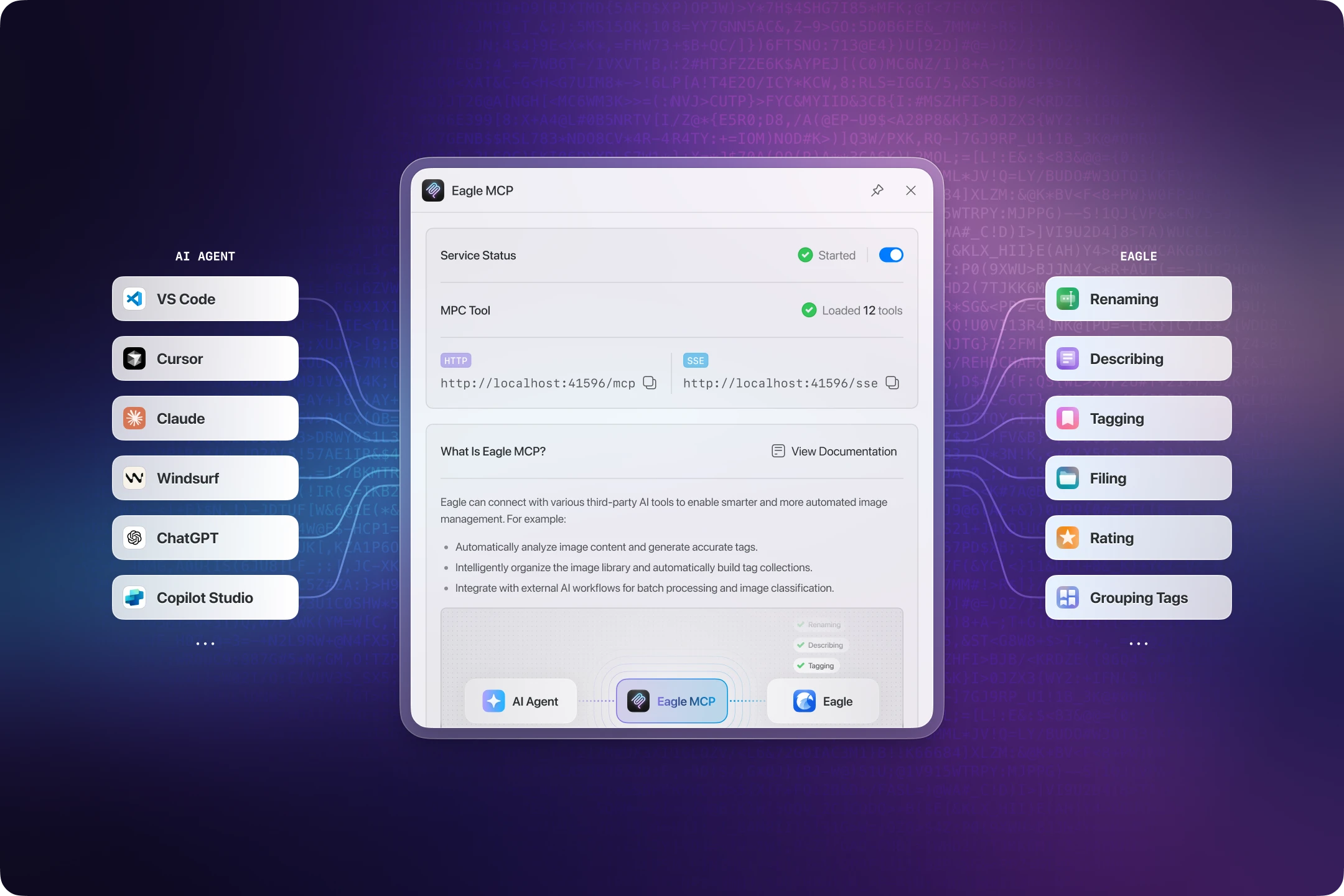 Eagle MCP enables AI assistants to directly access your Eagle library capabilities through MCP (Model Context Protocol), turning tasks like tagging, categorizing, translating, and batch organizing – which previously required extensive manual effort – into operations that can be completed through natural language.
Imagine simply telling your AI: “Help me organize all cat-related tags in my library – merge synonyms like cat, kitty, and feline into one, and fix any spelling errors along the way” – the AI can generate organization suggestions and help you apply them in bulk, saving enormous amounts of repetitive clicking and manual review.
This guide provides the complete configuration process for Eagle MCP. Using Cursor as an example, it walks you through: installing and launching the Eagle MCP Server, verifying the server endpoint, and setting up the MCP Client (tool side), so you can go from zero to having AI integrated into your asset library workflow.
What is MCP?
You can think of MCP (Model Context Protocol) as a “universal adapter” for the AI world: it lets AI go beyond being just a chat tool, allowing it – with your authorization – to read your actual work content (data, files, knowledge) and operate the tools you use every day.
The following official Figma video explains “what an MCP server actually does” in a very intuitive way. We recommend watching it first before coming back to learn about Eagle MCP – it will give you a much better sense of how it all works.
What can Eagle MCP do?
Eagle MCP wraps asset management workflow operations tailored to design and creative needs.
Core Features
-
Intelligent Tag System Analysis
Analyzes your tag usage patterns, identifies synonym groups (e.g., “cat / kitty / feline”), spelling variants, and usage frequency, then provides recommendations for merging, retiring, or standardizing tags.
-
Natural Language Control for Complex Tasks
You can issue “conditional query and organization” instructions, such as limiting the scope by folder, star rating, time range, or existing tag sets.
-
Cloud and Local Model Integration
Choose between cloud models or local models based on your budget and privacy requirements (actual support depends on your MCP Client and model service).
💡 Model Recommendation: Claude Sonnet 4.5 and later
If you use Eagle MCP for complex or multi-step reasoning tasks (such as tag grouping analysis, batch classification suggestions, etc.), we strongly recommend Claude Sonnet 4.5 and later versions. The Claude series is specifically trained for “Tool Use” and can more accurately understand MCP instruction structures and response formats, performing especially well in scenarios that require multiple tool calls and structured output. If budget is a concern, you can also use Claude Haiku 4.5, which has slightly lower tool call accuracy than Sonnet but offers advantages in execution speed and cost, making it suitable for testing or non-critical tasks.
Installing Eagle MCP Plugin
Step 1: Get the Eagle MCP Plugin
-
Open the Eagle application
-
Click the top menu “Plugins” → “Plugin Center”

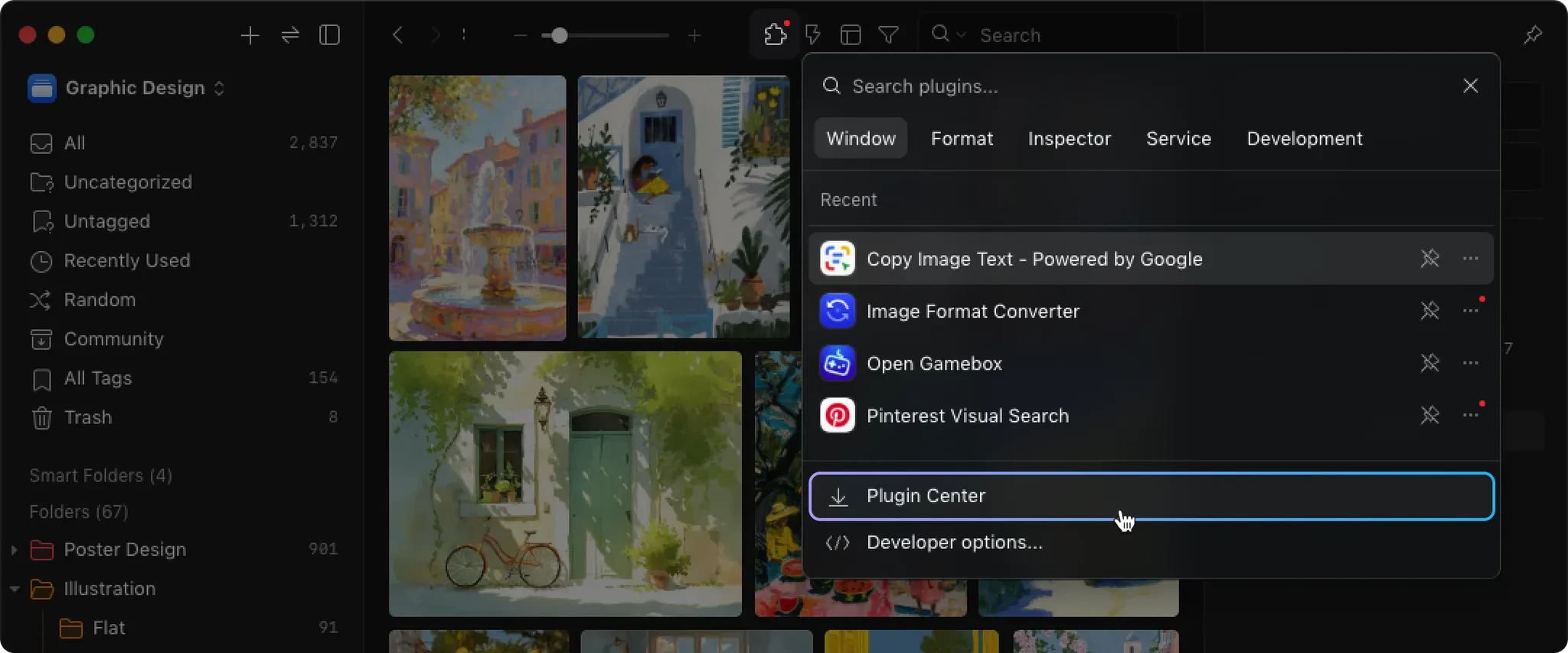
-
Type “MCP” in the search bar
-
Find the “Eagle MCP” plugin and click “Install”
Step 2: Complete the Installation Setup
-
After installation, you can see Eagle MCP in the plugin list
-
Click the “Enable” button to activate the plugin
-
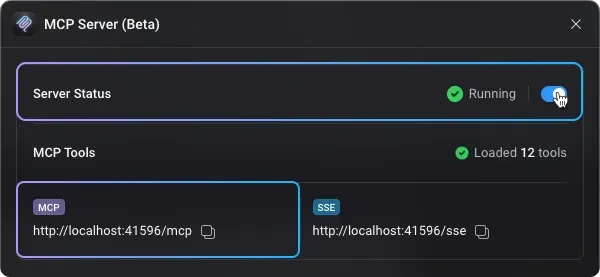
On first activation, the MCP server will start automatically (default port: 41596)
-
The system will display the server status: ✅ Started
MCP Server Configuration Guide
Now that the Eagle MCP server is ready, the following sections explain how to complete the connection configuration in various mainstream AI development tools. All configurations use the same server endpoint: http://127.0.0.1:41596/mcp.
Server Endpoint Configuration
Regardless of which AI tool you use, the basic connection information for Eagle MCP is the same:
{
  "mcpServers": {
    "eagle-mcp": {
      "transport": "http",
      "type": "streamable-http",
      "streamable": true,
      "url": "http://localhost:41596/mcp"
    }
  }
}
This endpoint allows AI tools to communicate with your local Eagle application, enabling intelligent asset management capabilities.
Configuration Examples:
Cursor Configuration
Cursor editor provides a clean and intuitive MCP configuration method, especially suitable for developers.
Step 1: Open the MCP Settings Page in Cursor
-
Click the settings icon in the upper right corner and select
Cursor Settings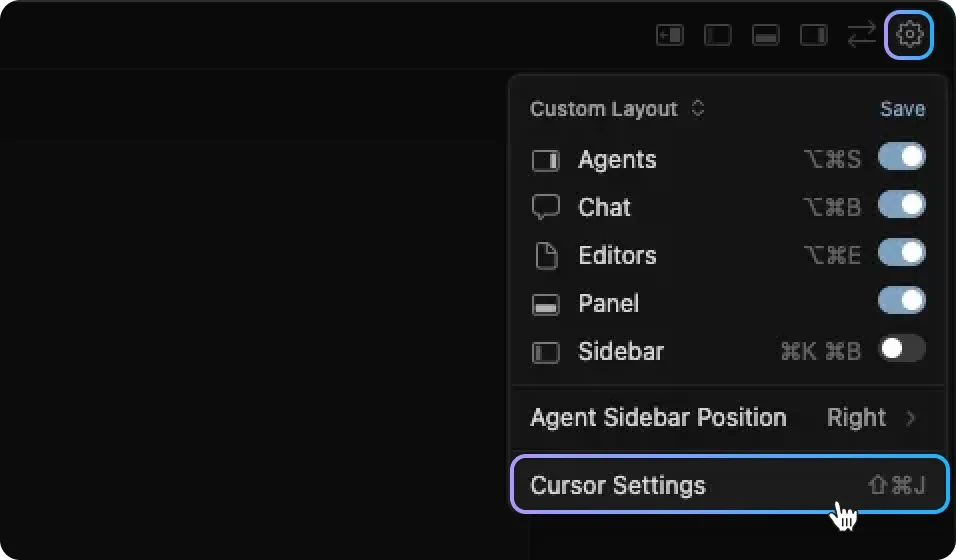
-
Click the
Tools & MCPitem in the left sidebar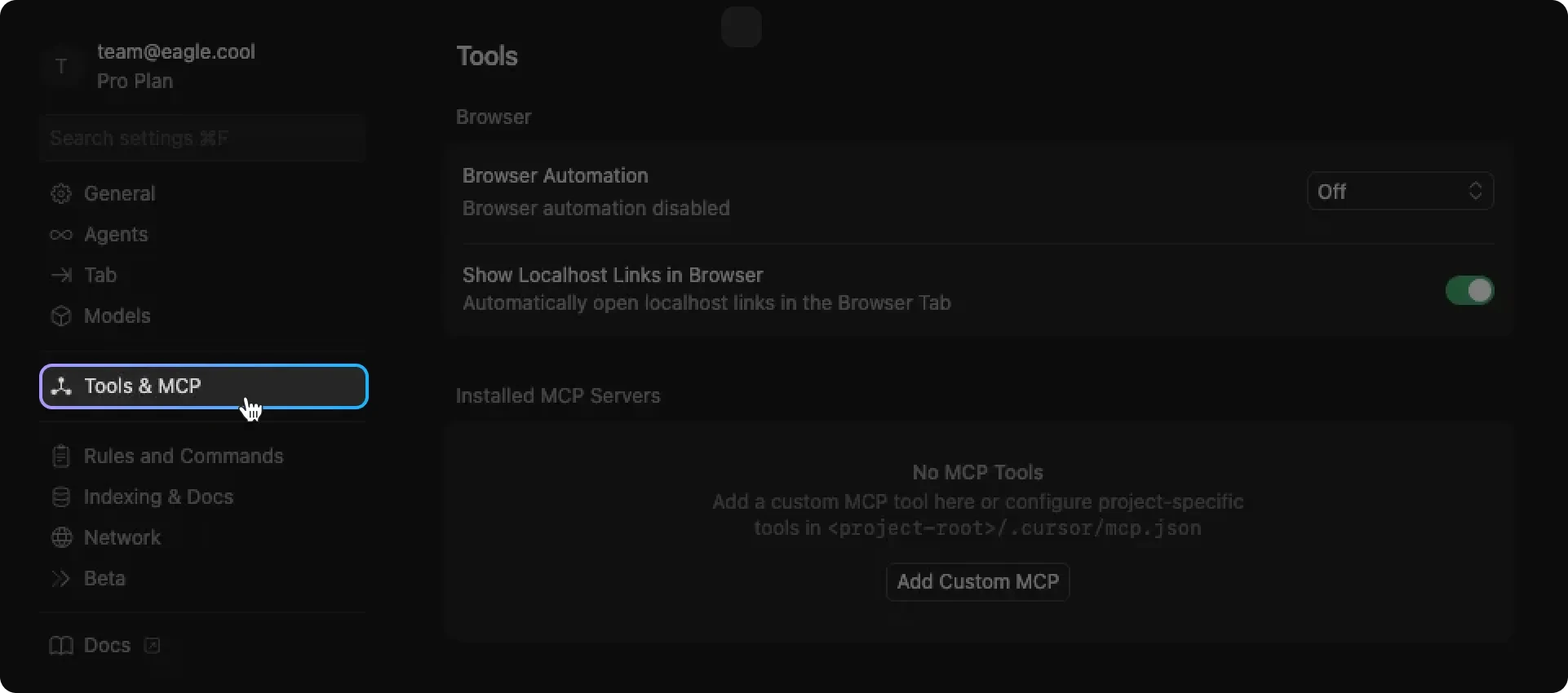
Step 2: Add the Eagle MCP Server
-
Click
Add Custom MCP -
Add the following code to
mcp.jsonand save코드{ "mcpServers": { "eagle-mcp": { "transport": "http", "type": "streamable-http", "streamable": true, "url": "http://localhost:41596/mcp" } } } -
Return to the MCP settings page, and you will see
eagle-mcplisted. (If it shows No Tools under eagle-mcp, try clicking the toggle switch on the right to disable and then re-enable it)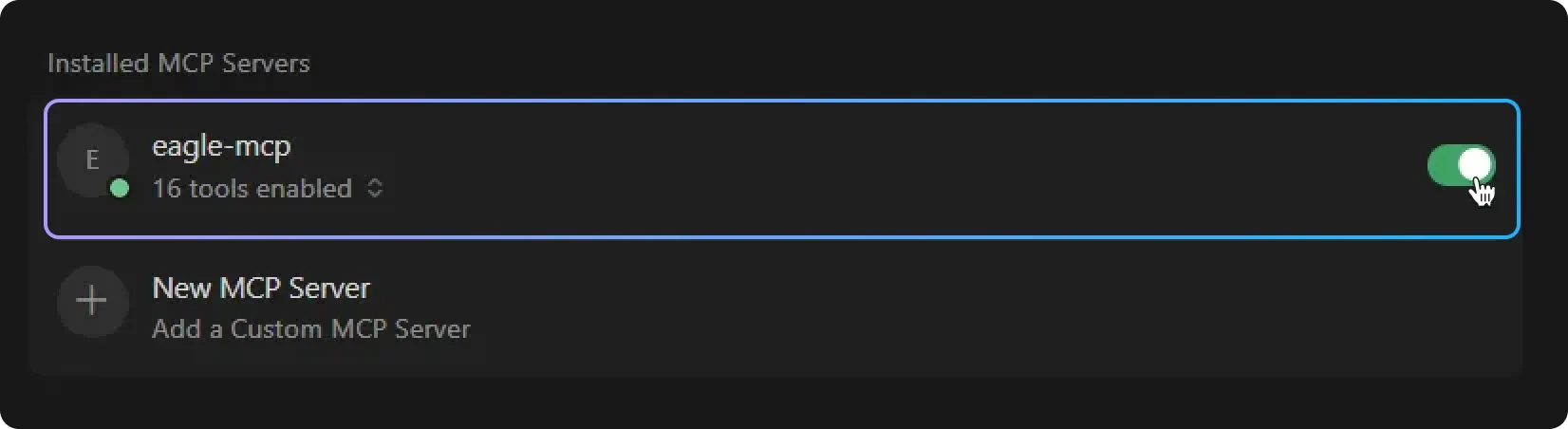
Step 3: Test the Connection
-
Open the AI chat panel in Cursor
-
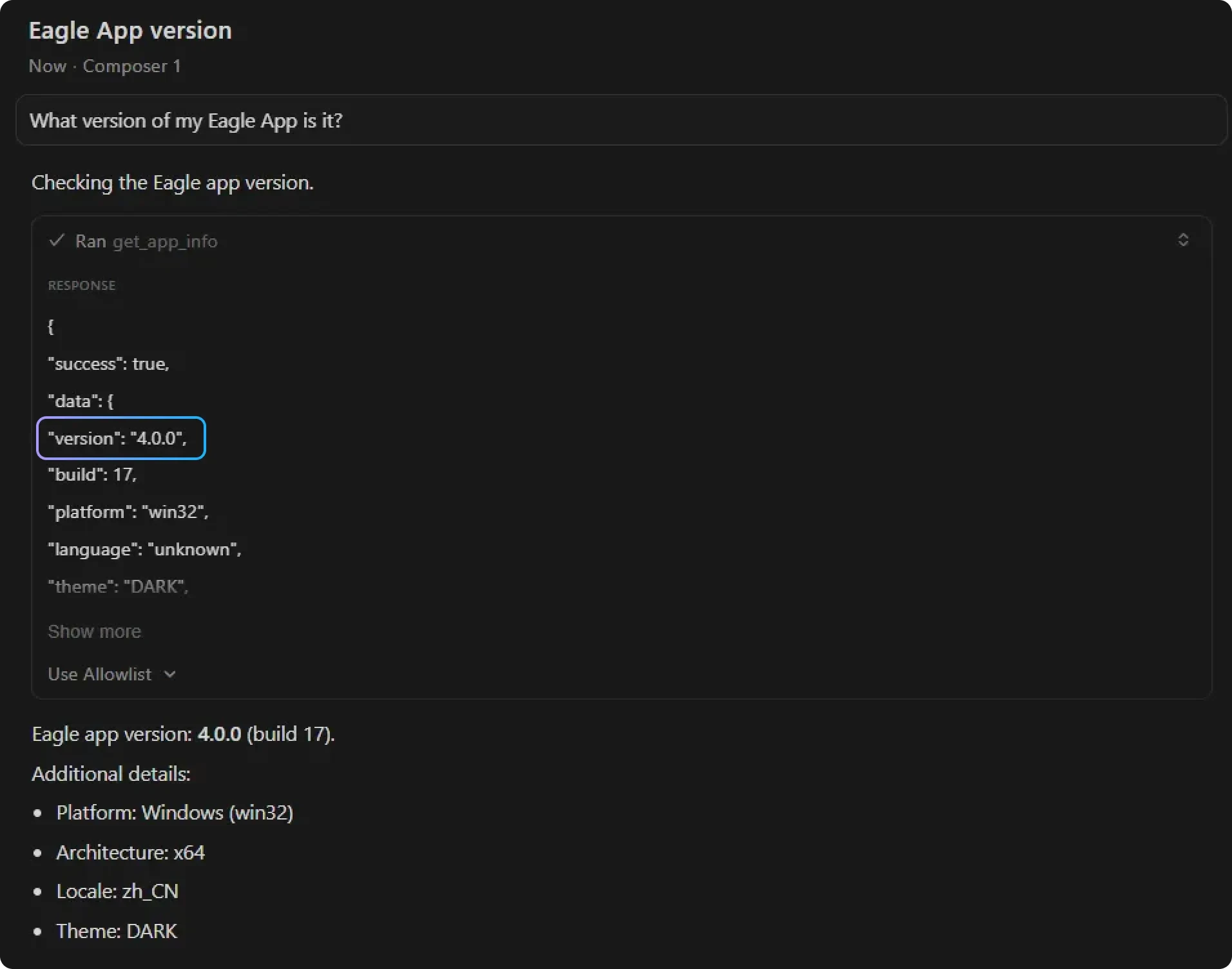
Ask the AI Agent: What version is my Eagle software?
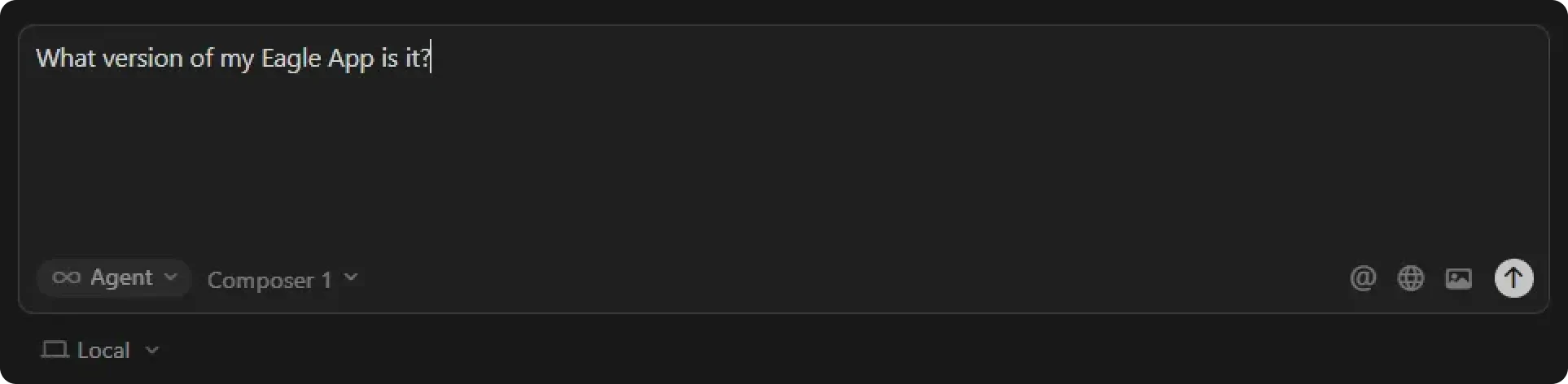
-
If the MCP configuration is successful, you will see the Agent attempt to call Eagle MCP and wait for you to grant execution permission
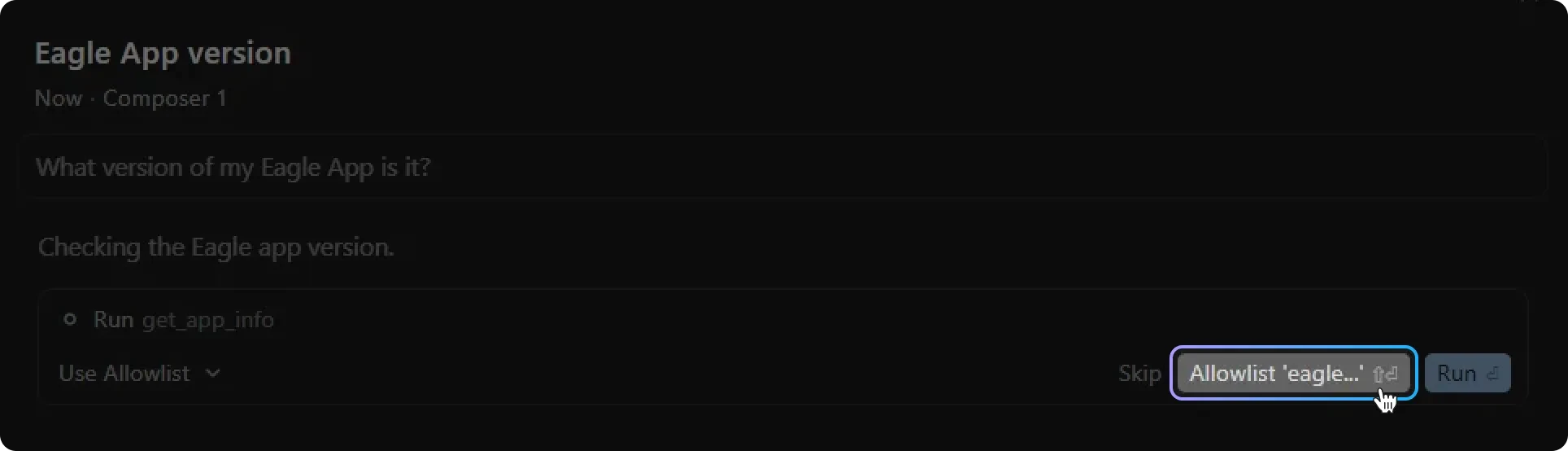
-
After granting permission, if the AI correctly answers the question, it means the Eagle MCP server has been successfully configured.
Claude Desktop Configuration
Important Reminder: When running Claude Desktop for the first time after installation, if the system prompts you for computer file access authorization, make sure to grant Claude Desktop permission to avoid subsequent task execution errors caused by missing permissions.
-
Click the profile icon in the bottom left corner, then select
Settings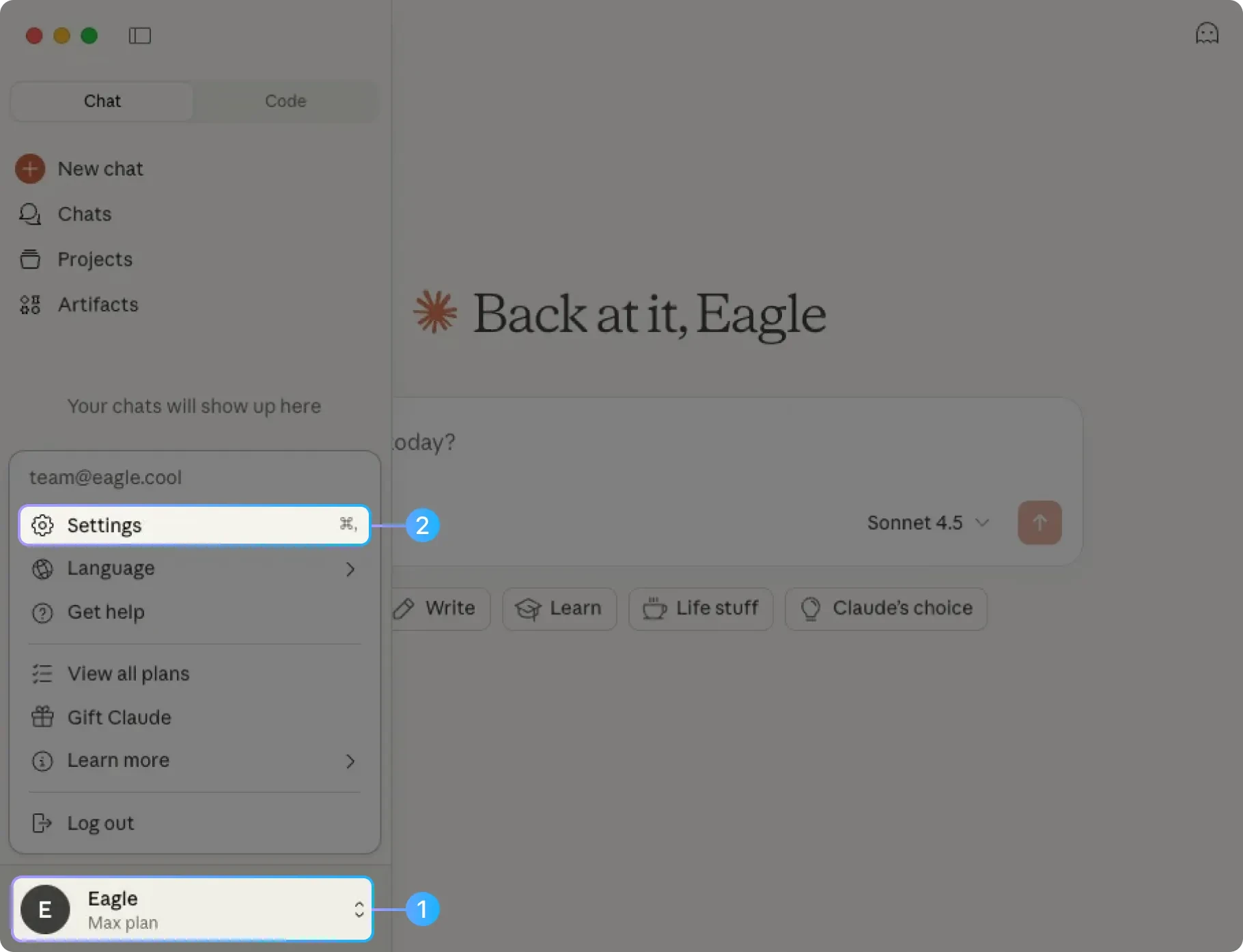
-
Click
Extensions, then clickBrowse extensions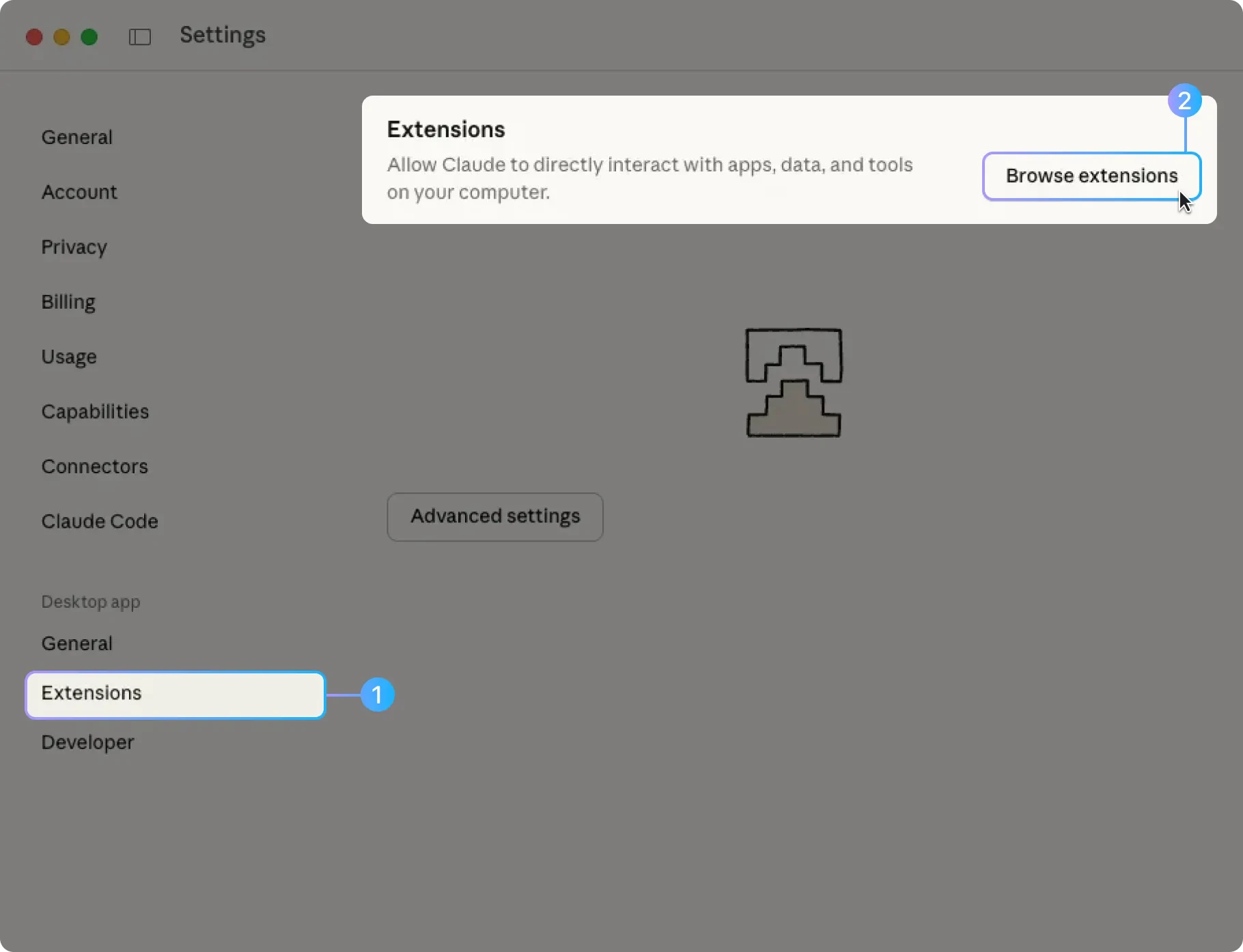
-
Switch to the
Desktop extensionstab, then selectFilesystem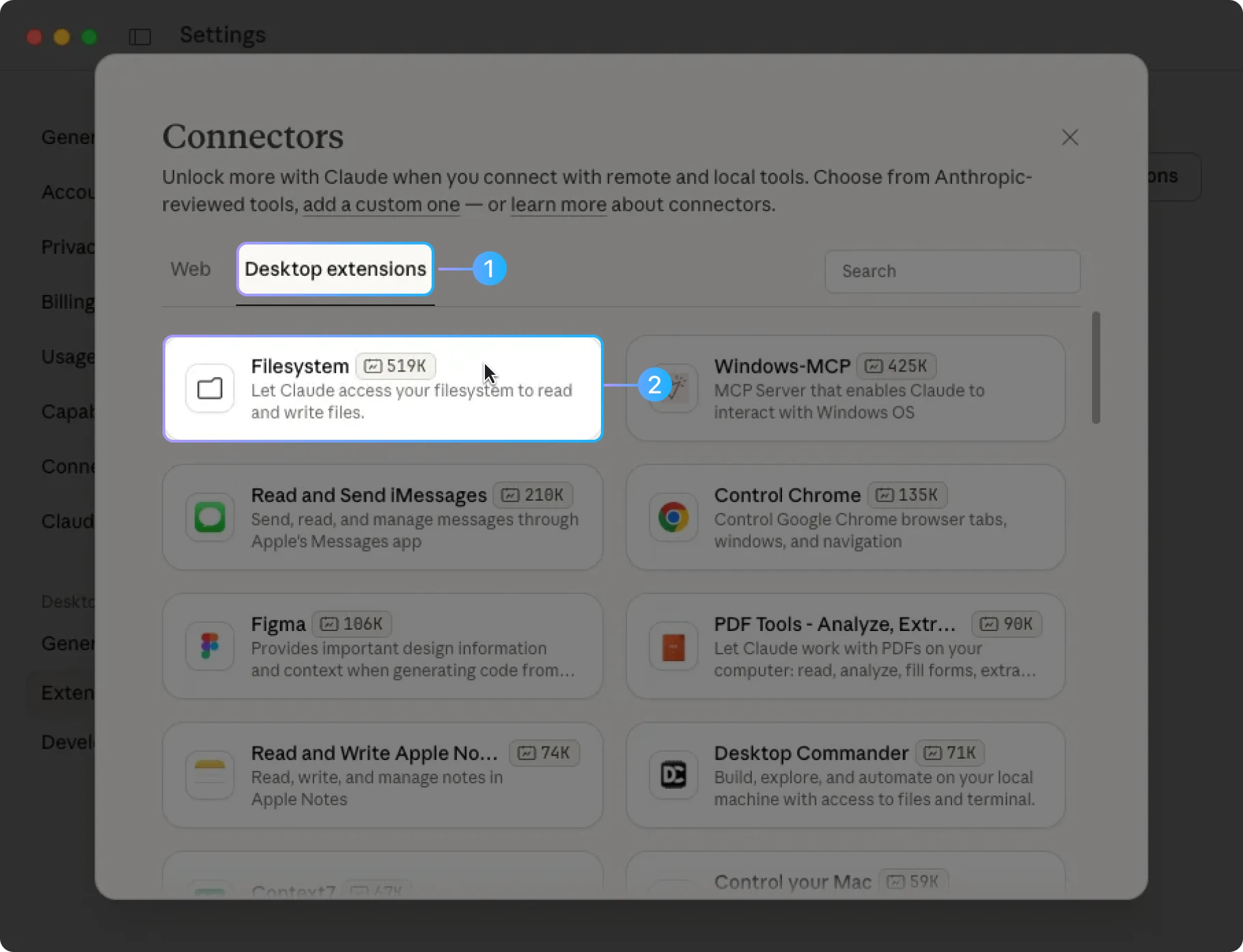
-
Click the
Installbutton to begin installation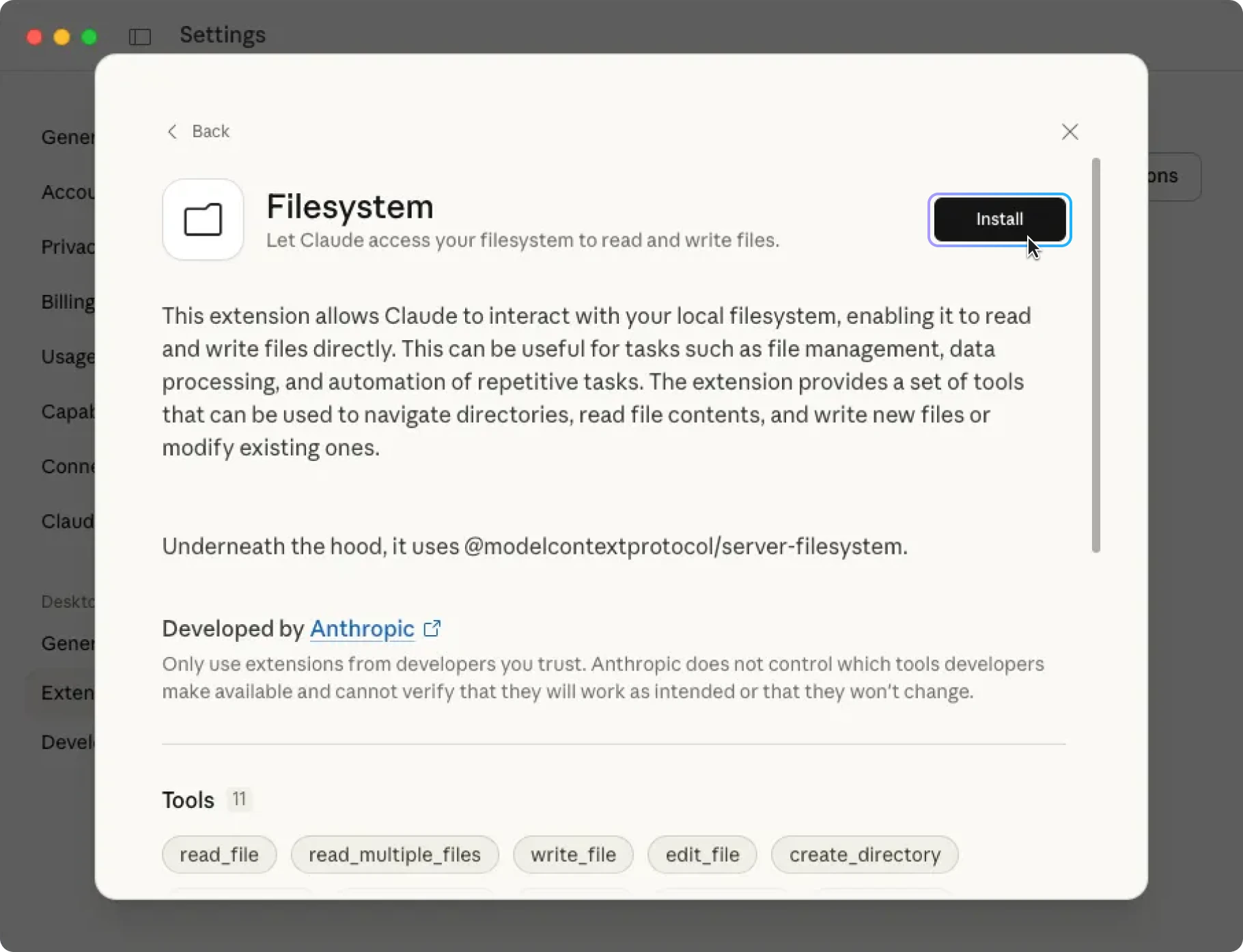
-
After installation, you need to configure the root directory that
Filesystemis allowed to access (the example below authorizes the current user's root path; you can adjust this based on your actual needs)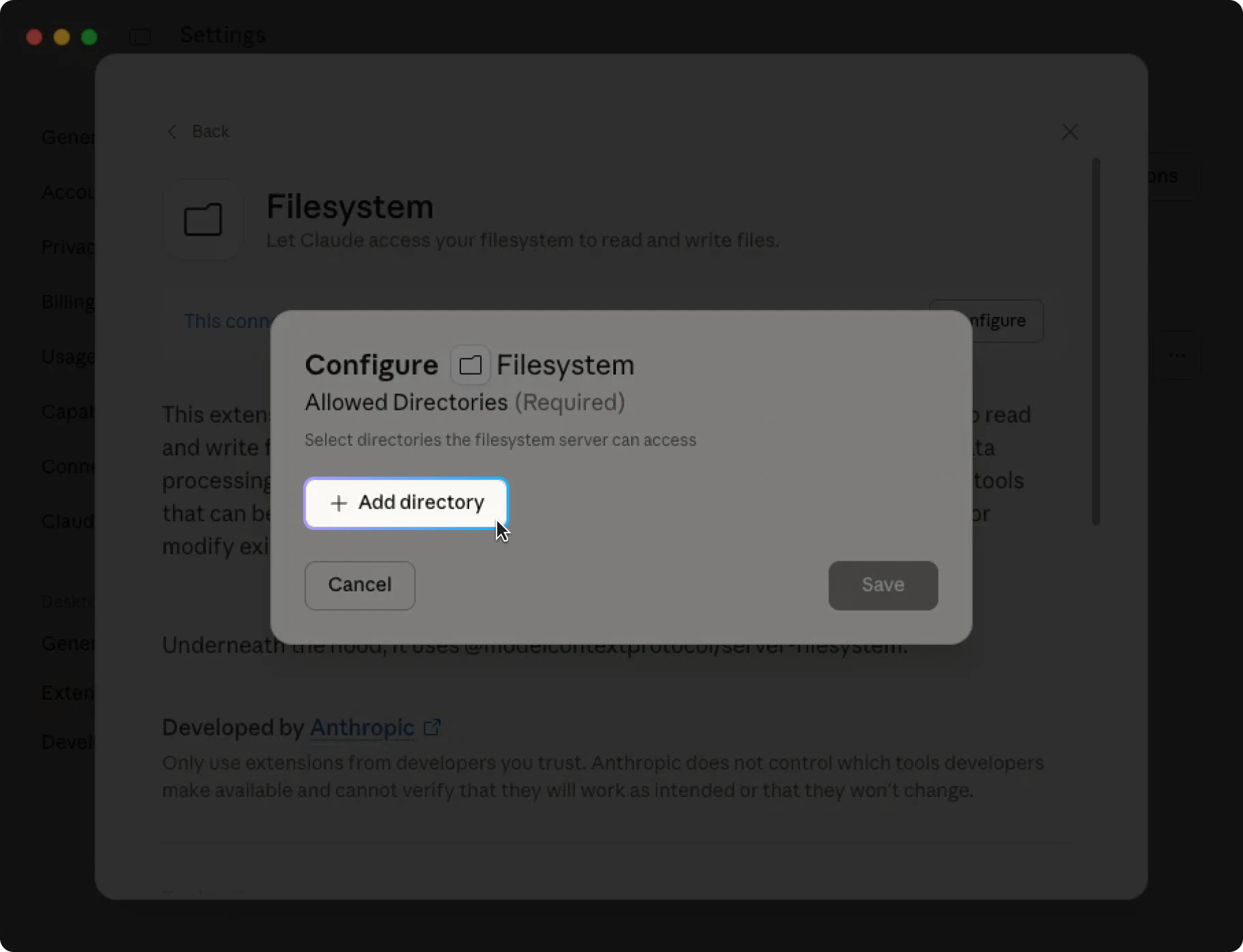
-
Click the
Savebutton to save the configuration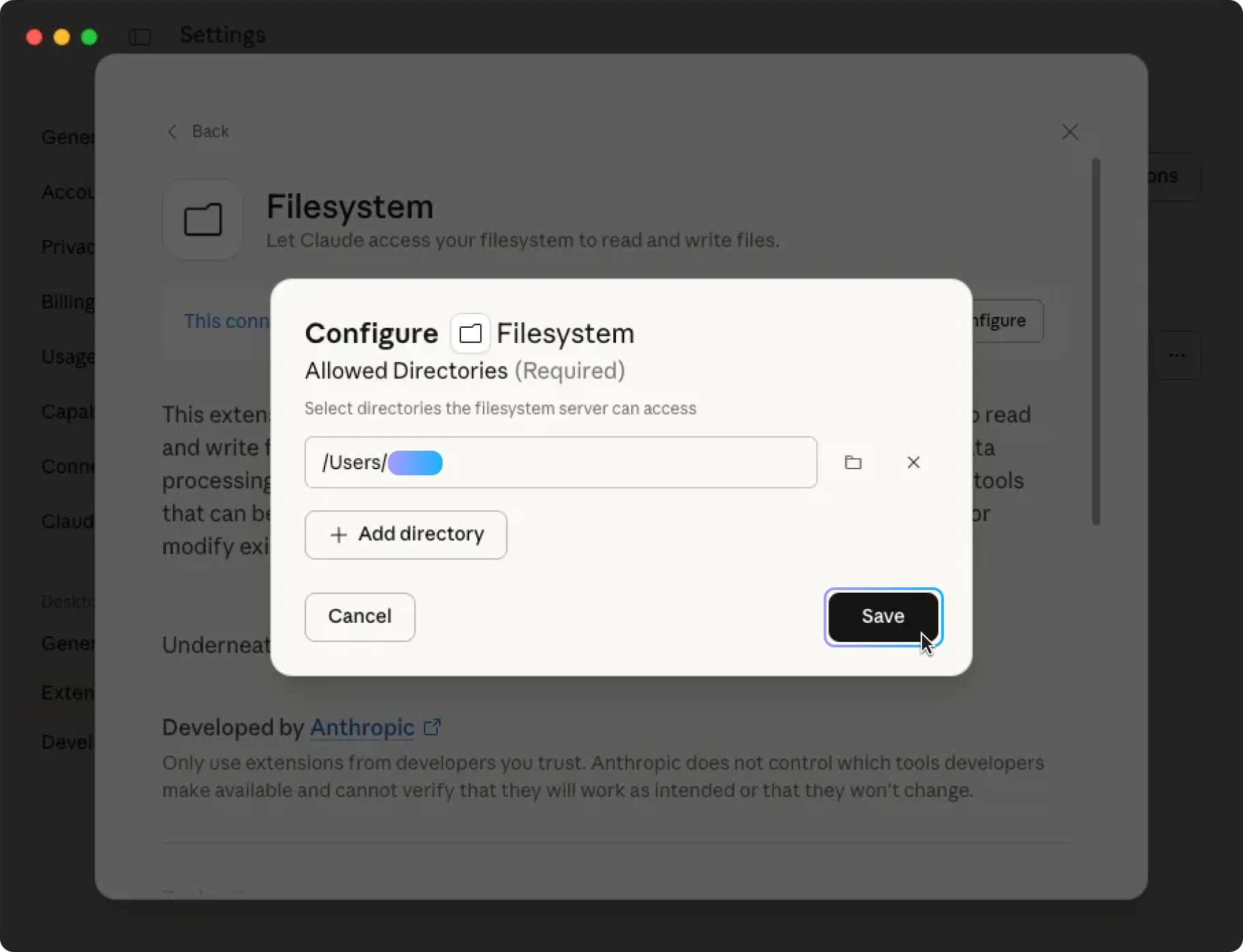
-
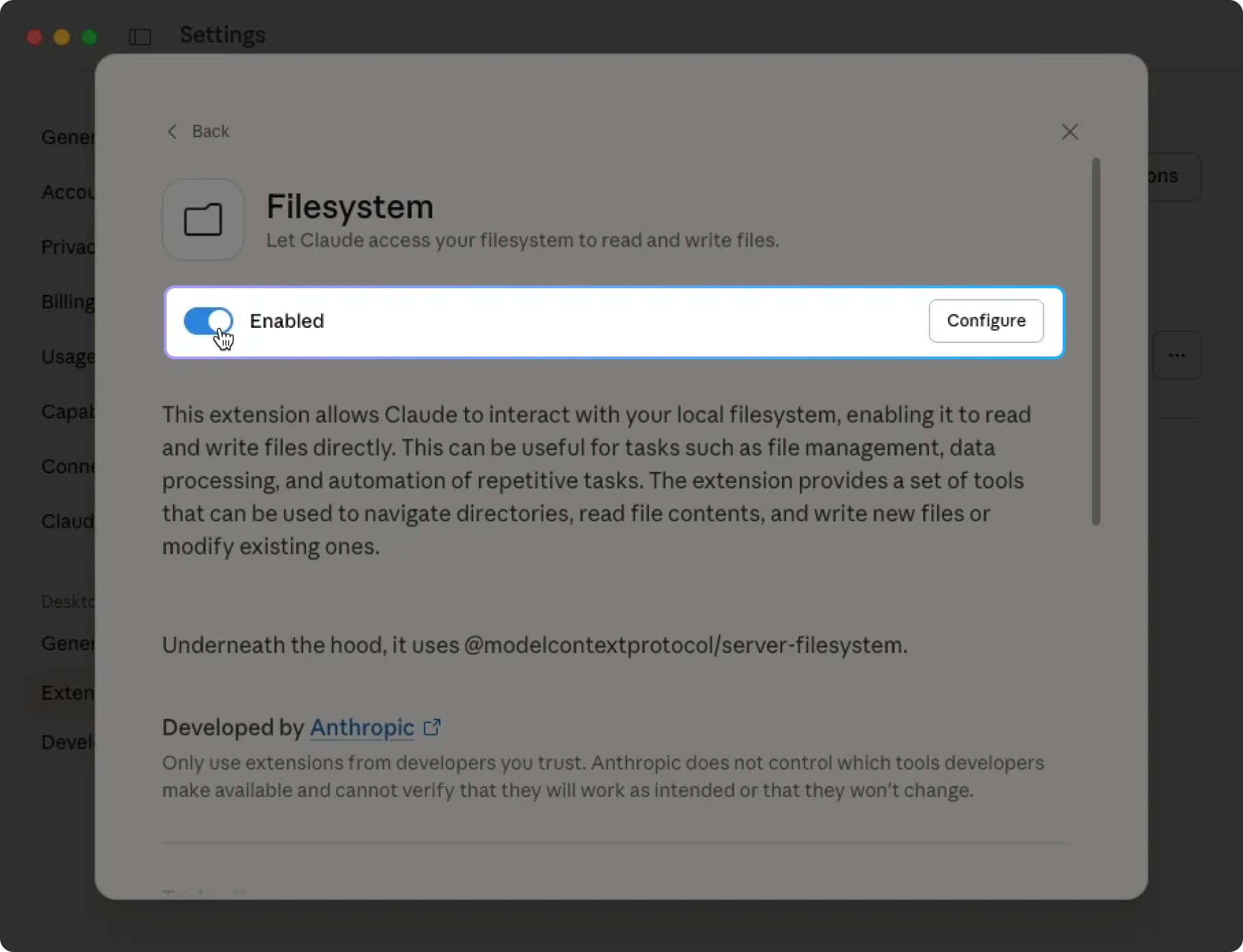
Click the toggle switch to enable the extension
-
Switch to the
Developeroption, then click theEdit Configbutton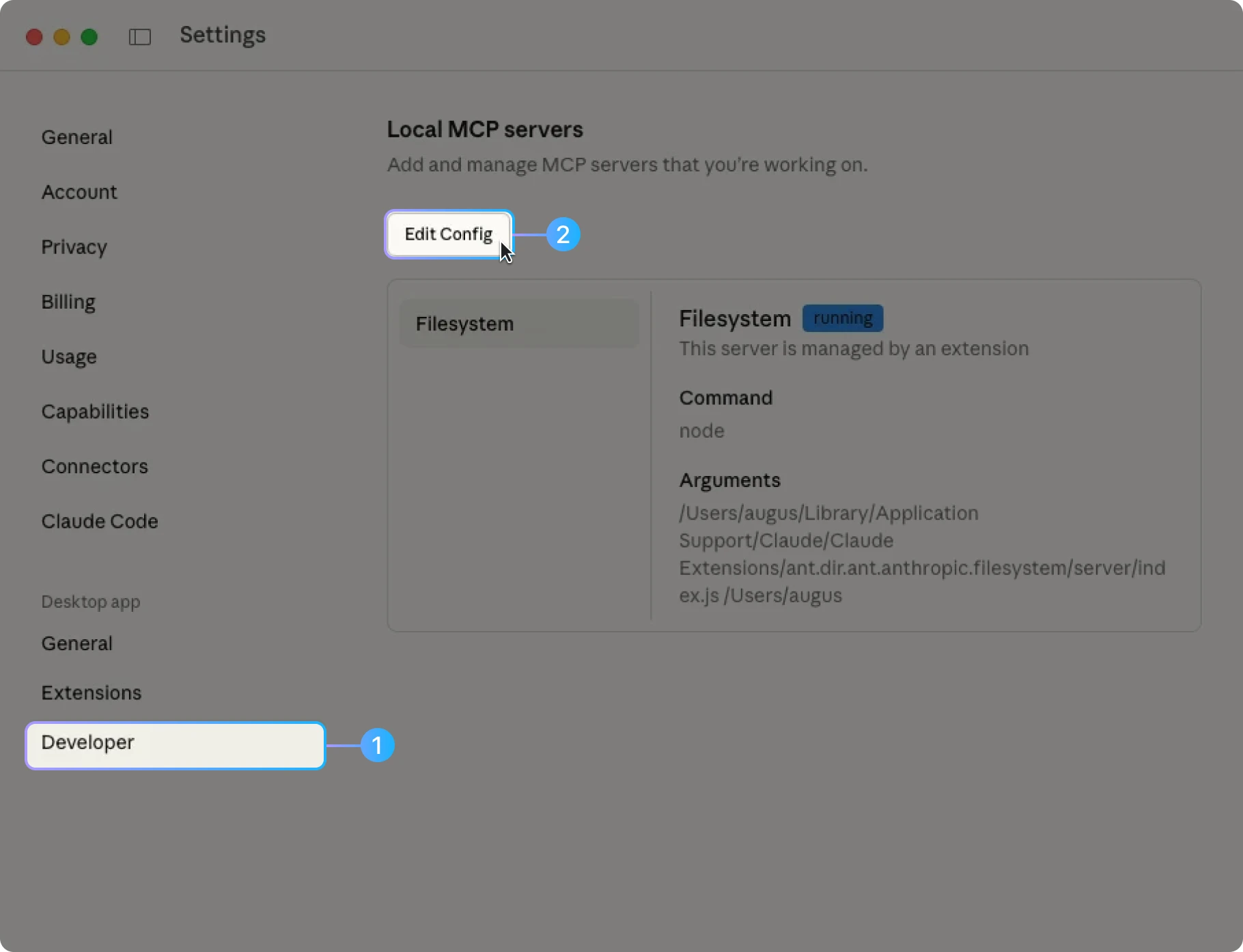
-
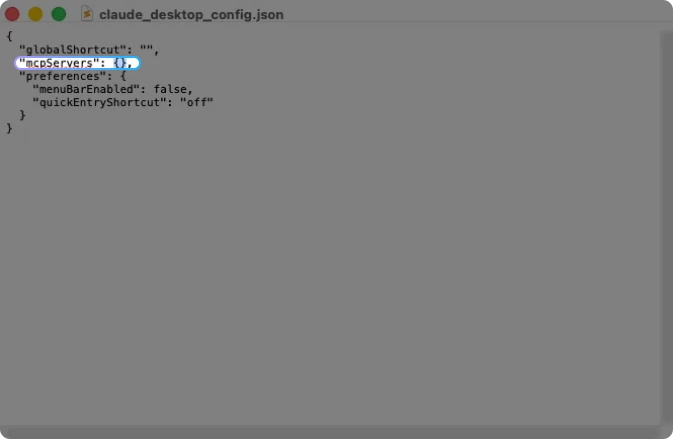
The system will open the
claude_desktop_config.jsonfile; you can also open it manually with any text editor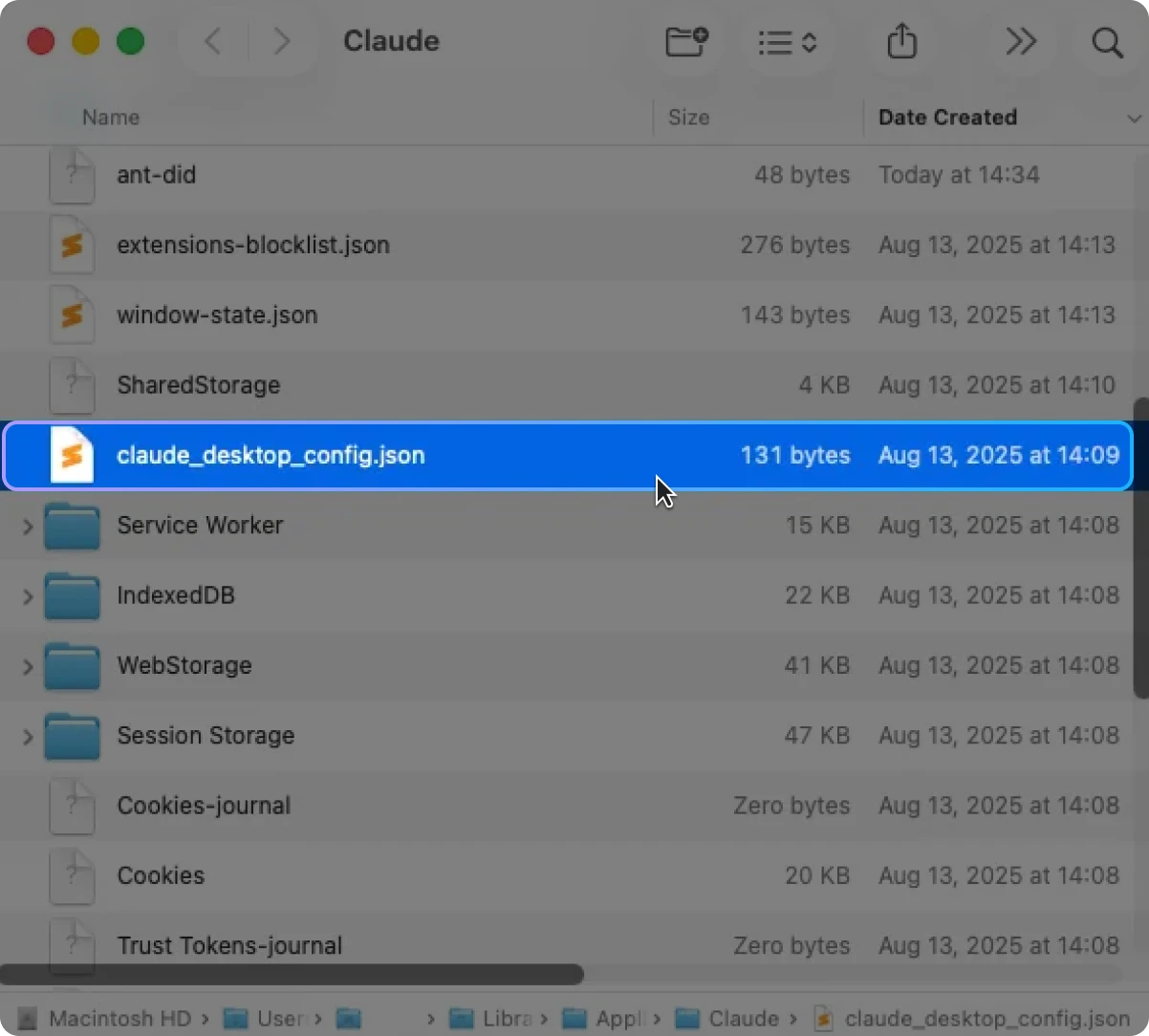
-
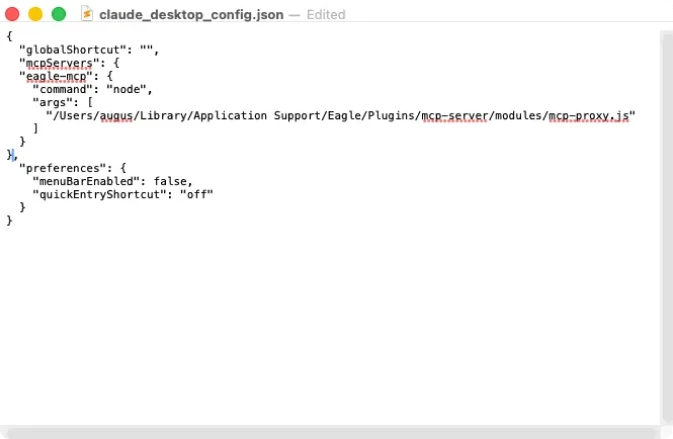
Go back to the Eagle MCP Server plugin page and click the
Copy stdio Configbutton on the right side of theSTDIOmode to copy the configuration content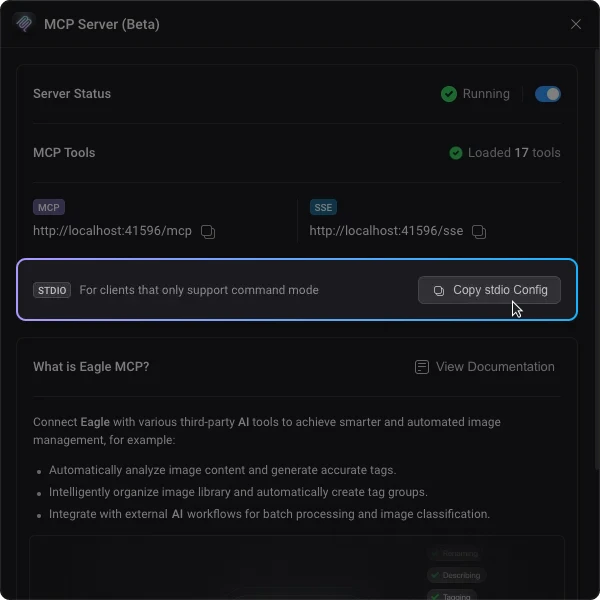
-
Go back to the text editor, place your cursor after
mcpServersand select the curly braces{}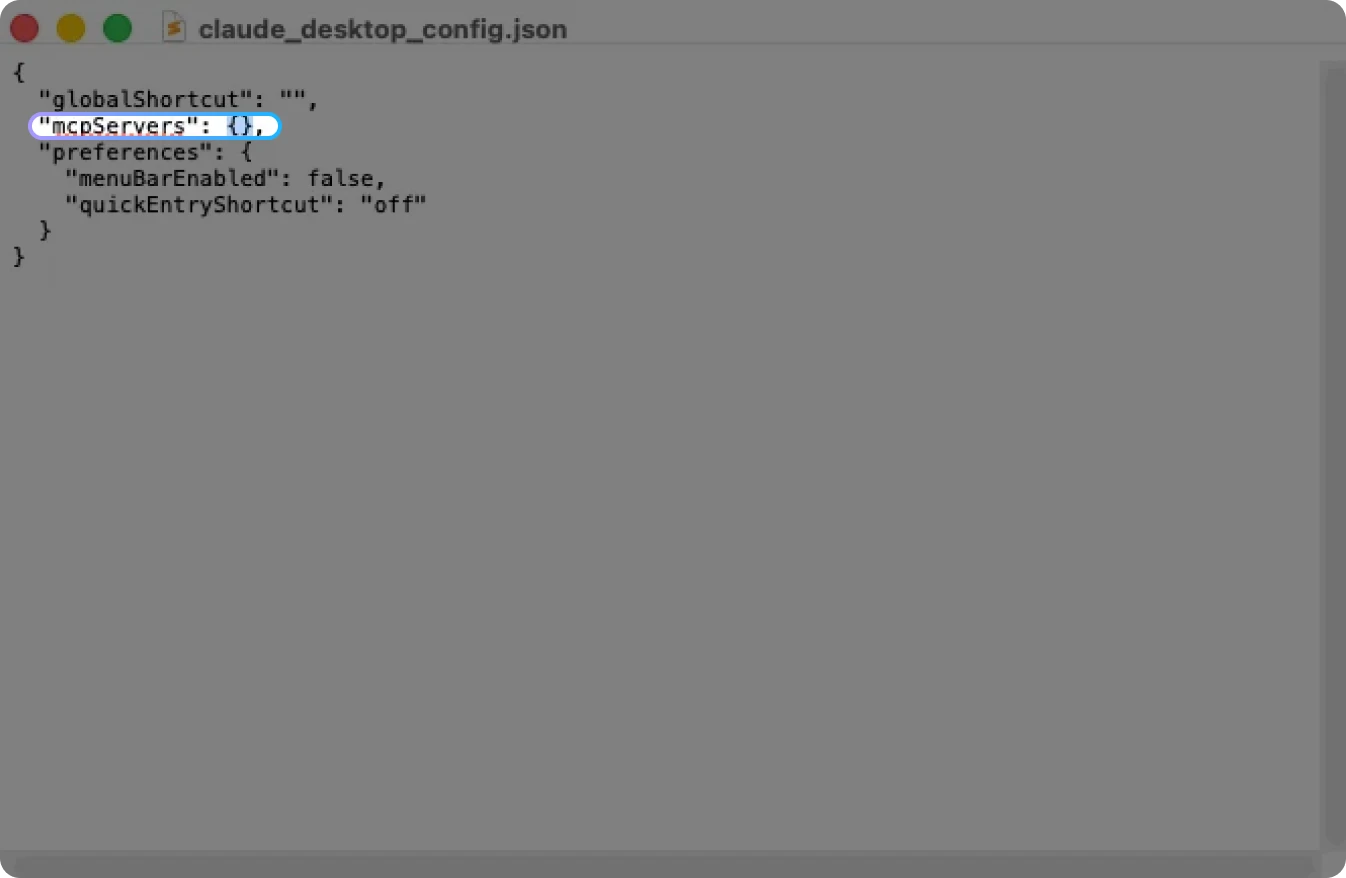
-
Paste the configuration content you just copied, then save the file
-
Completely close and restart Claude Desktop
-
Verify that
eagle-mcphas been successfully loaded and enabled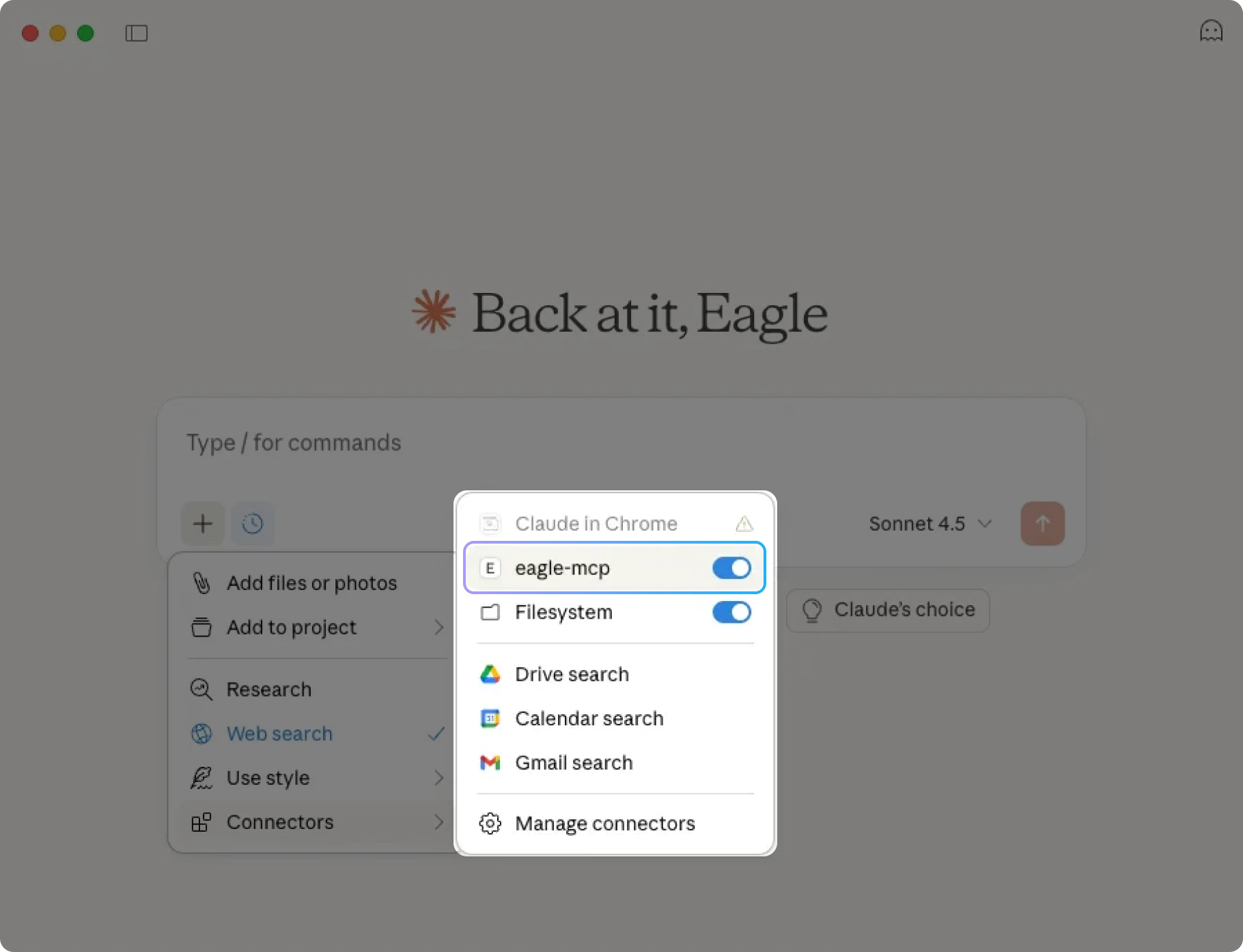
Privacy and Data Disclosure (Must Read)
When using Eagle MCP, whether your data “leaves your computer” primarily depends on whether you are using a cloud model or a local model:
If you use a cloud model (Cloud LLM)
During inference, information such as file names, tags, annotations, search criteria, and summaries may be sent to the model service provider to complete inference and generate responses.
Recommended practices:
- Avoid having the Agent directly batch-process highly sensitive materials (contracts, personal information, unreleased projects)
- Test with a small folder first; expand scope only after confirming the risk is acceptable
If you use a local model (Local LLM)
Data typically does not need to be sent to the cloud, so privacy risk is relatively lower; however, differences in quality, speed, and tool-call stability among local models can be more pronounced.
Additional note: The Eagle MCP server itself runs locally and is responsible for translating AI “instructions” into “controlled operations” within Eagle. Actual data transmission to external services typically occurs during the inference phase of your chosen model, not through MCP itself.
Permissions and Security Recommendations (Reducing Misoperation Risk)
Eagle MCP is very powerful, which also means it can “make many changes at once.” We recommend consistently following this SOP:
- Analyze first, execute later: Have the AI output suggestions and an “expected change list” first; execute only after confirmation
- Test on a small scale first: Start with a small number of files or a single folder, then gradually expand
- Break tasks into steps: Avoid organizing the entire library in one command; splitting into 2–5 steps is more controllable
- Clearly define scope: Specify folders, file counts, time ranges, or tag sets
- Start with read-only tasks: Such as version queries, statistics, or candidate lists; validate the workflow before performing batch modifications
Eagle MCP Practical Examples (Ready to Copy and Use)
We recommend prepending each example with “Please output the change list first; do not execute directly” to help build safe usage habits.
Example 1: Multilingual Tag Translation (Output List First)
Please scan the tags in the folder "/Japanese Assets",
find tags containing Japanese characters and translate them to English,
first output a "Japanese Tag → English Tag" comparison list with the number of affected files,
and wait for my confirmation before batch-adding the English tags.
Example 2: Tag Usage Frequency Analysis and Cleanup Suggestions (Read-Only)
Please analyze my Eagle tag usage:
1) List tags used fewer than 3 times
2) Identify potentially synonymous or duplicate tag groups (including spelling errors)
3) Provide recommendations: which ones should be merged, which ones should be retired
Output the report first; do not make any changes.
Example 3: Classification Suggestions for Newly Imported Files (Suggest First, Then Move)
Please analyze my 10 most recently added files,
based on file types and existing folder structure,
first output a "Suggested classification path + Suggested tags" list,
and annotate each suggestion with a confidence score or reasoning.
Wait for my confirmation before executing moves and applying tags.
Example 4: Content Analysis and Complete Archiving Suggestions for a Single File (Analyze First)
Please output the change list first; do not execute directly.

Please analyze the file I currently have selected and complete the following analysis in order:
1) Read the file's full path and filename
2) Analyze the image content and generate a search-friendly description (objective and specific)
3) Suggest a set of tags (avoid overly abstract terms; prefer reusable keywords)
4) Based on my existing folder structure, suggest the most appropriate classification path (single path)

Please output as a checklist:
- Filename
- Suggested description
- Suggested tags (list)
- Suggested folder path
- Reasoning or confidence explanation for each suggestion

Wait for my confirmation before executing the actual description write, tag application, and file move.
Example 5: Domain-Specific Folder Structure Design for a Blank Library (Output Structure Only)
Please output the structure suggestion first; do not create any folders.

This is a brand new, empty Eagle library,
and I plan to use it specifically for organizing "Game Design" inspiration images.

Please help me design a folder classification structure with the following requirements:
1) Approximately 5 "top-level categories"
2) Each top-level category should contain 5–10 "subcategories"
3) For each top-level category, please provide:
   - Folder purpose description
   - Suggested icon type
   - Icon color (for visual distinction; avoid repeating colors across categories)

Output format should include:
- Top-level category name
  - Purpose description
  - Icon suggestion (shape / type)
  - Icon color
  - Subcategory list (with brief descriptions)

The overall design should lean toward "practical, long-term scalable, and future-proof."
Wait for my confirmation of the overall structure before actually creating the folders.
FAQ (Troubleshooting)
Q1: Cannot connect or no response after MCP configuration
- Confirm that Eagle is running and the Eagle MCP plugin shows ✅ Started
- Confirm the endpoint address is correct: http://localhost:41596/mcp
- Confirm that
mcp.jsonis valid JSON (even a missing comma can prevent it from being read)
Q2: Can see eagle-mcp but the Agent does not call tools
- Try disabling and re-enabling eagle-mcp
- Test with read-only questions first (version, statistics, candidate lists)
- Confirm that the MCP Server has not been disabled in Cursor's tools/permissions settings
- Some models do not automatically decide to call tools; you can explicitly add: “Please use eagle-mcp to query”
Q3: Results look abnormal or incorrect
- Ask for the “change list” and “impact scope” first; avoid applying changes directly
- Break tasks into smaller steps, narrow the folder scope, and reduce the number of files processed at once
Q4: MCP mode consumes too many tokens. Is there a more efficient option?
- MCP mode loads all tool definitions into the context window, which can result in high token consumption when there are many tools
- If your AI tool supports Skills (such as Claude Code, OpenClaw, Gemini CLI, Codex, Google Anti-Gravity, etc.), you can switch to Eagle Skill mode
- Skill mode only loads a brief Skill description, with detailed tool reference files loaded on demand, significantly reducing token consumption
- Both modes can be installed simultaneously without conflict