Eagle supports tags to organize your design files. If you need to use certain tags from time to time, setting shortcut keys for these tags would be a way to boost productivity! Now, you can create a tag shortcut key through Eagle's 'Action' function.
'Action' is a function that can help you quickly execute a series of tasks and set task shortcuts, which can improve the efficiency of organizing files and enhance your workflow. See "Action" for more information.
How to Create a Tag Shortcut?
- Click the "Thunder" icon on the toolbar or use the shortcut key (G) to open the 'Action' panel.

- Click 'Create Action' to add an 'Action'.
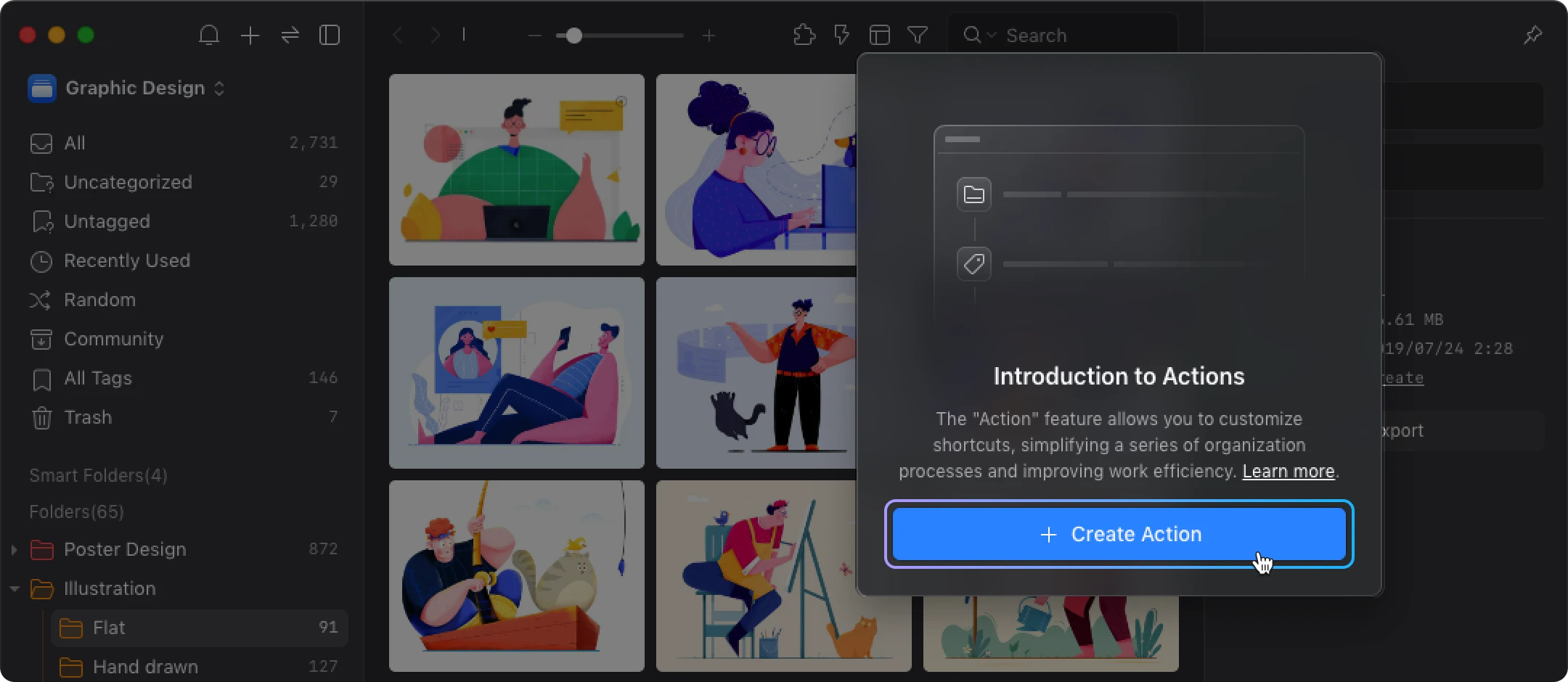
- Set the "Action" name.
- Set tags according to your needs into one "Action".
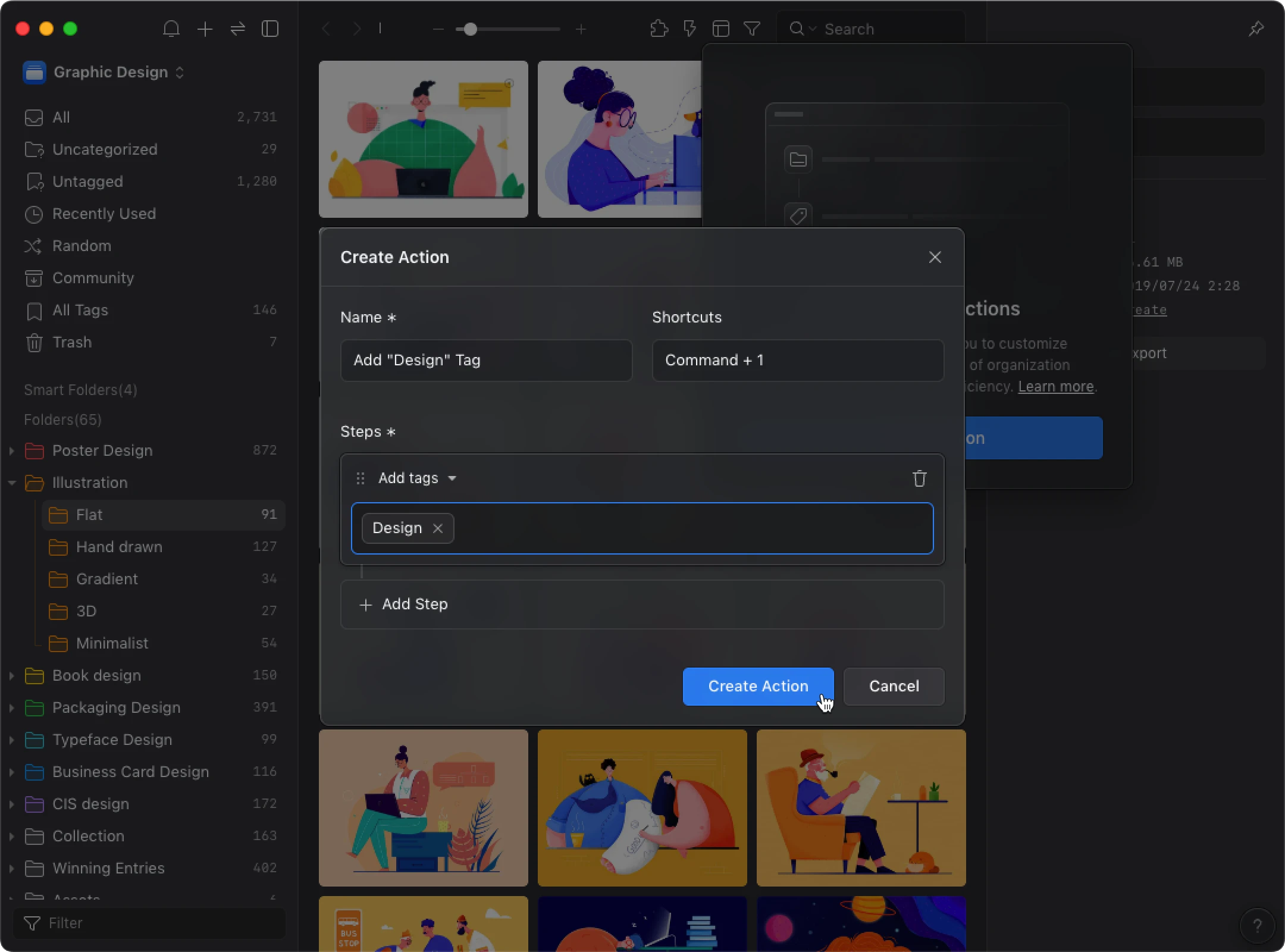
- Set a shortcut key for "Action", for example, ⌘ / Ctrl +1, then click "Create Action" to complete.
How to use Tag Shortcut?
- Select the files you want to process for Tag Shortcut.

- Use the preset tag shortcut keys to complete.