
Besides using mouse hover for magnified preview, in Eagle's file list, you can select a file and press the spacebar for Quick Preview. If you want to customize other actions, refer to the following setup steps:
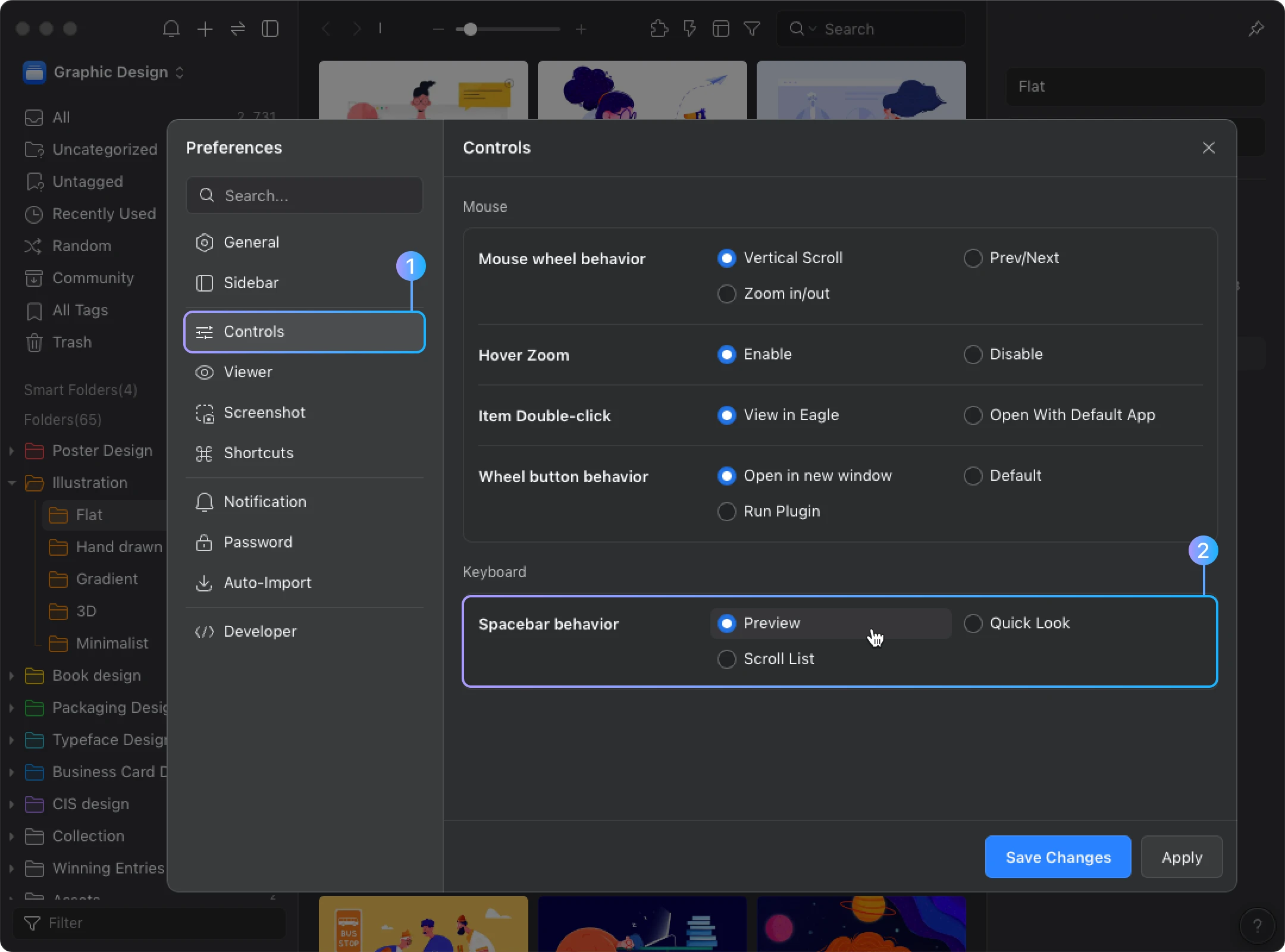
- Open Eagle's "Preferences" and select "Controls" on the left.
- Under the "Keyboard" section on the right, set the "Spacebar behavior" action to "Preview," "Quick Look," or "Scroll List."
- Apply and save the settings.
Note: The Quick Look feature is built-in on Mac computers, while Windows requires additional download and installation.