
This article will guide you through the activation process of Eagle software, helping you correctly enter the license key and complete activation.
Activation Steps
-
Open Eagle Software First, make sure you have installed Eagle software. If not yet installed, please download the latest version from the Eagle official website.
-
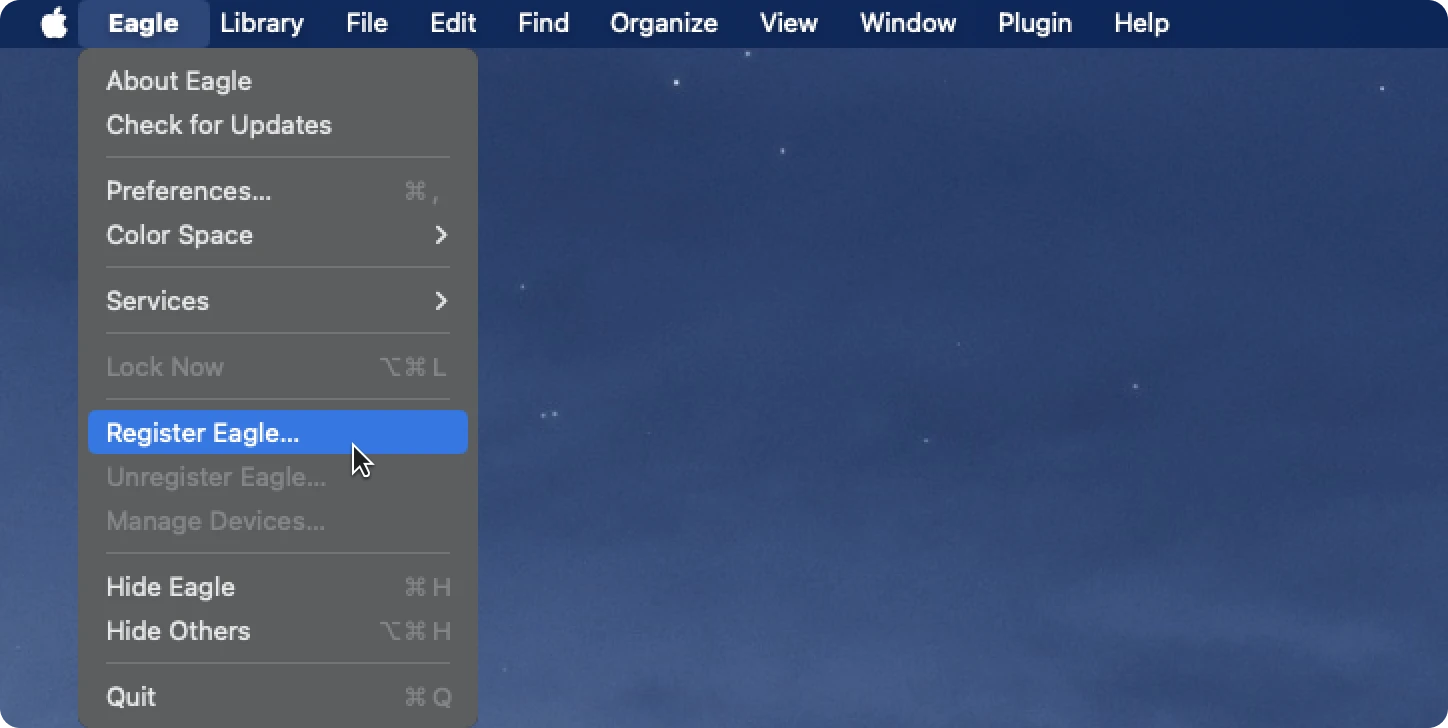
Enter Activation Interface After launching Eagle, find and click the "Software Menu" button in the upper left corner of the software interface, then select "Register Eagle..." option. The system will open an activation window.
-
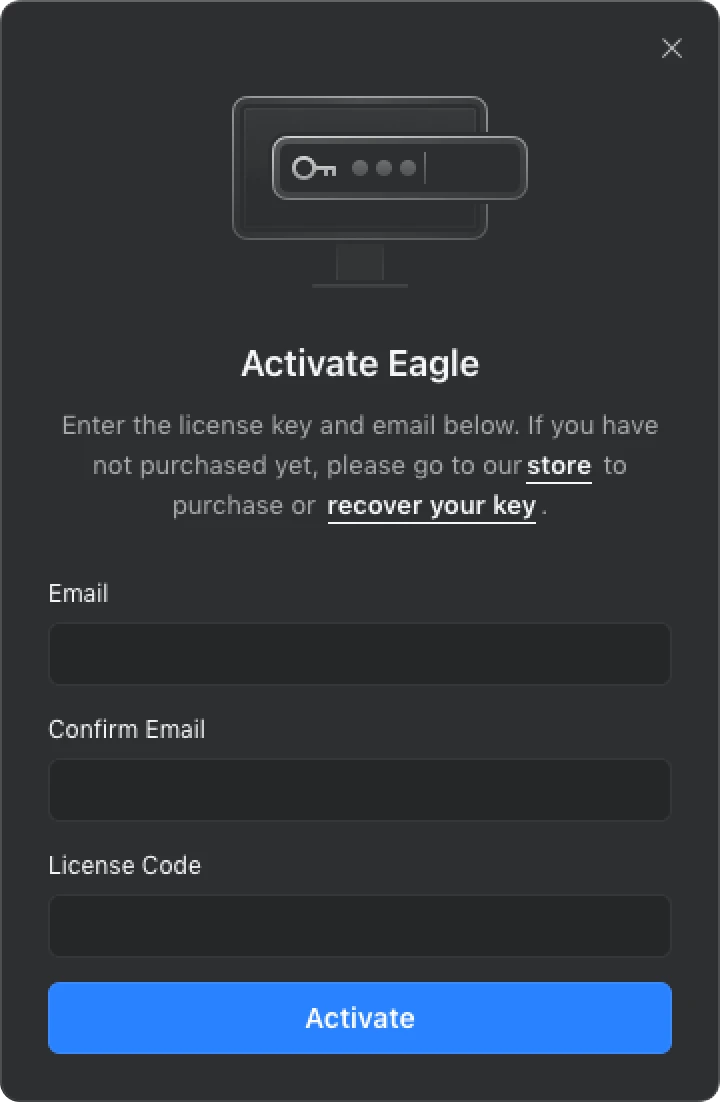
Enter License Key and Email Information In the activation window, fill in the "Eagle License Key" you received after purchase and the associated email address. Please ensure the information entered is accurate.
-
Complete Activation After filling in the information, click the "Activate Software" button to complete the activation process. Once activation is successful, you can use all features of Eagle.
Important Notes
- If you are using the trial version, you can also click the "Trial Days Remaining" icon in the lower right corner of the main interface and select "Activate Now" to quickly access the activation window.

- The activation process requires an internet connection for verification
- Please keep your license key information safe for future use when reinstalling and activating the software